






We’ve all been there: you put on your headset, jump into Discord with your squad, click “Play” on Valorant, and… nothing happens. Whether the game is silently freezing in the background or throwing vague errors, a game that won’t start is exceptionally frustrating.
Don’t worry; you don’t have to reinstall the game or format your PC. This guide walks you through the most practical fixes for Valorant crashing on PC, step by step.
Try these fixes:
You might not need to try all the fixes. Simply work down the list until you find the one that does the trick.
- Make sure your specs meet the minimum requirements
- Restart Riot Vanguard and related processes
- Run Valorant as administrator
- Check the Riot Vanguard Service (vgc)
- Clear corrupted game cache
- Update your graphics driver
- Temporarily disable the Nahimic service
- Lower in-game settings
- Update BIOS
Fix 1: Make sure your specs meet the minimum requirements
Though Valorant is by no means a graphically demanding shooter, gaming on a 10-year-old PC or a school laptop might not be a good idea. If Valorant crashes and you’re searching for a cure, first you need to make sure your rig meets the minimum requirements. Because if it doesn’t, then maybe it’s time for an upgrade.
Minimum requirements for Valorant (30 FPS):
| Operating System: | Windows 10 / 11 64-bit |
| Processor: | Intel Core 2 DUO E8400 / Athlon 200GE (AMD) |
| Memory: | 4 GB RAM |
| Graphics Card: | Intel HD 4000 / Radeon R5 200 |
If Valorant crashes on your powerful gaming PC, you can check out the next fix below.
Fix 2: Restart Riot Vanguard and related processes
Valorant relies on Riot Vanguard, Riot Games’ anti-cheat system. If Vanguard or another Riot process gets stuck or fails to initialize correctly, Valorant may not launch or may crash during startup.
- Close Valorant and the Riot Client.
- Press Ctrl + Shift + Esc to open Task Manager.
- If the VALORANT.exe, Riot Client, or related processes are still running, select them and click End task.
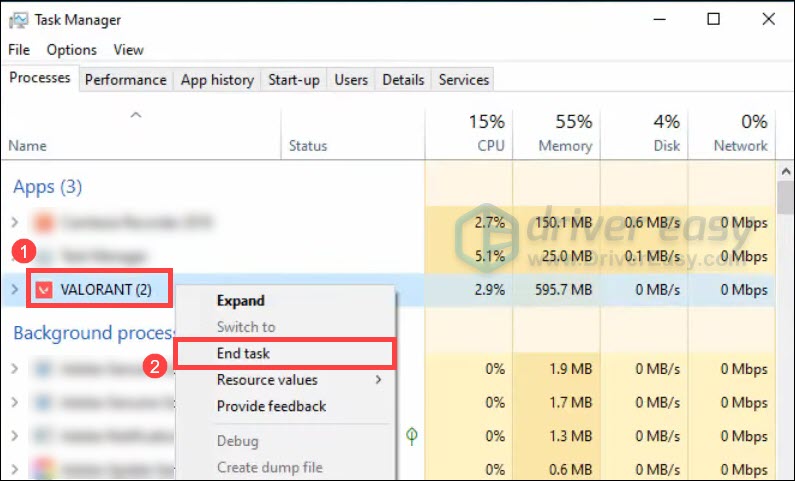
Open the Riot Client again to test. If Valorant still crashes after the restart, continue to the next fix.
Fix 3: Run Valorant as administrator
Windows normally launches applications with standard user permissions. If Windows prevents Vanguard or one of its components from accessing the files or services it needs, Valorant will refuse to launch.
- Right-click your VALORANT desktop shortcut and select Properties.
- Go to the Compatibility tab. Check the box for Run this program as an administrator and then click OK.
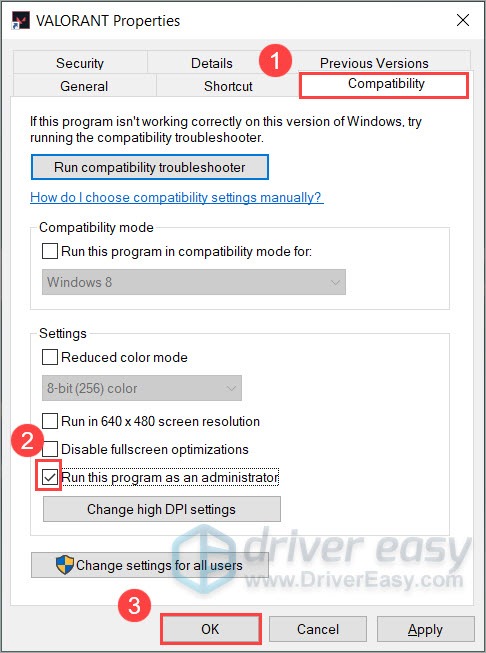
- Repeat the steps to run the Riot Client shortcut as administrator. You can usually find it at
C:\Riot Games\Riot Client\RiotClientServices.exe.
Fix 4: Check the Riot Vanguard Service (vgc)
Valorant relies entirely on a background Windows service called vgc. If Windows updates or security software stopped this service, Valorant will hang or throw VAN error codes upon boot. To check if the service is properly running:
- Restart your PC and launch Valorant.
- Press the Windows key + R on your keyboard to open the Run command. Type services.msc and press Enter.
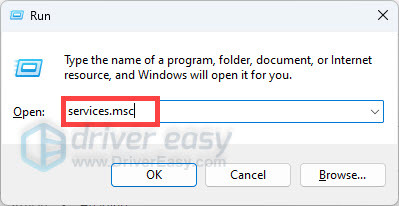
- Find vgc in the list.
- If the service isn’t running, right-click it and click Start.
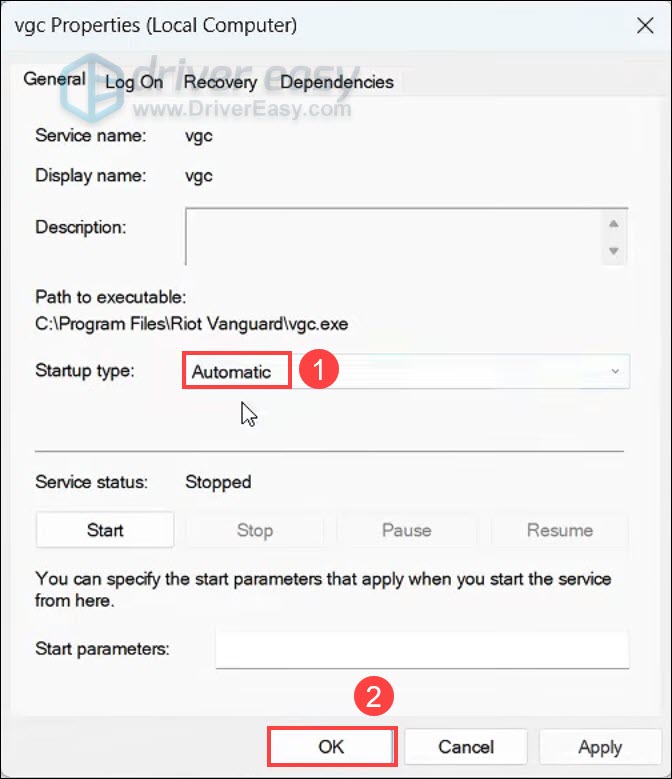
- Right-click the vgc service and click Properties.
- Select Automatic from the drop-down list next to Startup type. Then click OK.
Fix 5: Clear corrupted game cache
A corrupted local configuration file—often caused by an interrupted patch or sudden game crash—can lock you out with errors like This game is not available on your operating system. You can clear the cached settings to build clean configuration files.
- First, end all VALORANT tasks in Task Manager.
- Press the Windows key + R to open the Run box. Type %localappdata%\VALORANT\Saved and press Enter.
- Right-click the Config and Logs folders and select Delete. ( Your custom keybinds and crosshairs are saved on Riot’s servers, so you won’t lose them).
Launch Valorant through the Riot Client. The game will take a few extra seconds to recreate the cache and should take you directly to the home screen.
Fix 6: Update your graphics driver
Game crashes tend to be graphics-related. A faulty or outdated graphics driver is very likely the root cause of your Valorant crashing issue.
If you’re an avid gamer, you should always keep your graphics driver up to date, as the latest driver usually improves compatibility with new titles. Besides, if you spent grands on your gaming rig, surely you don’t want to stick to a graphics driver released a year ago.
And there’re mainly 2 ways you can update your graphics driver: manually or automatically.
Option 1: Update your graphics driver manually
To manually update your graphics driver, first visit your graphics card manufacturer’s website. And here’re the driver download pages of three major product lines:
When you get to the driver download page, search for your graphics card model and download the driver installer. Choose only the latest one that’s compatible with your operating system.
Option 2: Update your graphics driver automatically (Recommended)
If you don’t have the time, patience or computer skills to update your graphics drivers manually, you can, instead, do it automatically with Driver Easy. Driver Easy will automatically recognize your system and find the correct drivers for your exact graphics card, and your Windows version, and it will download and install them correctly:
- Download and install Driver Easy.
- Run Driver Easy and click the Scan Now button. Driver Easy will then scan your computer and detect any problem drivers.

- Click Activate & Update next to your GPU to update its driver or click Update All to automatically download and install the correct version of all the drivers that are missing or out of date on your system.
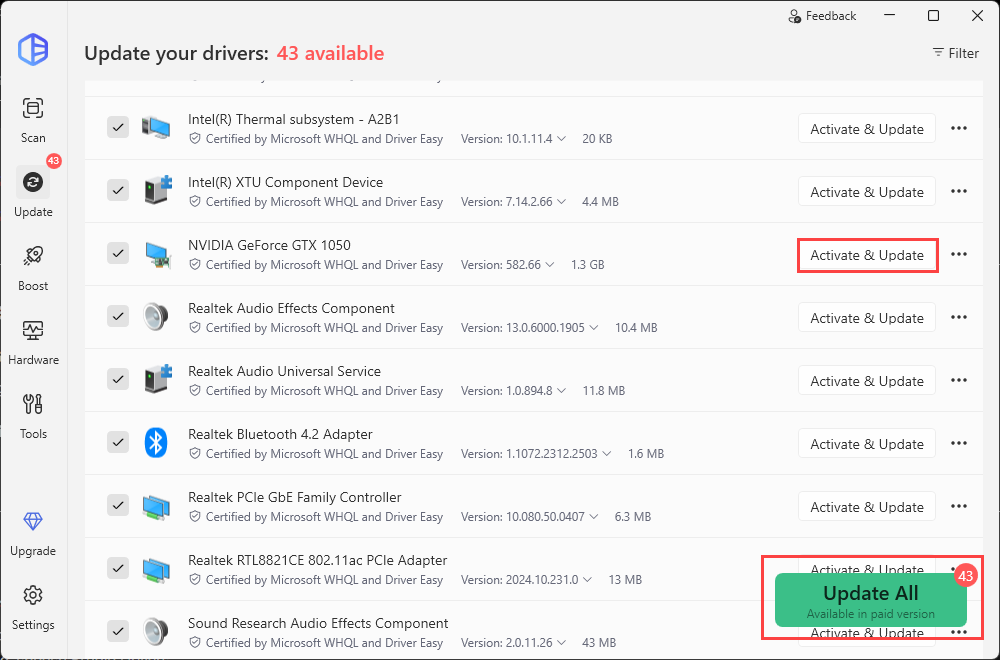
(You can upgrade to the Pro version right now with a discount, or activate a 7-day free trial. Both options allow you to update and manage your drivers easily in one place. You won’t be charged before your 7-day trial ends, and you can easily cancel any time during the trial period.) - After updating your graphics driver, restart your PC for it to take full effect.
You can now launch Valorant and see if it crashes again.
If the problem is still there, don’t worry. Maybe the next fix will do the trick for you.
Fix 7: Temporarily disable the Nahimic service
Nahimic is an audio-enhancement component included with some gaming PCs and laptops. In certain configurations, its service can conflict with games or other software.
If your system has Nahimic installed, temporarily stop the service.
- Press the Windows key + R.
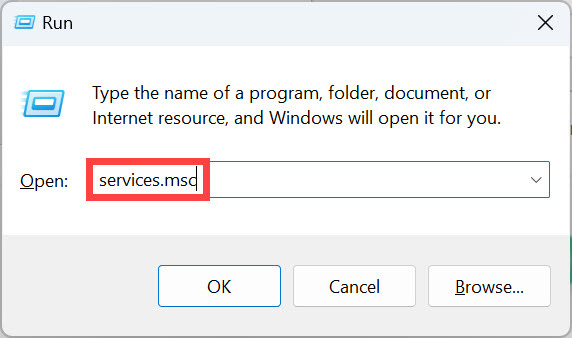
- Type services.msc and press Enter.
- Look for the Nahimic service, NahimicService, or a similarly named Nahimic service. Right-click the service and select Stop.
See if Valorant can launch and run smoothly. If this resolves the problem, you can leave the service stopped while gaming or try to update the Nahimic software.
Fix 8: Lower in-game settings
Improper game settings might cause your graphics card or CPU to overload and end up crashing your game. Lowering in-game settings can usually resolve many performance and graphics issues.
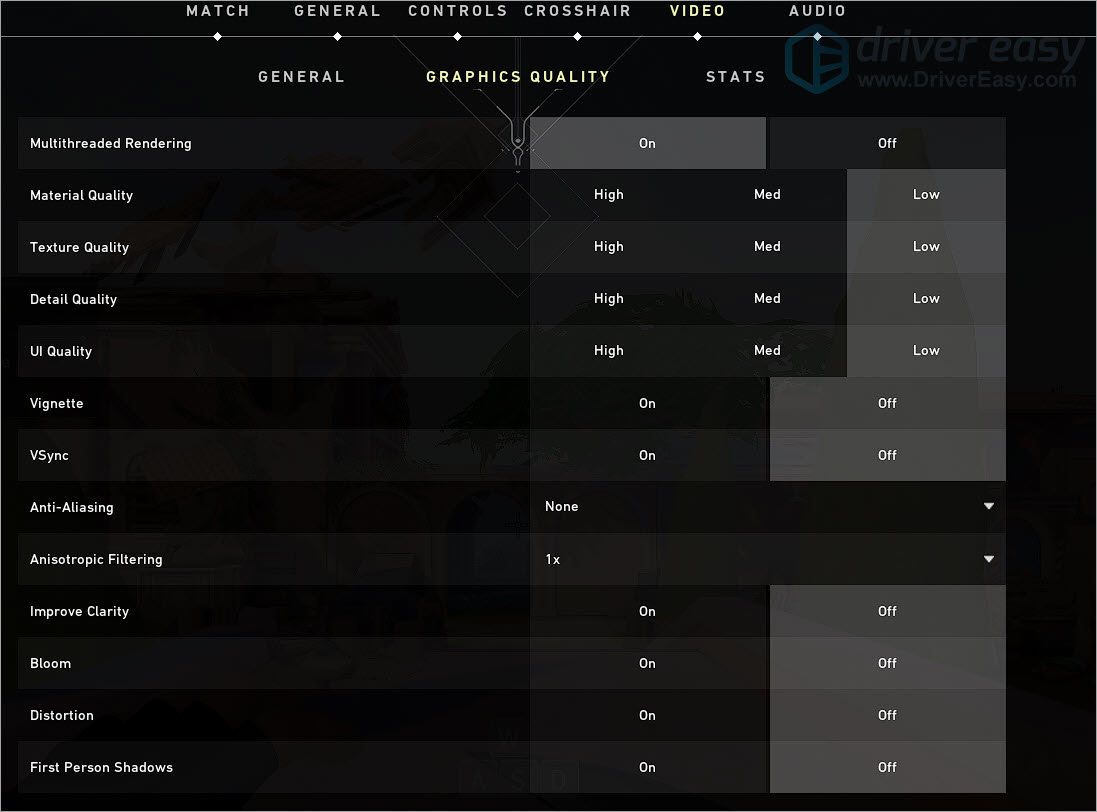
To do so, launch Valorant and go to Settings > Video > GRAPHICS QUALITY. Change your settings according to the screenshot below. Then you can join a match and see if it crashes again.
If lowering graphics settings doesn’t help your case, you can give the next fix a shot.
Fix 9: Update BIOS
If Valorant keeps crashing even after you’ve updated your graphics driver, reinstalled Vanguard, and reinstalled the game, an outdated or incompatible BIOS may be worth checking.
This isn’t a common fix for every Valorant crash, but some players have reported that updating the BIOS resolved persistent crashes, freezes, or unexpected restarts—particularly when the game caused the entire PC to freeze or reboot rather than simply closing to the desktop.
A BIOS update can improve compatibility between your motherboard, CPU, memory, and other hardware. It may also address firmware-level stability issues that aren’t fixed by reinstalling Windows software or game files.
To update the BIOS, you can follow our guide: How To Update BIOS On Windows 11/10 Step-By-Step.
So these are the fixes for your Valorant crashing issue. Hopefully, your game is now running with zero problems. If you have any questions or ideas, please don’t hesitate to drop a comment.
