






Your Windows 11 PC keeps showing Preparing Automatic Repair or Diagnosing your PC, then ends with Automatic Repair couldn’t repair your PC and a log path such as C:\Recovery\WindowsRE\Winre.wim\System32\Logfiles\Srt\SrTrail.txt or C:\Windows\System32\LogFiles\Srt\SrtTrail.txt.
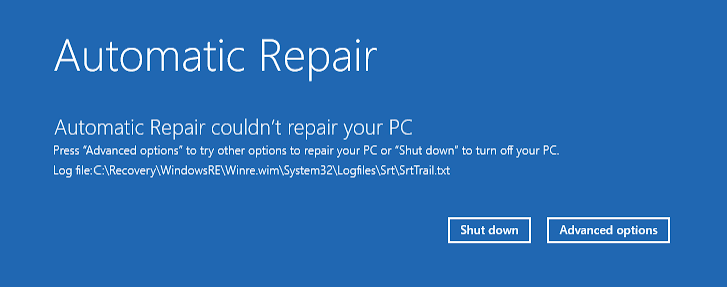
Don’t panic. Srttrail.txt is a Startup Repair log file, not the cause of the problem. Windows creates it when Startup Repair runs and records the startup checks and repair attempts there. In this guide, we’ll show you how to fix this issue safely and quickly.
What is the srttrail.txt error?
The srttrail.txt error usually appears when Windows fails to start normally, launches Startup Repair, and then cannot automatically resolve the startup problem.
The log is normally located at C:\Recovery\WindowsRE\Winre.wim\System32\Logfiles\Srt\SrTrail.txt or C:\Windows\System32\LogFiles\Srt\SrtTrail.txt. However, the drive letter shown in WinRE may be different from the normal Windows drive letter. You might see D:, E:, or another letter instead.
The important point is that srttrail.txt is a diagnostic log, not a virus and not necessarily a corrupted file. Startup Repair creates the log while attempting to diagnose startup failures.
Before getting started: Back up your files
The first three fixes below normally do not erase your personal files. But if your files are important and you can back them up now, it’s still better to do so before attempting any repair. If Fix 1 – 4 don’t work and you need to move on to Fix 5 – Reinstall Windows, a backup is essential.
- From the Automatic Repair screen, select Advanced options > Troubleshoot > Advanced options > Command Prompt.
- Connect an external USB drive with enough free space.
- First, determine which drive contains your Windows installation. In the command prompt, enter
dir C:\Windowsand press Enter.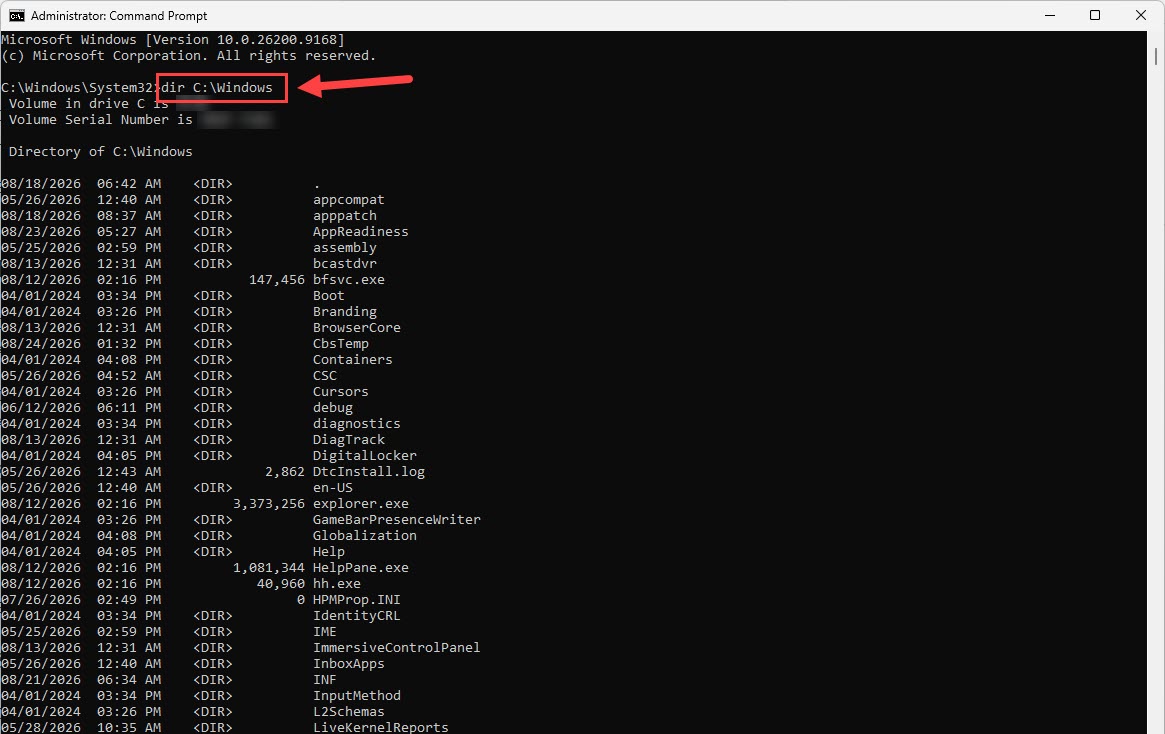
- If you see folders such as System32, SystemApps, and WinSxS, you’ve found the Windows partition. If Windows isn’t on C, enter
dir D:\Windowsand press Enter. Then try E, F, and so on until you find the correct Windows installation. - Type in
diskpartand press Enter.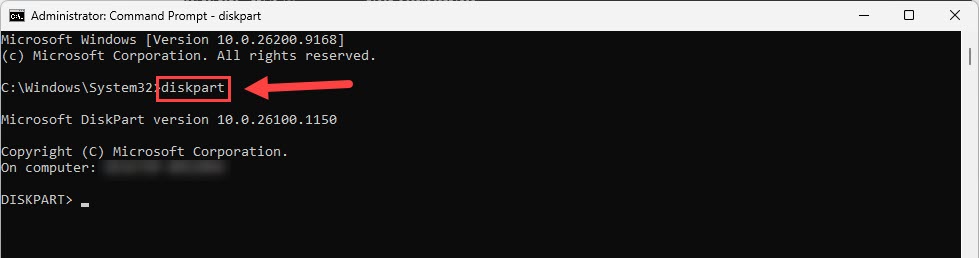
- Then, type in
list volumeand press Enter. Look for the USB drive by its size or volume label.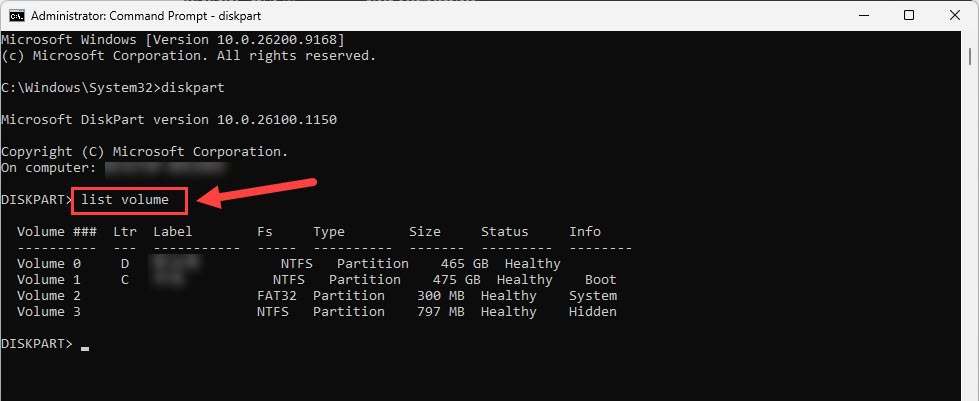
- Type exit and press Enter.
- Copy your user files to the external drive. For example, if Windows is on C and your backup drive is E, enter this prompt:
robocopy C:\Users E:\Backup\Users /E /R:1 /W:1and press Enter.
You’ll get a summary when the copy finishes. Check the FAILED count and make sure your important files are present on the external drive. Open the external drive on another PC, if possible, and verify that your important documents, pictures, and other files are actually there.
Open the external drive on another PC, if possible, and verify that your important documents, pictures, and other files are actually there.
How to enter Windows Recovery Environment (WinRE)
You’ll need Windows Recovery Environment (WinRE) for several fixes in this guide.
If your PC is already showing Preparing Automatic Repair, Diagnosing your PC, or Automatic Repair couldn’t repair your PC, you should already be in WinRE.
If not, you can enter it this way: 1) turn on your PC; 2) when you see the manufacturer logo or Windows logo, press and hold the Power button for about 10 seconds until the PC shuts down; 3) turn the PC on again and repeat the forced shutdown three times. On the next startup, Windows should detect the repeated startup failures and enter Automatic Repair or WinRE.
5 ways to fix the srttrail.txt error on Windows 11
Work through the fixes in order. You don’t need to try every method if Windows starts normally.
- Uninstall the latest Windows Update
- Repair corrupted system files, disk errors, and boot data
- Rebuild the Windows boot files
- Check the SSD and RAM for hardware problems
- Reinstall Windows
Fix 1: Uninstall the latest Windows Update
If the Srttrail.txt error started immediately after Windows installed an update, try removing the latest update first. This is one of the least invasive recovery options and is especially worth trying when the timing clearly points to Windows Update.
- From the automatic repair screen, select Troubleshoot > Advanced options > Uninstall Updates.
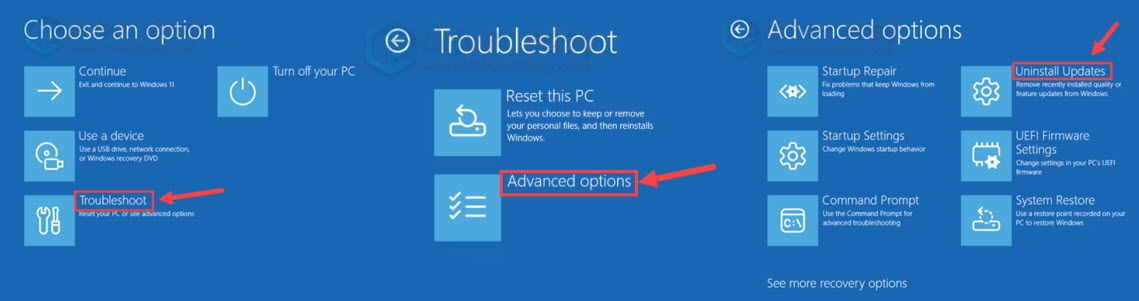
- Follow the on-screen instructions.
- Restart the PC.
If the problem began after a major feature upgrade rather than a monthly quality update, you may see a separate option for uninstalling the latest feature update.
Restart the PC normally. If Windows still enters the srttrail.txt loop, continue to Fix 2.
Fix 2: Repair corrupted system files, disk errors, and boot data
If uninstalling a recent Windows update didn’t fix the srttrail.txt error, the next step is to check whether corrupted system files, file-system errors, or damaged boot data are preventing Windows from starting.
Try running CHKDSK, SFC, and BOOTREC. You don’t necessarily need all three: run them in the order below, restart after a successful repair, and continue to the next step only if Windows still won’t boot.
Step 1: Find your Windows drive letter
- From WinRE, select Troubleshoot > Advanced options > Command Prompt.
- Type
dir C:\Windowsand press Enter. If you don’t see folders such as System32, WinSxS, and SystemApps, trydir D:\Windows. Then try E, F, and so on until you find the Windows installation.
For the examples below, we’ll assume Windows is installed on C. Replace C with your actual Windows drive letter.
Step 2: Check the file system with CHKDSK
In the Command Prompt, enter this command: chkdsk C: /f and press Enter.
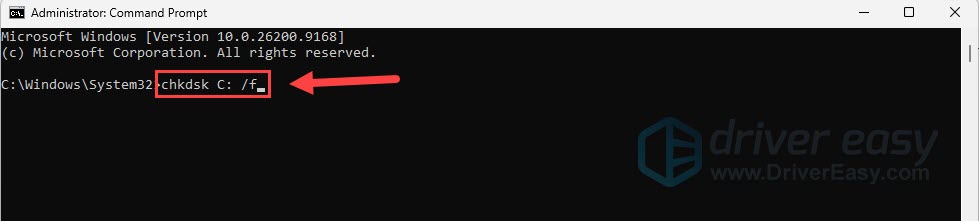
The scan may take some time, particularly on a large or problematic drive. Let it finish rather than interrupting it.
Read the final CHKDSK summary. If it reports that errors were found and repaired, restart the PC and check whether Windows boots normally.
If Windows still returns to Automatic Repair, continue to SFC.
Step 3: Repair Windows system files with SFC
Because Windows isn’t currently running normally, use the offline version of SFC.
If Windows is installed on C, run sfc /scannow /offbootdir=C:\ /offwindir=C:\Windows in the command prompt and press Enter. Wait for the scan to finish. If SFC reports that it found and successfully repaired corrupted files, restart the PC and test Windows.

If SFC reports that it could not repair some files, or Windows still returns to Automatic Repair, continue to the next step.
Step 4: Repair certain boot problems with BOOTREC
If the startup code or BCD may be damaged, BOOTREC can repair certain boot-related problems.
In the command prompt, enter the following commands one at a time and press Enter after each command.
bootrec /fixmbrbootrec /scanosbootrec /rebuildbcd
If BOOTREC finds a Windows installation and asks whether you want to add it to the boot list, type Y and press Enter.
Close Command Prompt and select Continue to start Windows. If your computer still won’t boot, continue to Fix 3.
Fix 3: Rebuild the Windows boot files
If Startup Repair cannot repair the PC, rebuilding the boot environment is a reasonable next step.
- In the WinRE, click Troubleshoot > Advanced options > Command Prompt
- Type
diskpartand press Enter. - Type
list volumeand press Enter.
On a typical UEFI/GPT Windows 11 installation, look for a small FAT32 volume. This is usually the EFI System Partition (ESP). It is normally much smaller than the Windows partition. - Select the EFI partition. Type select volume 2 and press Enter. Replace 2 with the actual volume number shown on your PC.
- Type
assign letter=Sand press Enter. - Type
exitand press Enter. - Then rebuild the boot files. For example, if your Windows installation is on C, enter this command
bcdboot C:\Windows /s S: /f UEFI.
BCDBoot uses the Windows directory as the source and copies the required boot-environment files to the specified system partition. - Close Command Prompt and select Continue or restart the PC.
If Windows reaches the sign-in screen or desktop instead of returning to Automatic Repair, the boot configuration was likely the problem.
💡 If BCDBoot reports that it cannot find the path, with errors like Failure when attempting to copy boot files, The system cannot find the path specified, double-check the Windows drive letter. In WinRE, Windows may be D: or E: rather than C:.
Fix 4: Check the SSD and RAM for hardware problems
If Windows starts after repair but the Srttrail.txt error repeatedly returns, don’t keep rebuilding the boot files. Recurring startup corruption can indicate a problem with the storage drive, memory, firmware, or another component.
Check the SSD or HDD
If Windows can boot, use a SMART-monitoring tool to check the drive’s health.
Pay attention to warnings such as caution, bad, increasing reallocated or uncorrectable sectors, or other SMART attributes indicating drive degradation. If the drive reports serious health problems, back up your data and consider replacing it.
Test your RAM
Unstable RAM can cause system corruption and unpredictable crashes. You can use a bootable memory diagnostic to test the installed memory.
If you recently enabled XMP/EXPO, increased memory frequency, or changed memory timings, temporarily return the memory to its default settings in UEFI/BIOS.
Let the memory test complete multiple passes. Any reported memory errors are significant and should be investigated before assuming Windows is the problem.
Check the BIOS/UEFI
If the issue began after a BIOS change, hardware upgrade, or firmware update, load the motherboard’s default settings and test again.
Only consider a BIOS update if the manufacturer specifically recommends it for your hardware or the release notes address a relevant stability or compatibility issue.
If the srttrail.txt loop persists, try the next fix.
Fix 5: Reinstall Windows
If Startup Repair, update removal, boot-file repair, and hardware checks haven’t solved the problem, reinstalling Windows may be necessary.
⚠️ A clean installation can remove apps, settings, and personal files. Do not start deleting partitions until you’ve confirmed your backup is complete.
- On another working PC, use a USB flash drive to create Windows 11 installation media.
- Connect the USB drive to the affected PC.
- Boot the PC from the USB drive. You may need to use the manufacturer’s boot menu key or change the boot order in UEFI.
- On the Windows Setup screen, select Repair your computer first if you want to try additional recovery options. If you have decided to perform a clean installation, select Install now and choose the custom installation option.
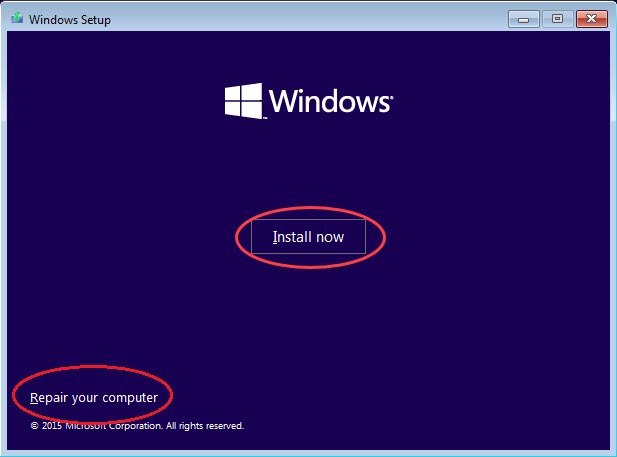
- Select the correct Windows installation target and follow the setup instructions.
Do not automatically delete every partition on the drive. If the PC contains multiple drives or partitions, deleting the wrong one can permanently erase unrelated data. Identify the correct system drive first.
After installation, Windows should boot to the desktop through several restarts without returning to Automatic Repair.
How to prevent the srttrail.txt error from coming back
Once Windows is working again, take a few simple precautions.
1. Keep a backup of important files
A boot failure is much less stressful when your important documents and photos already exist on another drive or cloud service.
2. Avoid unnecessary BIOS and memory overclocking
If the PC becomes unstable after enabling XMP, EXPO, CPU overclocking, or undervolting, return to stable default settings before troubleshooting Windows corruption.
3. Keep drivers and firmware up to date
Make sure the device drivers on your system are up-to-date for the best stability and performance. You can download graphics, chipset, storage, network, and other critical drivers from your PC or hardware manufacturer‘s support page. Or you can use Driver Easy to automatically install all the outdated or missing drivers for your system.
That’s all the fixes for the srttrail.txt error on Windows. If the issue is still not fixed, or you’re encountering other problems, feel free to leave a comment below. We’d be happy to help.