If your laptop shows Plugged in, not charging, drains unexpectedly fast, or displays an incorrect battery percentage, you should check if your battery driver is corrupted or outdated. It’s always important to update your battery driver to make sure your laptop battery is working in proper condition and prevent charging glitches. In this post, we’re showing you the best ways to update your battery driver safely and easily.

3 ways to update the battery driver in Windows

Here are three ways to update your battery drivers on a Windows computer.

While updating power-related drivers, make sure to keep your laptop connected to the power cable. If your laptop unexpectedly shuts down mid-update due to a dead battery, it can interrupt system components.

Option 1: Reinstall or update the driver via Device Manager

In Windows, your battery relies on a built-in system device called the Microsoft ACPI-Compliant Control Method Battery. You don’t usually need to download a new file online; simply let Windows reset or update this driver.

1) Press the Windows key + X and select Device Manager.

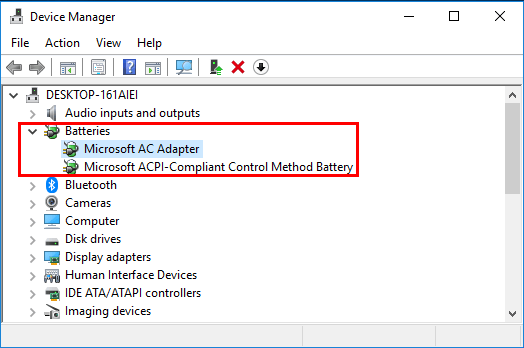
2) Expand Batteries. Right-click Microsoft ACPI-Compliant Control Method Battery and select Update driver.

update battery driver in device manager

3) Select Search automatically for drivers and follow the on-screen instructions.

If Windows says that the best driver is already installed, there may not be a newer battery driver available through Device Manager, but you can still check if there’s a newer driver manually from the computer manufacturer’s website. Continue with Option 2 below.

Option 2: Download drivers from the computer manufacturer

If you’re still having battery or charging problems, you can visit your computer manufacturer’s website to check for the drivers your computer needs.

Depending on your computer manufacturer, go to their website:

Search for your computer model. Then look for available battery, chipset, power-management, firmware, or BIOS updates that are compatible with your version of Windows. After downloading the driver, double-click the file and follow the on-screen instructions to install it. Restart your computer and check whether the battery problem is resolved.

Option 3: Update your battery driver automatically (Recommended)

If you don’t have the time, patience or computer skills to update the battery driver manually, you can do it automatically with Driver Easy.

Driver Easy will automatically recognize your system and find the correct drivers for it. You don’t need to manually check whether your drivers are out of date or risk downloading the wrong file. Instead of updating components one by one, you can update your battery driver, graphics card, network adapter, and audio drivers all at once with a single click. It sources certified drivers directly from official manufacturers, keeping your laptop running with the best stability and performance.

1) Download and Install Driver Easy.

2) Run Driver Easy and click the Scan Now button. Driver Easy will then scan your computer and detect any problematic drivers.
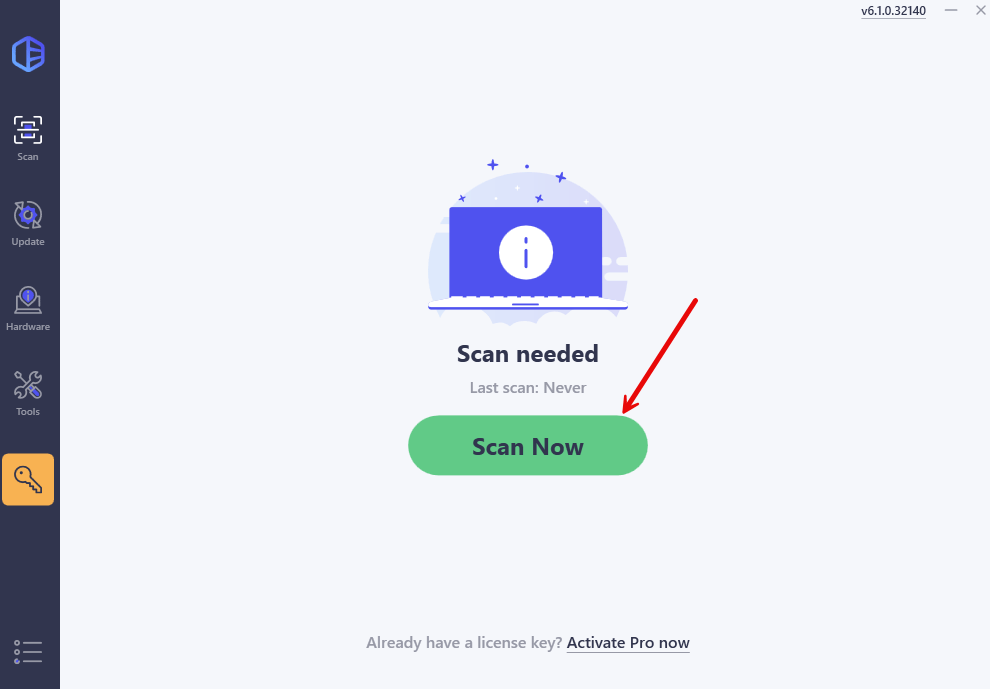
detect missing or outdated device drivers with driver easy

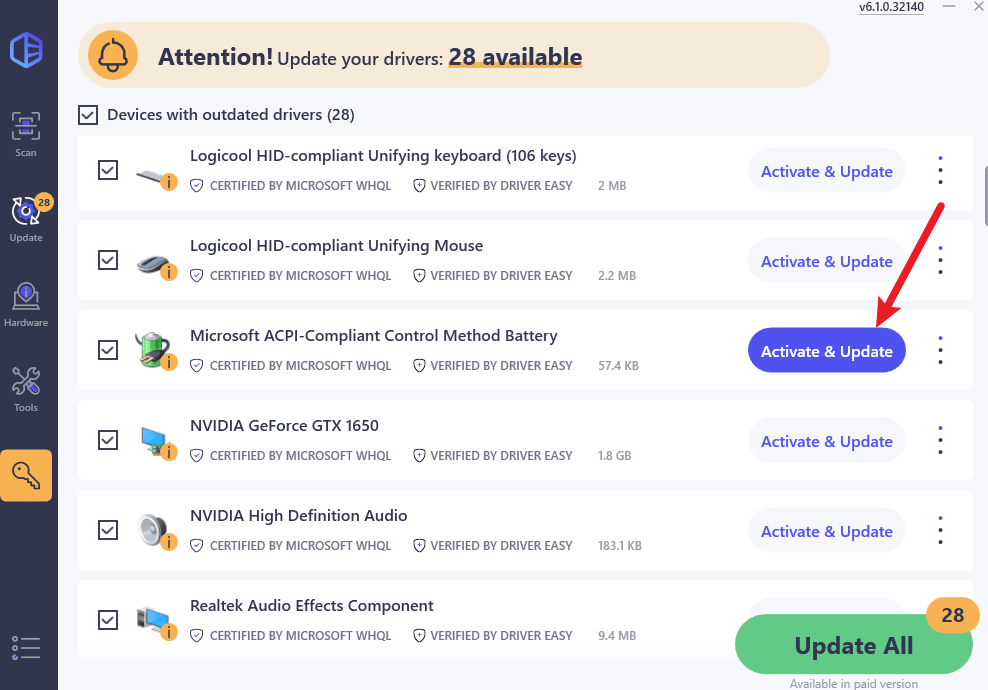
3) Click the Activate & Update button next to the flagged battery driver to automatically download and install the correct version of this driver. Or click Update All to automatically download and install the correct version of all the drivers that are missing or out of date on your system.

You’ll be prompted to start a 7-day free trial or upgrade to Driver Easy Pro. Either option will automatically download and install the latest drivers for you. It also includes easy driver backup and rollback, as well as advanced tools like Game Boost and System Clean. If you go Pro now, you’ll get a 50% OFF discount!

The Pro version comes with full support and a 30-day money-back guarantee. If you need assistance, please contact our support team at support@drivereasy.com.

What if updating the battery driver doesn’t help?

A battery problem isn’t always caused by the battery driver. If your laptop still won’t charge after updating the driver, check the following:

  • Make sure the charger and power connector are securely connected.
  • Try a different compatible power adapter or outlet if available.
  • Install pending Windows Updates.
  • Check your laptop manufacturer’s support page for BIOS, firmware, chipset, and power-management updates.
  • If possible, check the battery health using your laptop manufacturer’s diagnostic tool.

If the battery is physically swollen, stop using the laptop and seek professional service. A swollen battery can be a safety hazard.

Once you’ve completed the relevant fixes, restart your PC and check whether it charges normally and whether the battery percentage updates correctly.


Hopefully this post helped you install the latest battery driver and resolve the charging issue. If you’re still having trouble charging your PC, don’t worry. Drop a comment below with your computer model and what you’re experiencing – we’re always here to help you figure it out!

40
40 people found this helpful
guest
1 Comment
Most Voted
Newest Oldest