





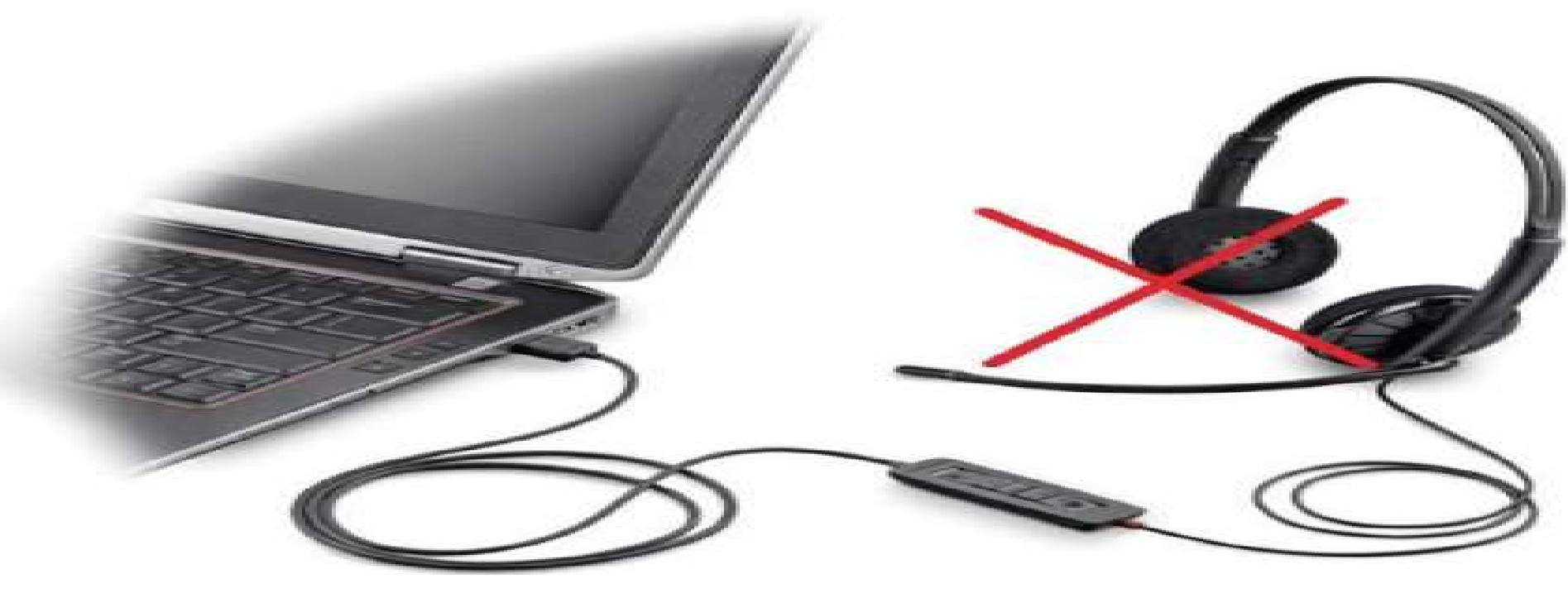

No sound from your USB headset? No worries. Here you’ll be relieved to know it’s possible to fix. Read on and find out how…
Try these fixes:
- Do not plug your USB headset while Windows 10 is booting
- Run the Hardware Devices troubleshooter
- Set your USB headset as default device
- Update your audio driver
Note: Before we go, plug your headset into different USB ports and replace your USB headset with another one to check if the issue is due to the headset. If it doesn’t work either, then go with the fixes below.
Fix 1: Do not plug your USB headset while Windows is booting
Some conflicts could exist between your USB headset and other USB devices. To avoid this conflict, please be sure to plug your USB headset in after your computer gets into Windows 11 or 10.
In this case, you can unplug your USB headset first, and reboot your Windows. Then plug your USB headset when Windows 11/10 starts.
Check if your headset works properly now.
Fix 2: Run the Hardware Devices troubleshooter
The troubleshooter can find and automatically fix some problems with your computer.
For Windows before Windows 10 build 1809:
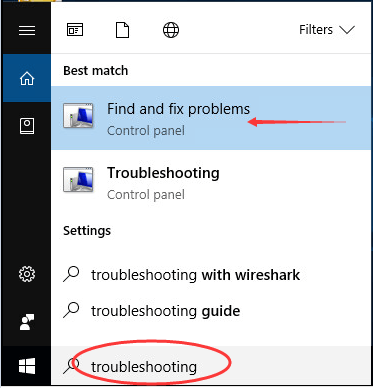
- Type troubleshooting in the search box from the Start menu. Then click Find and fix problems on the top.
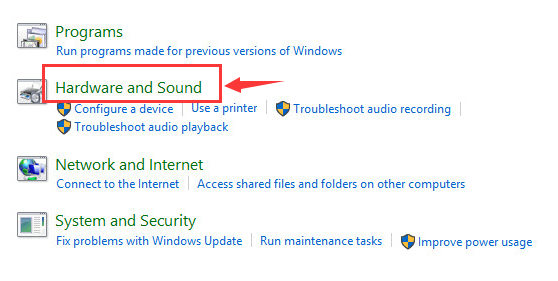
- Click Hardware and Sound.
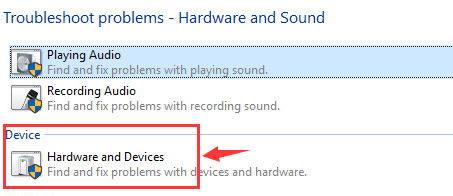
- Click Hardware and Devices.
- Click Next.
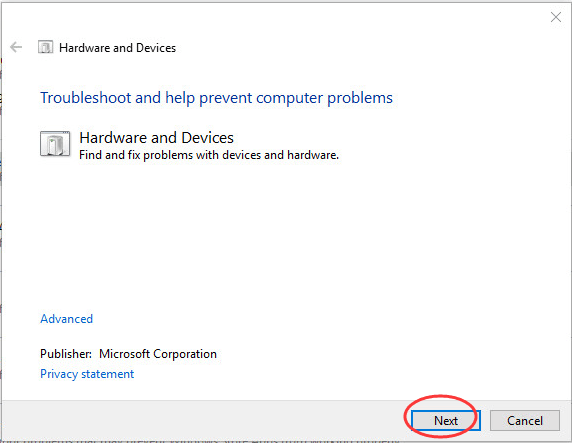
- Now the troubleshooter starts detecting problems. Complete troubleshooting by following on-screen instructions.
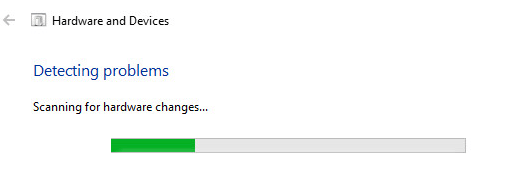
After that, check if your headset works properly now.
For Windows after Windows 10 build 1809:
If you fail to find the Hardware and Devices Troubleshooter in the Control Panel, that’s probably because your computer version is after Windows 10 build 1809. The version has removed the Hardware and Devices Troubleshooter. Don’t worry, you can still run the Hardware and Devices Troubleshooter in this way:
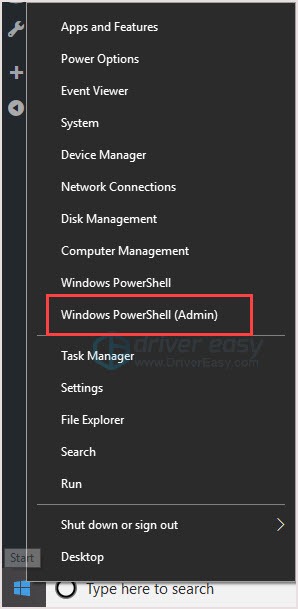
- Right-click on the Start button, then click Windows PowerShell (Admin).
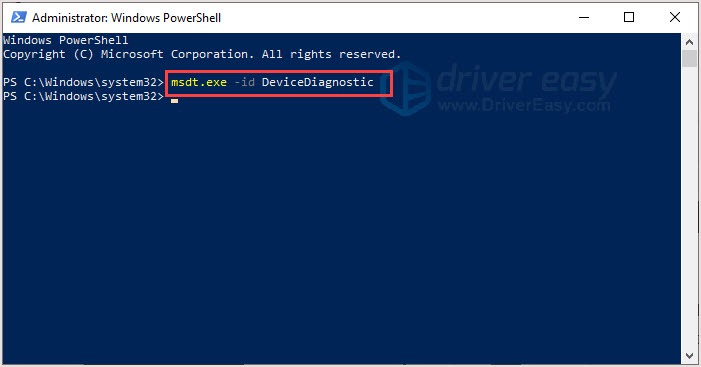
- Copy and paste msdt.exe -id DeviceDiagnostic in the PowerShell, then press the Enter key.
- You’ll see the Hardware and Devices window popping out. Click Next.
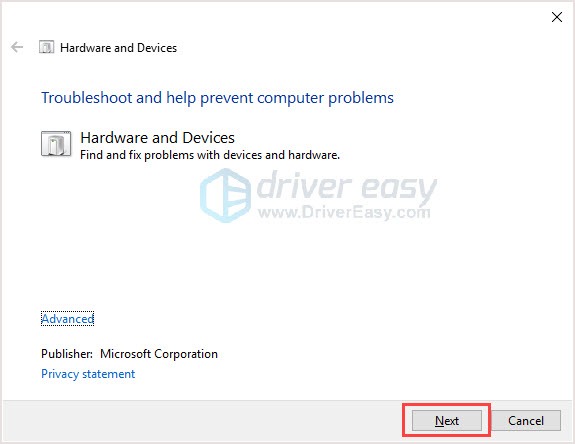
- Follow the on-screen instructions to finish the process.
- Relaunch your computer and check whether the issue is resolved or not.
Fix 3: Set your USB headset as default device
For Windows 10:
- Right-click on Speakers/Headphone icon at the bottom right of your taskbar. Then click Playback devices.
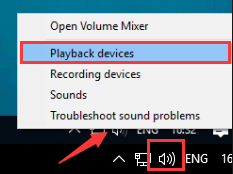
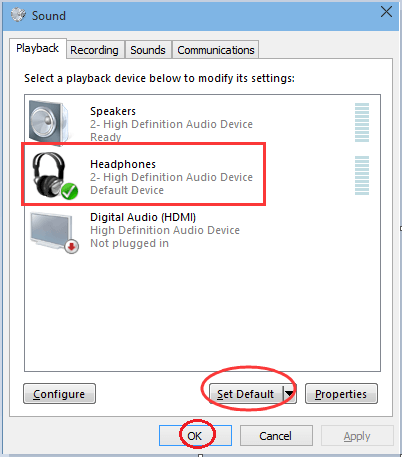
- Highlight your headset, then click Set Default. Click OK.
For Windows 11:
- Right-click on Speakers/Headphone icon at the bottom right of your taskbar. Then click Sound settings.
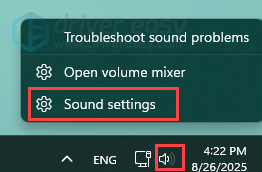
- Choose your headset.
- Click Use as default for audio next to Set as default sound device.
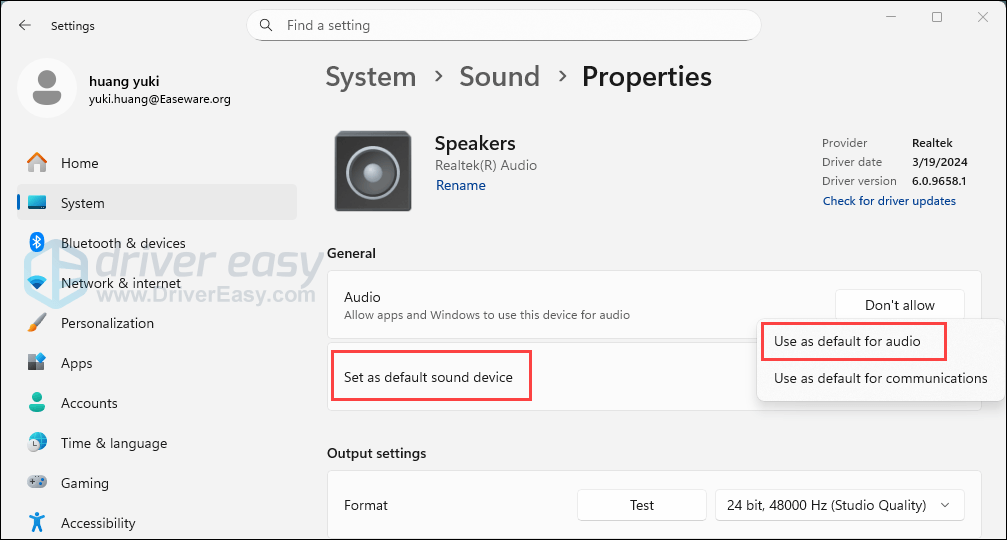
Check if your headset works properly now.
Fix 4: Update your audio driver
An old, corrupted, or missing audio driver can also cause your USB headset not to work. You can update your driver to solve this problem.
You can download the latest driver from your computer manufacturer’s website. If you’re not confident or don’t have enough time and patience, you can do it automatically with Driver Easy.
Driver Easy will automatically recognize your system and find the correct drivers for it. You don’t need to know exactly what system your computer is running, you don’t need to risk downloading and installing the wrong driver, and you don’t need to worry about making a mistake when installing.
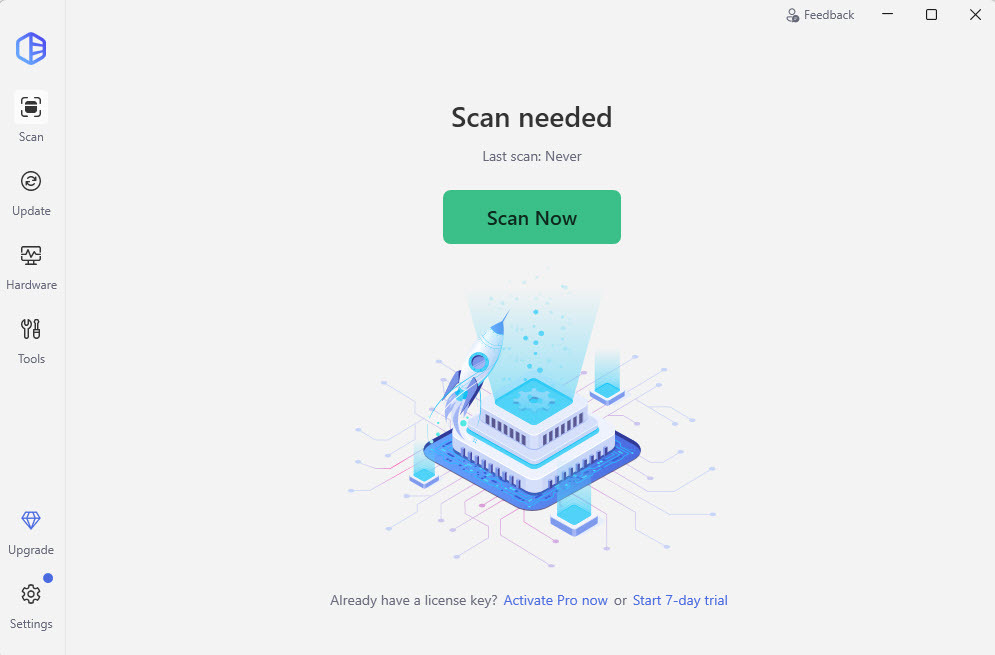
- Download and install Driver Easy. Then run it on your Windows.
- Click Scan Now. It will quickly detect all driver problems of your computer. Your printer driver is no exception.
- Click Update All to automatically download and install the correct version of all the drivers that are missing or out of date on your system (this requires the Pro version – you’ll be prompted to upgrade when you click Update All).
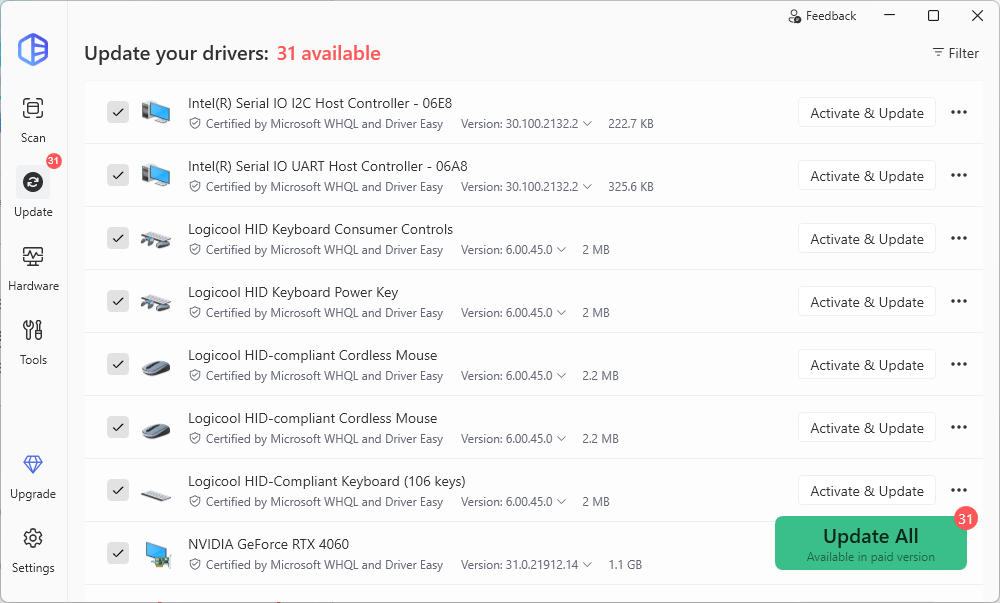
- Restart your computer and check to see if your headset works.
If you have any questions or problems, you’re welcome to leave comments below, we’ll try our best to help.


