






Quick Through:
Method One: If you see a  or
or  by the Apple Mobile Device USB Driver
Method Two: If you don’t see
by the Apple Mobile Device USB Driver
Method Two: If you don’t see , or
, or  by the Apple Mobile Device USB Driver
Method Three: If you see
by the Apple Mobile Device USB Driver
Method Three: If you see  next to the Apple Mobile Device USB Driver
Method Four: If your iPhone is listed under Other device and with a next to it
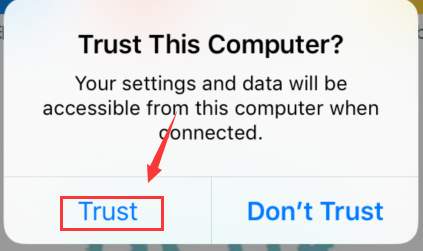
iPhone users may have encountered this situation before: you connect your iPhone to your computer, you have clicked the Trust button on your device, but you cannot see iPhone on My Computer.
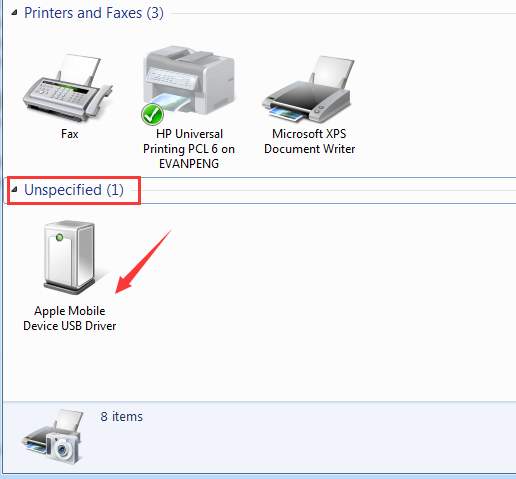
This is what it should look like if iPhone is detected by Windows.
or by the Apple Mobile Device USB Driver.
next to the Apple Mobile Device USB Driver
Method Four: If your iPhone is listed under Other device and with a next to it
iPhone users may have encountered this situation before: you connect your iPhone to your computer, you have clicked the Trust button on your device, but you cannot see iPhone on My Computer.
This is what it should look like if iPhone is detected by Windows.
or by the Apple Mobile Device USB Driver.
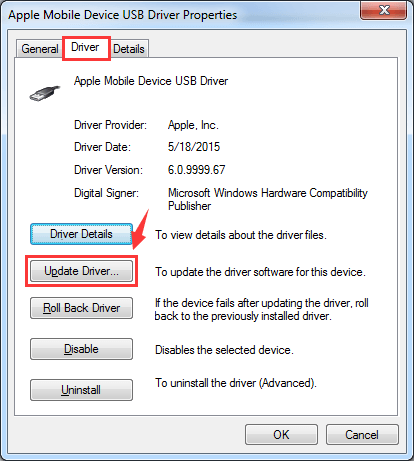 5) Choose Browse my computer for driver software.
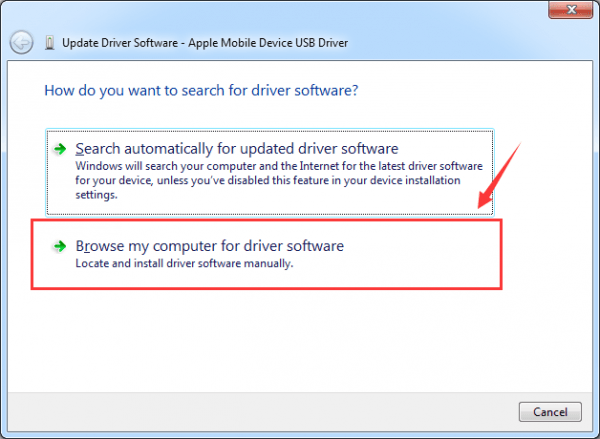 6) Then choose Let me pick from a list of device drivers on my computer.
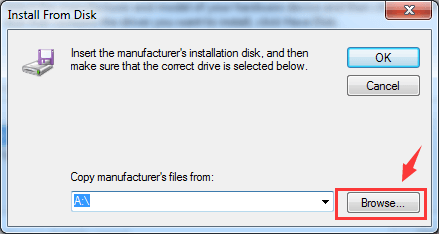 9) Then navigate to C:\Program Files\Common Files\Apple\Mobile Device Support\Drivers. Double click the usbaapl file. If you are running a 64-bit version of Windows, this file will be called usbaapl64.
If you don’t see usbaapl64 here or if there isn’t a Drivers folder, look in C:\Program Files (x86)\Common Files\Apple\Mobile Device Support\Drivers.
9) Then navigate to C:\Program Files\Common Files\Apple\Mobile Device Support\Drivers. Double click the usbaapl file. If you are running a 64-bit version of Windows, this file will be called usbaapl64.
If you don’t see usbaapl64 here or if there isn’t a Drivers folder, look in C:\Program Files (x86)\Common Files\Apple\Mobile Device Support\Drivers.
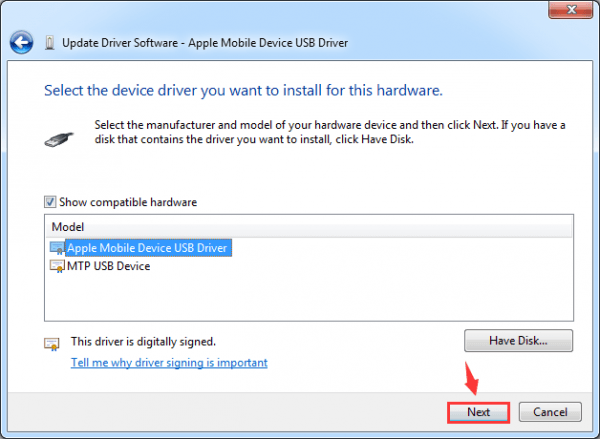
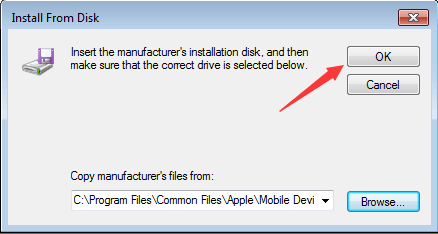 11) Then click Next. Windows will help you with the driver update after this.
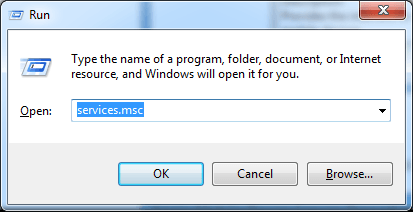 3) Locate and double click Apple Mobile Device Service.
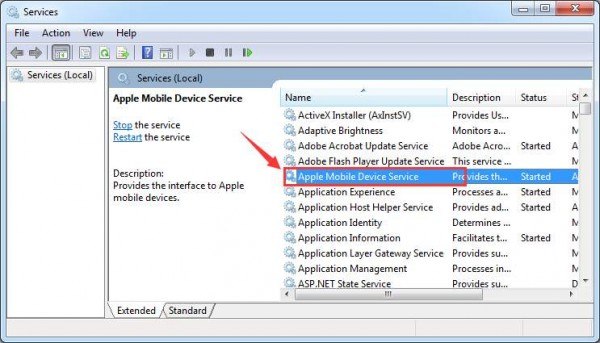 4) Change the Startup type to Automatic.
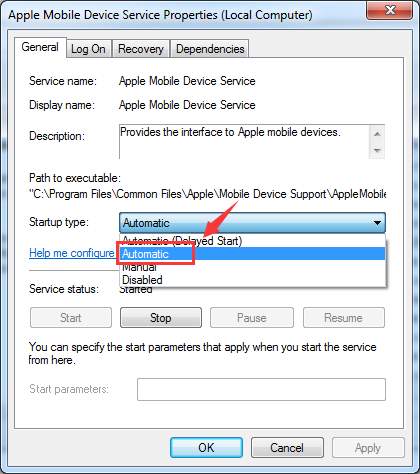 5) Click Stop the service.
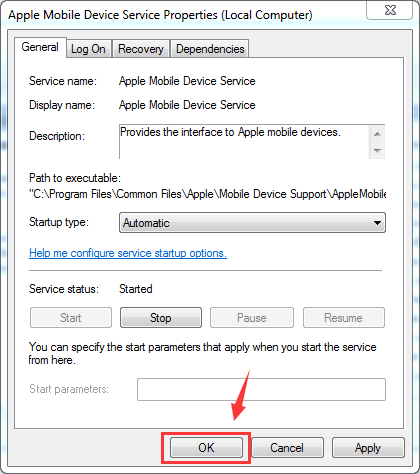
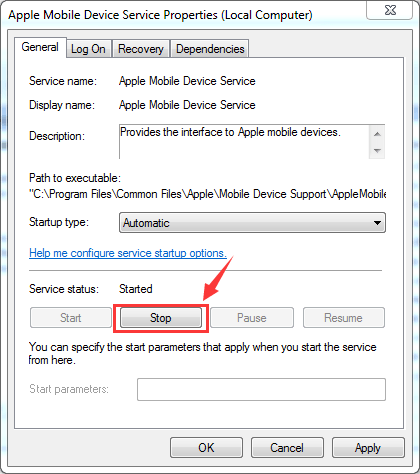 6) After the service stops, click Start the service.
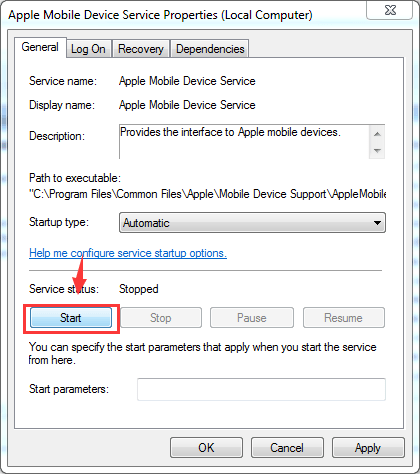 7) Click OK.
 next to the Apple Mobile Device USB Driver, this method applies to your situation.
1) Go to Device Manager.
2) Expand Universal Serial Bus controllers.
next to the Apple Mobile Device USB Driver, this method applies to your situation.
1) Go to Device Manager.
2) Expand Universal Serial Bus controllers.
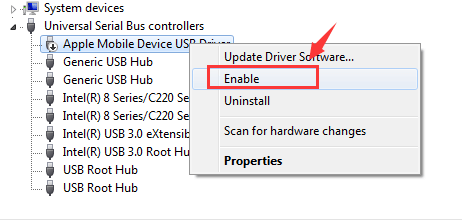
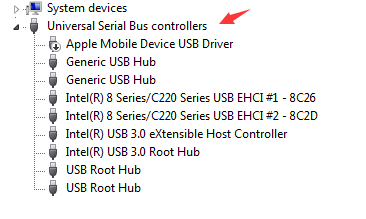 3) Right click Apple Mobile Device USB Driver and choose Enable.
 Method Four: Update iPhone Driver
This method applies when you see your iPhone listed under Portable Device instead of Universal Serial Bus controllers and with a yellow exclamation mark next to it.
Method Four: Update iPhone Driver
This method applies when you see your iPhone listed under Portable Device instead of Universal Serial Bus controllers and with a yellow exclamation mark next to it.
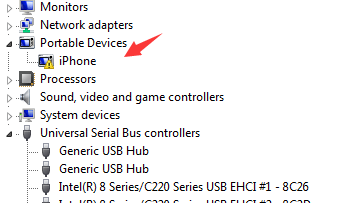 It is highly recommended that you use Driver Easy to scan and download drivers that you need for free. If your iPhone is not showing in the correct position and your computer says it is already the latest version of device driver that Windows can find, then you need to give a try of Driver Easy.
Driver Easy is a free software to use. As the name suggests, it is very easy to use. There are only two steps involved.
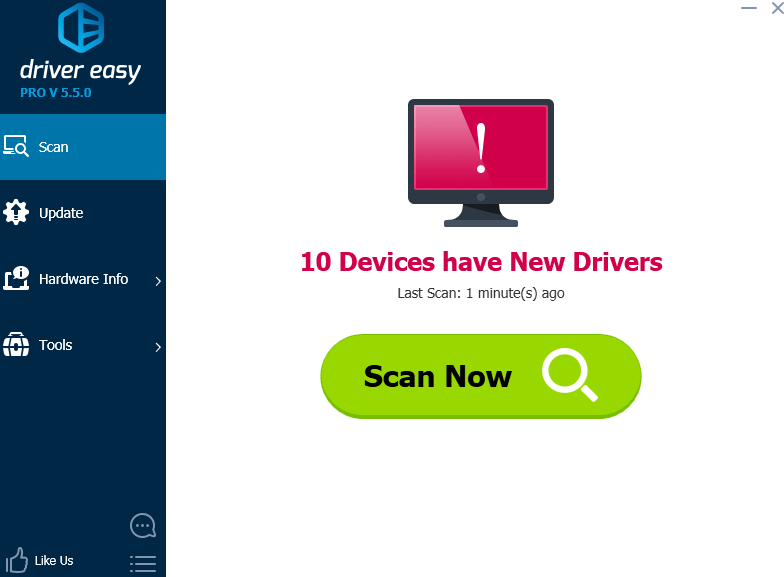
1) Click Scan Now button to scan for the new drivers available.
It is highly recommended that you use Driver Easy to scan and download drivers that you need for free. If your iPhone is not showing in the correct position and your computer says it is already the latest version of device driver that Windows can find, then you need to give a try of Driver Easy.
Driver Easy is a free software to use. As the name suggests, it is very easy to use. There are only two steps involved.
1) Click Scan Now button to scan for the new drivers available.
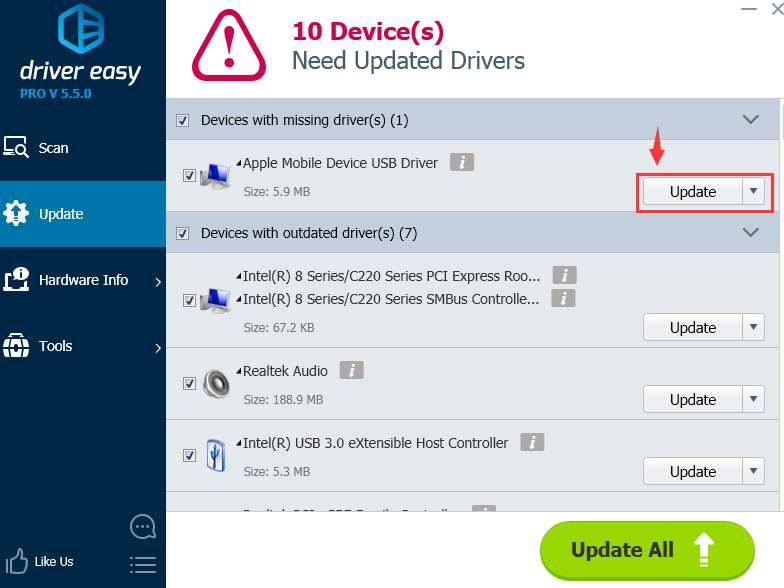
 2) Click the Update button next to Apple Mobile Device USB Driver and wait for Driver Easy to help you with the device driver update.
or by the Apple Mobile Device USB Driver
Method Two: If you don’t see, or by the Apple Mobile Device USB Driver
Method Three: If you see next to the Apple Mobile Device USB Driver
Method Four: If your iPhone is listed under Other device and with a next to it
iPhone users may have encountered this situation before: you connect your iPhone to your computer, you have clicked the Trust button on your device, but you cannot see iPhone on My Computer.
This is what it should look like if iPhone is detected by Windows.
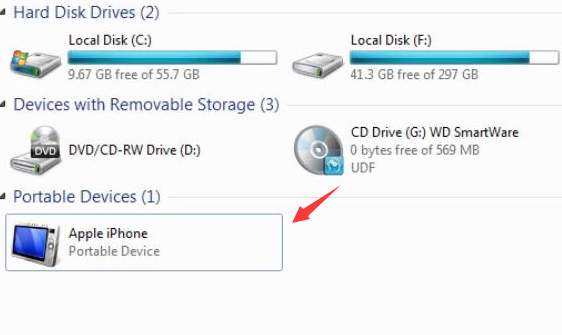
or by the Apple Mobile Device USB Driver.
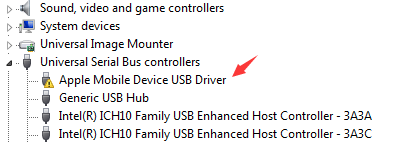
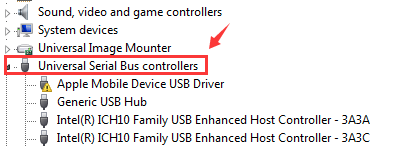
5) Choose Browse my computer for driver software.
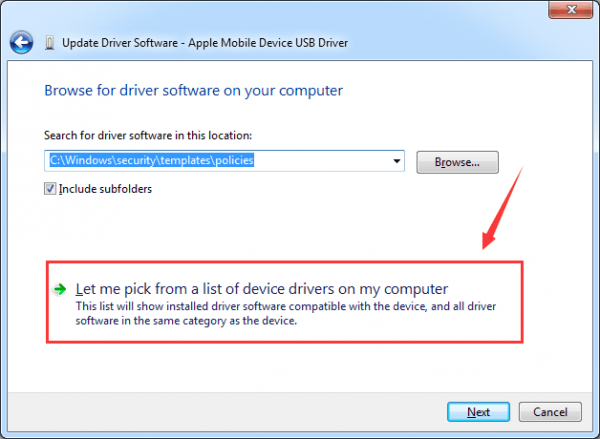
6) Then choose Let me pick from a list of device drivers on my computer.
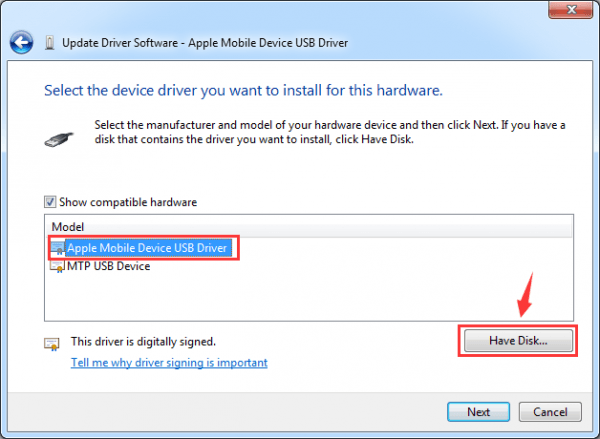
9) Then navigate to C:\Program Files\Common Files\Apple\Mobile Device Support\Drivers. Double click the usbaapl file. If you are running a 64-bit version of Windows, this file will be called usbaapl64.
If you don’t see usbaapl64 here or if there isn’t a Drivers folder, look in C:\Program Files (x86)\Common Files\Apple\Mobile Device Support\Drivers.
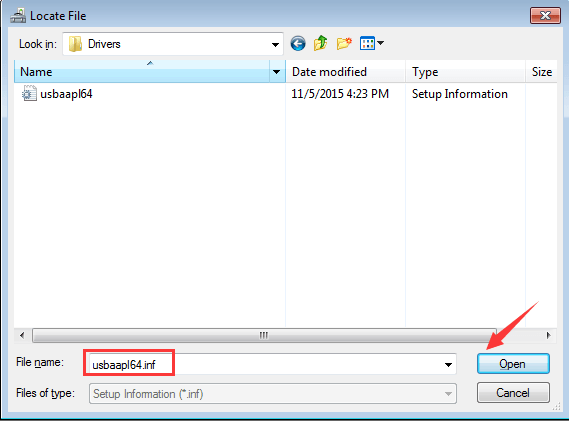
11) Then click Next. Windows will help you with the driver update after this.
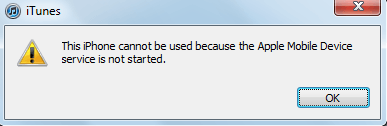 This method also applies when you don’t see, or by the Apple Mobile Device USB Driver.
1) Close iTunes and disconnect your iPhone from your PC.
This method also applies when you don’t see, or by the Apple Mobile Device USB Driver.
1) Close iTunes and disconnect your iPhone from your PC.
3) Locate and double click Apple Mobile Device Service.
4) Change the Startup type to Automatic.
5) Click Stop the service.
6) After the service stops, click Start the service.
7) Click OK.
8) Restart your computer.
9) Open your iTunes and connect your iPhone to your computer. Method Three: Enable Apple Mobile Device USB Driver If you seenext to the Apple Mobile Device USB Driver, this method applies to your situation.
1) Go to Device Manager.
2) Expand Universal Serial Bus controllers.
3) Right click Apple Mobile Device USB Driver and choose Enable.
Method Four: Update iPhone Driver
This method applies when you see your iPhone listed under Portable Device instead of Universal Serial Bus controllers and with a yellow exclamation mark next to it.
It is highly recommended that you use Driver Easy to scan and download drivers that you need for free. If your iPhone is not showing in the correct position and your computer says it is already the latest version of device driver that Windows can find, then you need to give a try of Driver Easy.
Driver Easy is a free software to use. As the name suggests, it is very easy to use. There are only two steps involved.
1) Click Scan Now button to scan for the new drivers available.
2) Click the Update button next to Apple Mobile Device USB Driver and wait for Driver Easy to help you with the device driver update.
That’s all you need to do.
In addition, Driver Easy is a totally free software to use. But if you are looking for more features and professional tech support, you can have a try at our professional version. If you are not satisfied with Driver Easy at the end, you can always ask for a refund within thirty days. 19
19 people found this helpful
11 Comments
Most Voted

