







If you’re having WiFi or wireless connection just fine, but the Internet isn’t working or you’re only with limited connectivity, you’re not alone. Many Windows 11 and 10 users are reporting this problem as well. But no worries, it’s possible to fix.
Here are some effective solutions for you to try. You don’t need to try them all, just work your way down until you find the one that works.
Table of contents
If You Can’t browse the web on any devices
If all your devices, laptops, mobile phones, tablets, are connected to the WiFi just fine, but have no Internet access, the problem might be your network hardware or the network itself. Try the solutions below to fix it:
Restart your modem, router and your devices
- Remove the power cord and the batteries (if there are any) from your modem and router.
- Wait for at least 30 seconds after the light goes out. Then plug the modem in.
- Wait for another 60 seconds, then plug your router in.
Restart your PC
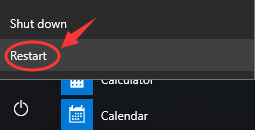
- On your keyboard, click the Start button and Restart.
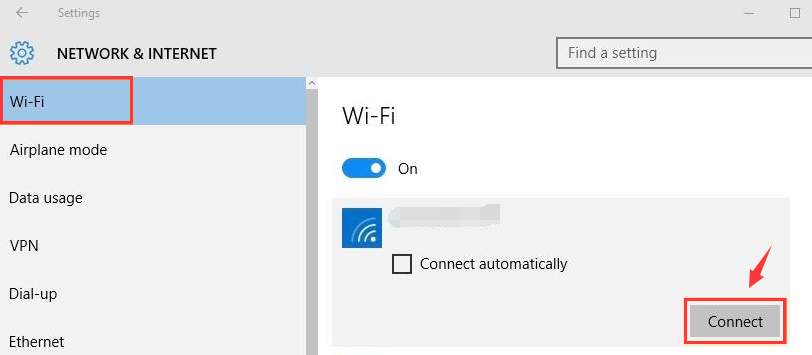
- After your PC restarts, follow the path: click the Start button > Settings > Network & Internet > WiFi (on the left side of the pane). Select the network connection you have and click Connect.
If the problem persists, try contacting your network provider or the manufacturer of your router.
Can browse the web on other devices but not on the laptop
Method1: Delete Temp Files
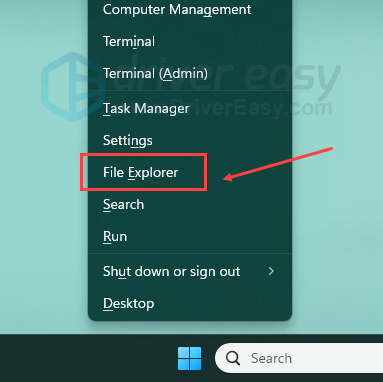
- On your keyboard, press the Windows key and X at the same time, then click File Explorer.
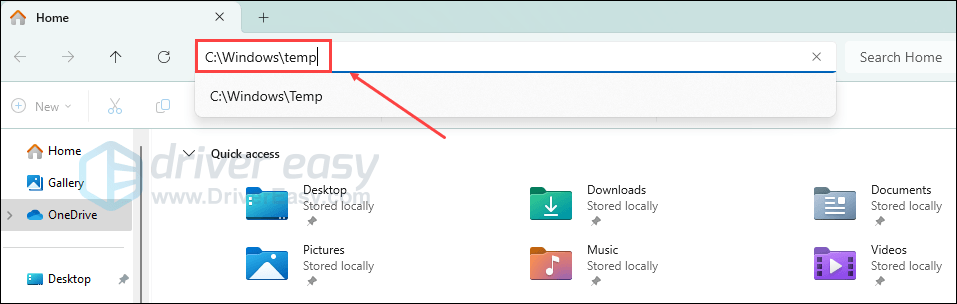
- In the address box, type in C:\Windows\temp and press Enter.
- If you’re prompted about administrator permission, click Continue.
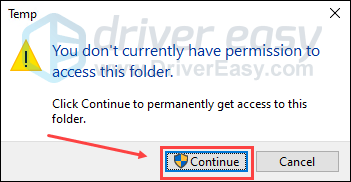
- You’ll see many temp files here in this folder. Press Ctrl + A at the same time to select all the files, then right-click and click Delete.
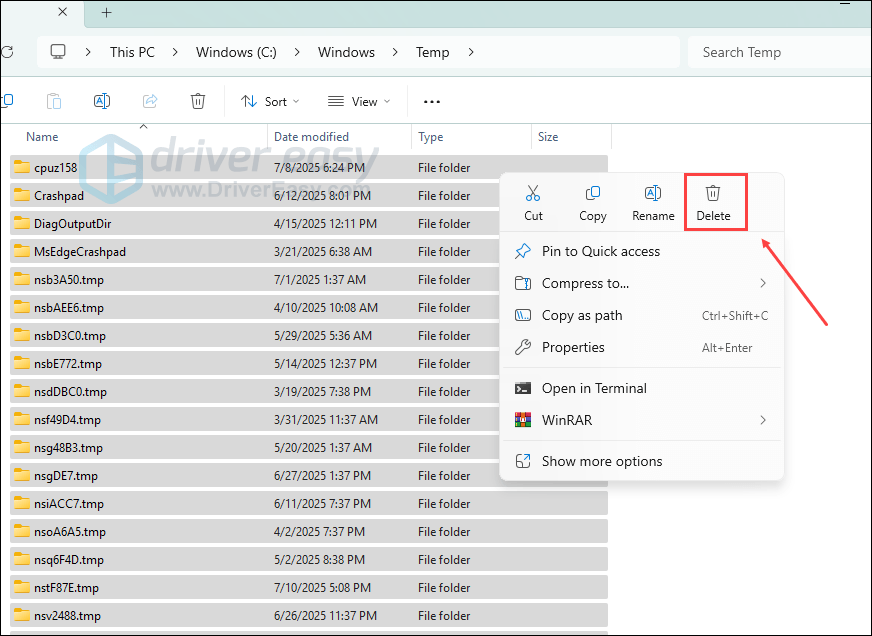
- Now, reconnect to the network. See if the problem persists.
Method 2: Reset DNS
- Right-click the network connection icon at the bottom right corner and click Open Network and Sharing Center.
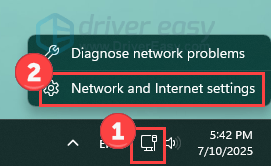
- Click Change adapter settings.
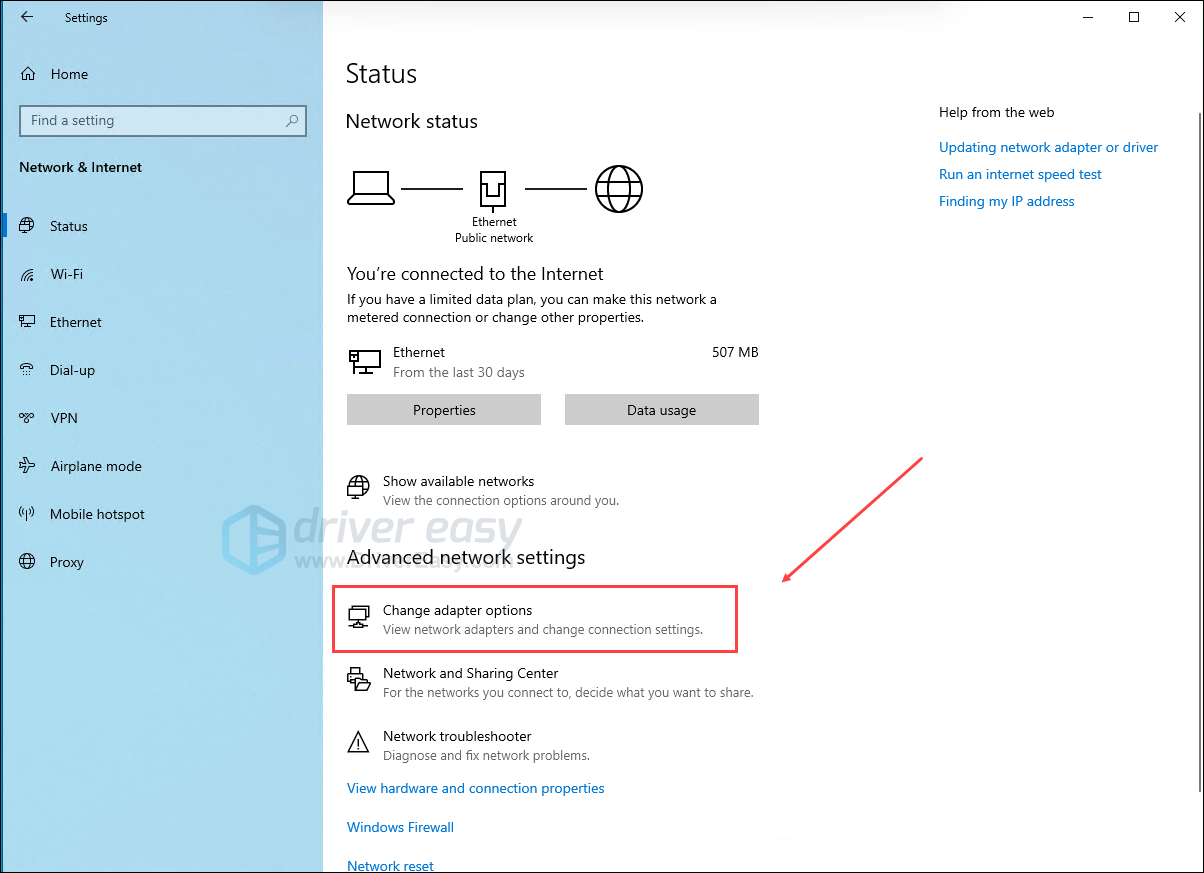
- Right-click your WiFi adapter and click Properties.
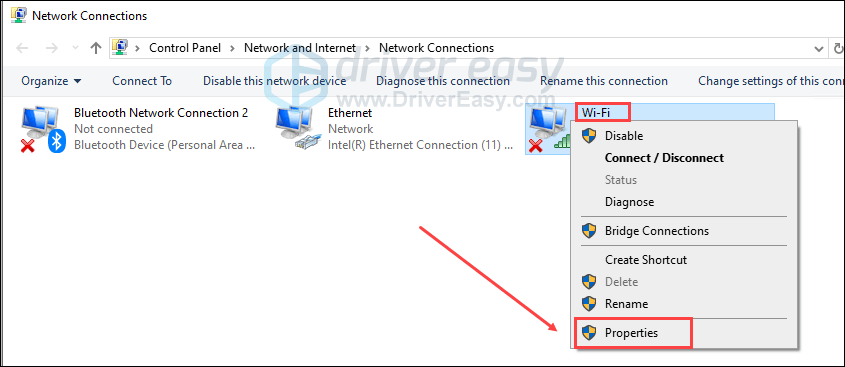
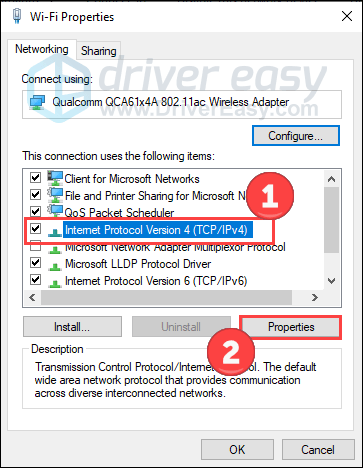
- Select Internet Protocol Version 4 (TCP/IPv4) and click Properties.
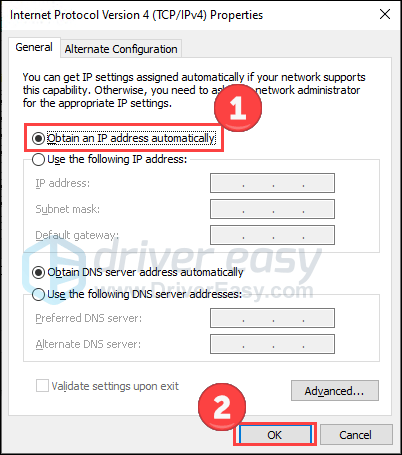
- Click Obtain an IP address automatically and OK to apply the change.
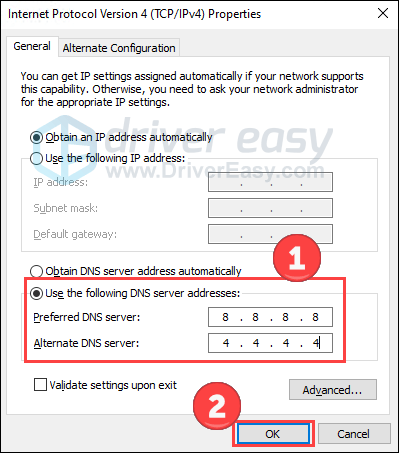
- If you still can’t connect to the internet, select Use the following DNS server addresses and fill in the address like the screenshot below. Then click OK.
Method 3: Run Commands in Command Prompt
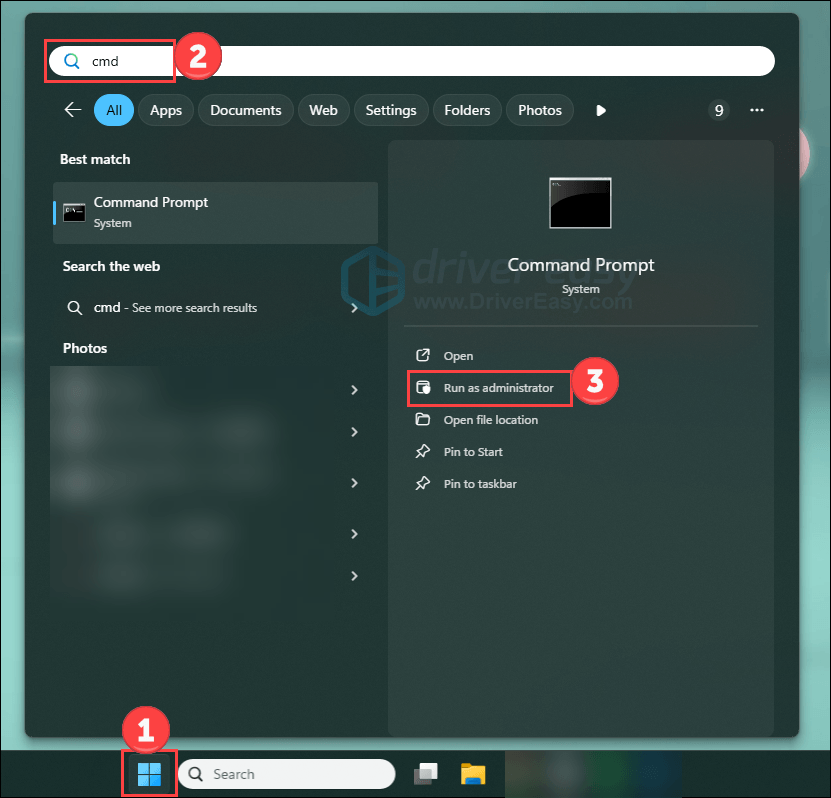
- Type cmd in your Windows and click Run as administrator.
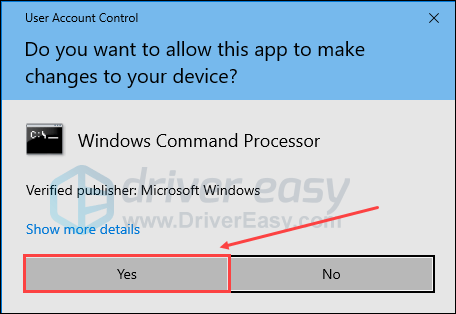
- When prompted about the administrator permission, click Yes.
- In the command prompt window, type in the following commands. Press Enter after each command.
ipconfig/flushdnsnbtstat -Rnbtstat -RRnetsh int ip reset c:\resetlog.txtnetsh winsock reset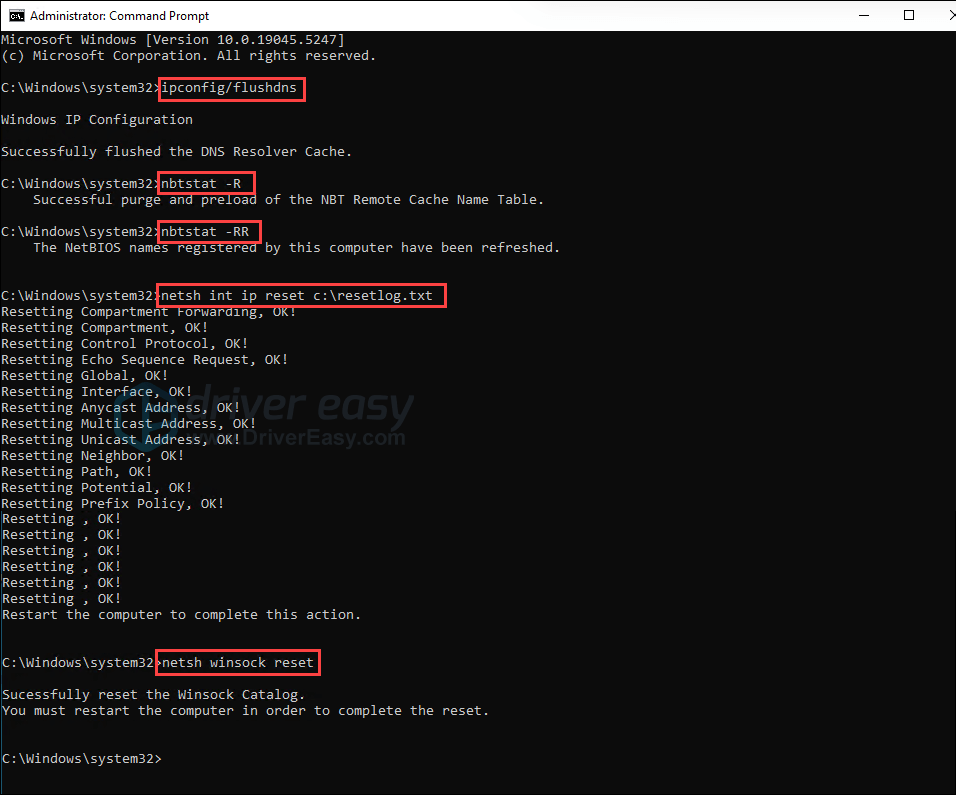
You may need to restart your computer for the changes to take effect. - Right-click the WiFi connection icon at the bottom right corner and click Open Network and Sharing Center.
- Click Change adapter settings.
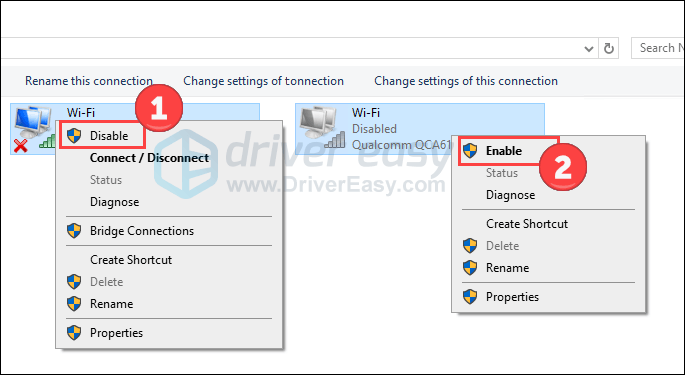
- Right-click your WiFi adapter and click Disable. Wait for a while. Right-click your WiFi adapter and click Enable.
Method 4: Update Device Drivers
If the above methods don’t help, we highly recommend you update your network adapters’ drivers.
If you don’t have the time, patience or computer skills to update your drivers manually, you can do it automatically with Driver Easy.
Driver Easy will automatically recognize your system and find the correct drivers for it. You don’t need to know exactly what system your computer is running, you don’t need to risk downloading and installing the wrong driver, and you don’t need to worry about making a mistake when installing.
Driver Easy offers a 7-day free trial, so you can try it out without commitment and automatically update your drivers. If you’re happy with the results, you can continue with the Pro version.
- Download and install Driver Easy.
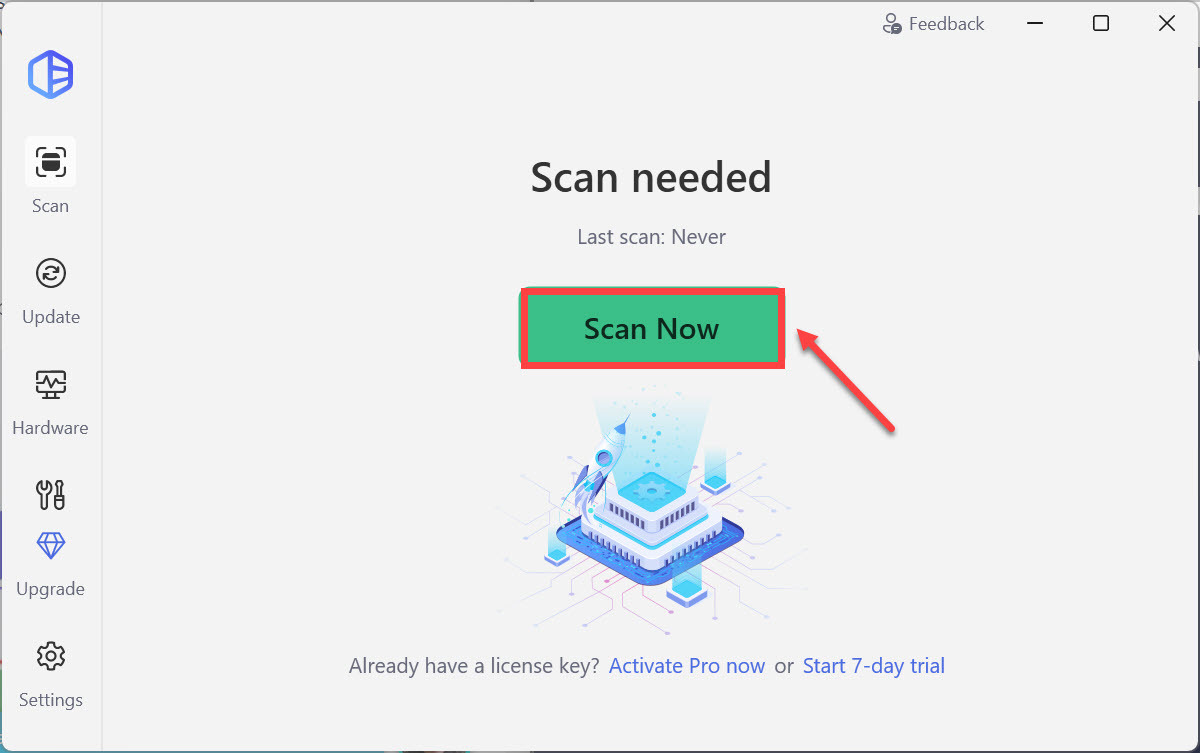
- Run Driver Easy and click the Scan Now button. Driver Easy will then scan your computer and detect any problem drivers.
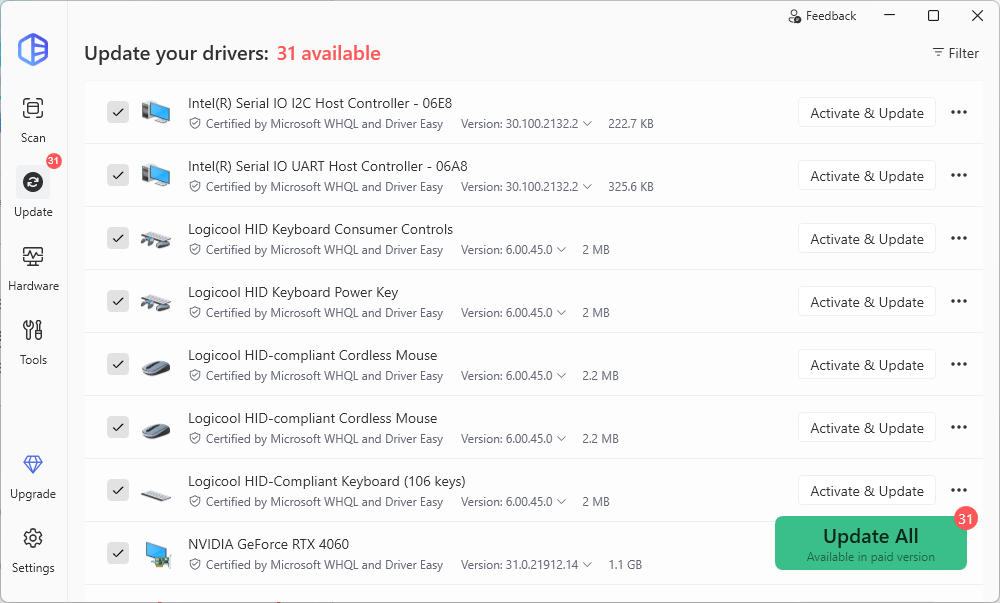
- Check if your graphics driver is flagged in the scan results. If it is, click Activate & Update to start the 7-day free trial or upgrade to the Pro version. Either option will download and install the latest drivers automatically for you.
- After updating, restart your computer to take effect.
Method 5: Update or uninstall McAfee
Quite a number of users found that this problem was gone once they replaced their McAfee with other antivirus programs.
It’s still unknown why McAfee would hinder you from connecting to the Internet. But if you’re using McAfee as your antivirus program and the problem just won’t go away, update your McAfee to the latest version to have a try.
