


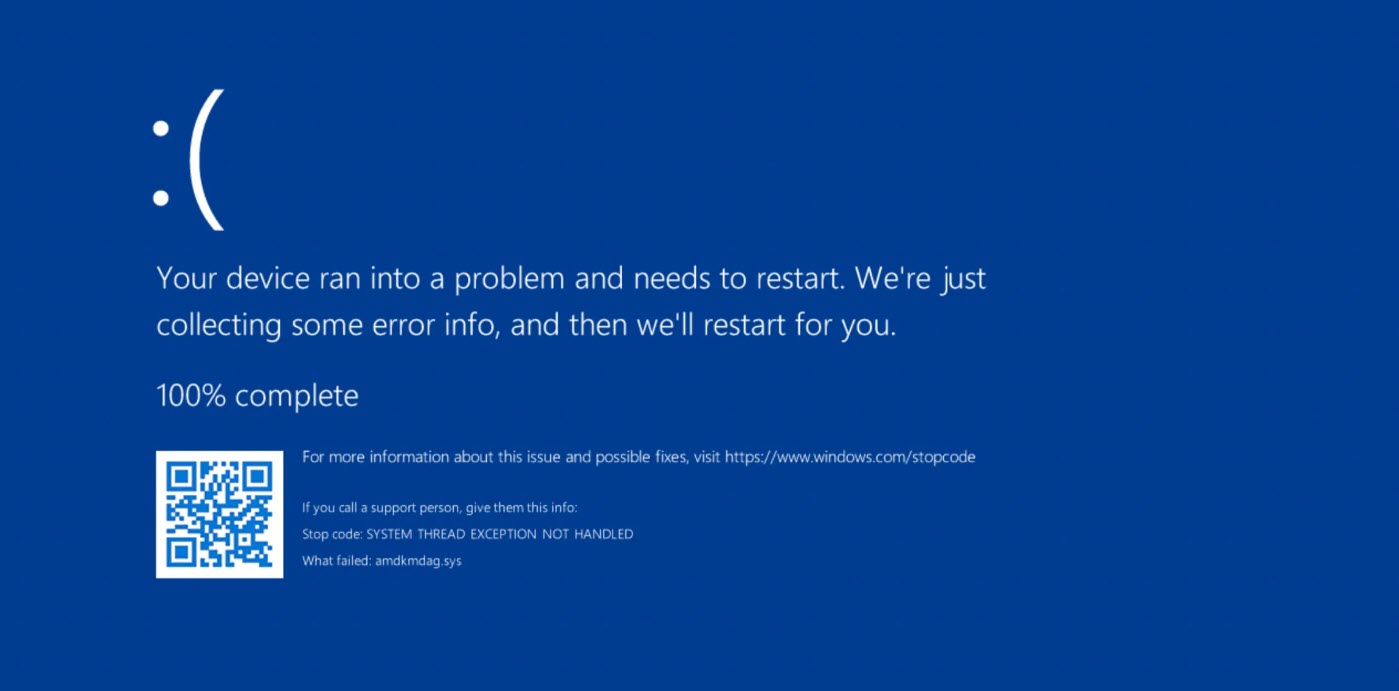

Does your screen suddenly turn black or white while gaming? Does your PC freeze, lose its display signal, or become unresponsive, forcing you to restart it? If you check Windows Reliability Monitor, you may find an error mentioning amdkmdag.sys.
amdkmdag.sys is an essential AMD Radeon graphics driver component. When it crashes or stops responding, you may experience black screens, game crashes, display freezes, or other graphics-related problems.
In this guide, we’ll walk you through practical ways to fix amdkmdag.sys crashes, from resetting AMD graphics settings and reinstalling Radeon drivers to checking for potential hardware problems.
6 quick fixes for amdkmdag.sys crash
Try the following methods in order. You don’t need to perform every one of them. Start with the simpler solutions and move on until your AMD graphics card works normally again.
- Reset AMD Radeon graphics settings
- Roll back your AMD graphics driver
- Perform a clean installation of the AMD graphics driver
- Prevent Windows Update from replacing your AMD graphics driver
- Update AMD chipset drivers
- Check for BIOS updates
If you’re encountering crashes with a LiveKernelEvent 141 error, you can check out this article for more specific fixes: How to Fix LiveKernelEvent 141 Hardware Error.
Fix 1: Reset AMD Radeon graphics settings
If you’ve enabled GPU overclocking, undervolting, or custom memory tuning in AMD Software: Adrenalin Edition, these settings may make your graphics card unstable.
Even seemingly minor changes to GPU frequency, voltage, or power limits can cause crashes if the card cannot maintain stable operation.
Restoring the default settings is a good first step.
- Open your AMD Software: Adrenalin Edition.
- Click the Performance tab. Select Tuning.
- Find the tuning controls and select Default or Reset, depending on your Adrenalin version.
- Confirm the changes and restart your PC.
If you’ve also configured custom settings in third-party GPU utilities, such as MSI Afterburner, temporarily disable those profiles and close the applications.
If the crashes stop, your previous GPU tuning settings were likely unstable. You can leave the card at its default settings or reapply custom settings gradually, testing stability after each change. If not, check out the next fix below.
Fix 2: Roll back your AMD graphics driver
If the amdkmdag.sys crash started after updating your AMD graphics driver, the new driver may be incompatible with your GPU, Windows build, or a particular game. In this case, you can try rolling back to a previous stable driver.
Option 1: Roll back the driver through Device Manager
Windows may retain the previous driver package, allowing you to restore it without downloading anything.
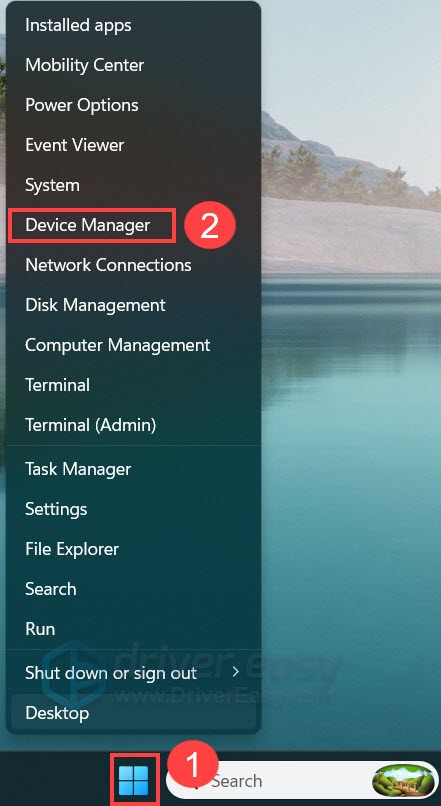
- Right-click the Start button and select Device Manager.
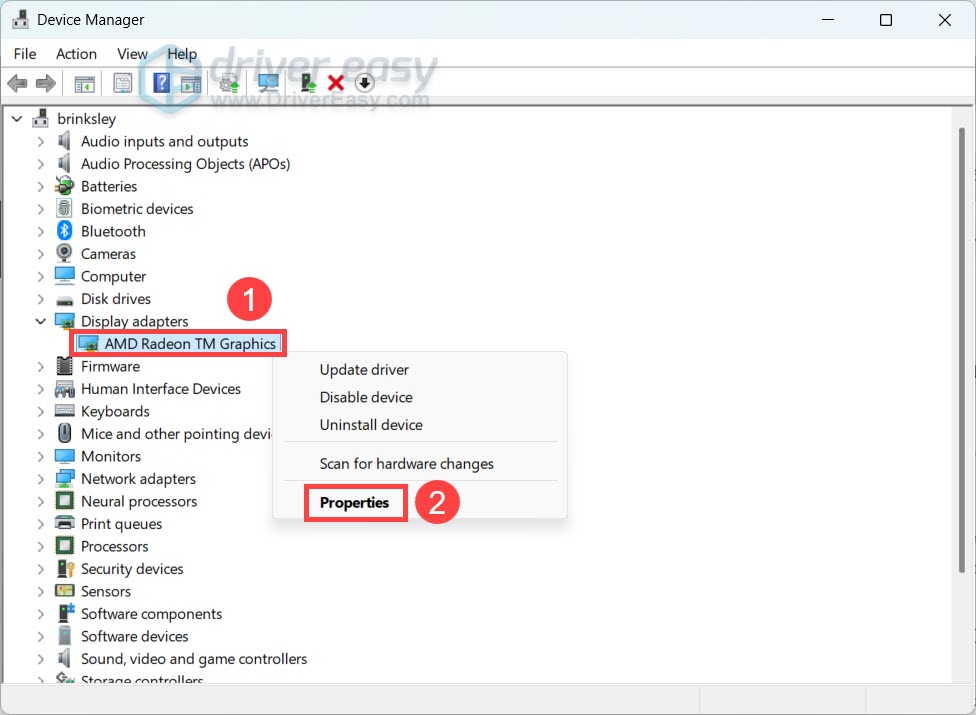
- Expand Display adapters. Right-click your AMD Radeon graphics card and select Properties.
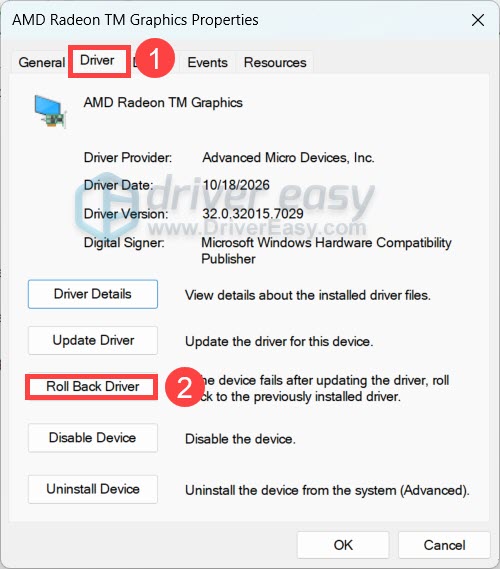
- Open the Driver tab. Click Roll Back Driver, if available.
- Follow the on-screen instructions and restart your PC.
If the Roll Back Driver option is unavailable or grayed out, Windows may no longer have the previous driver package available. Try the next method instead.
Option 2: Manage your device drivers easily with Driver Easy
If you’re looking for an easier way to manage the device drivers on your system, either updating or restoring drivers, Driver Easy takes care of it all.
With a quick scan, Driver Easy identifies your hardware and finds the drivers your system needs. Besides, it can automatically back up existing drivers before updating them. If a new driver causes problems, you can use the saved backup to roll back in one click. Here’s how it works:
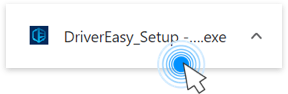
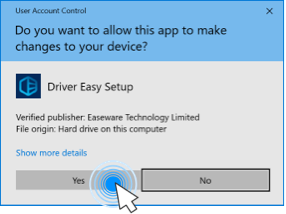
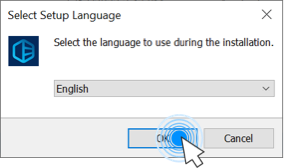
- Download and install Driver Easy.
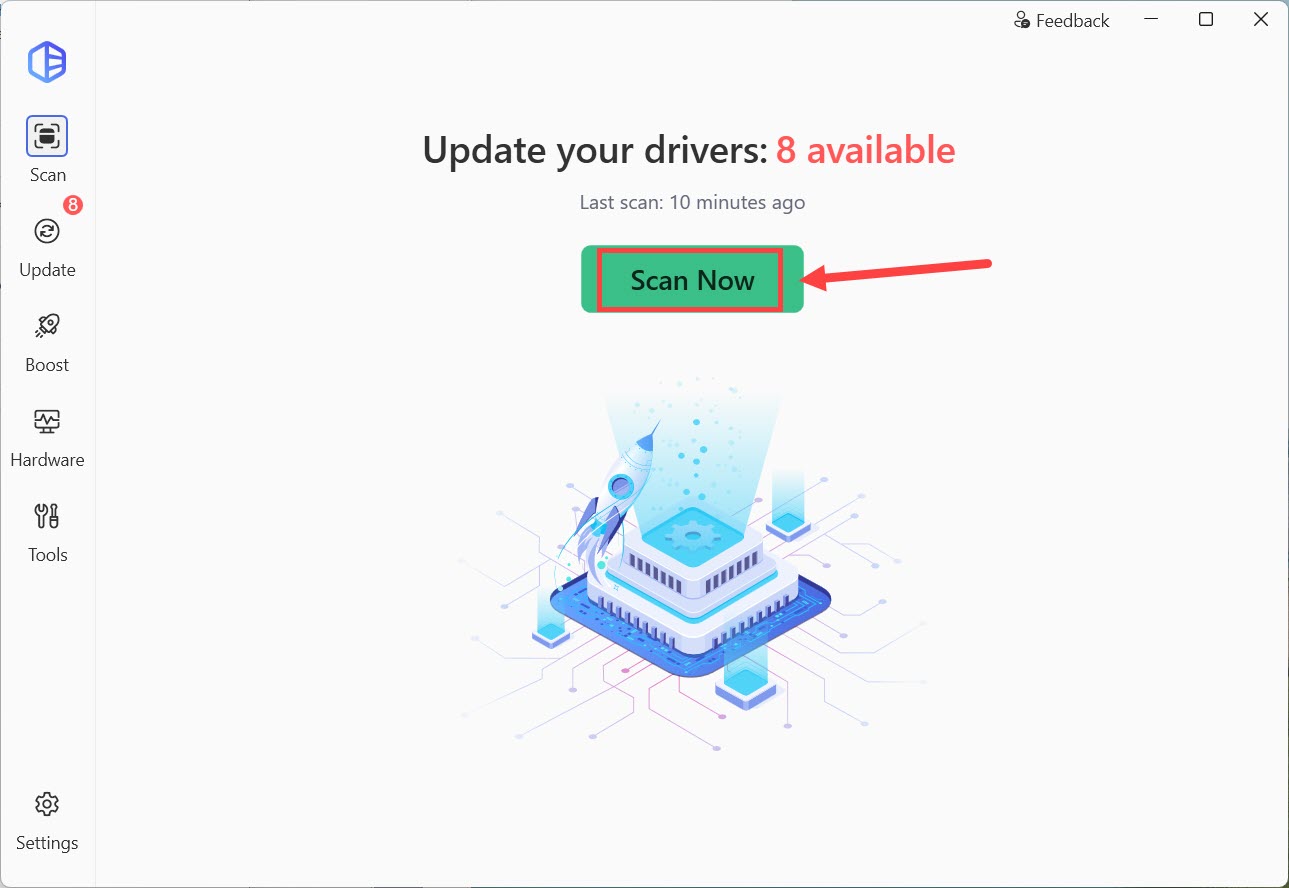
- Run Driver Easy and click the Scan Now button. Driver Easy will then scan your computer and detect any problem drivers.
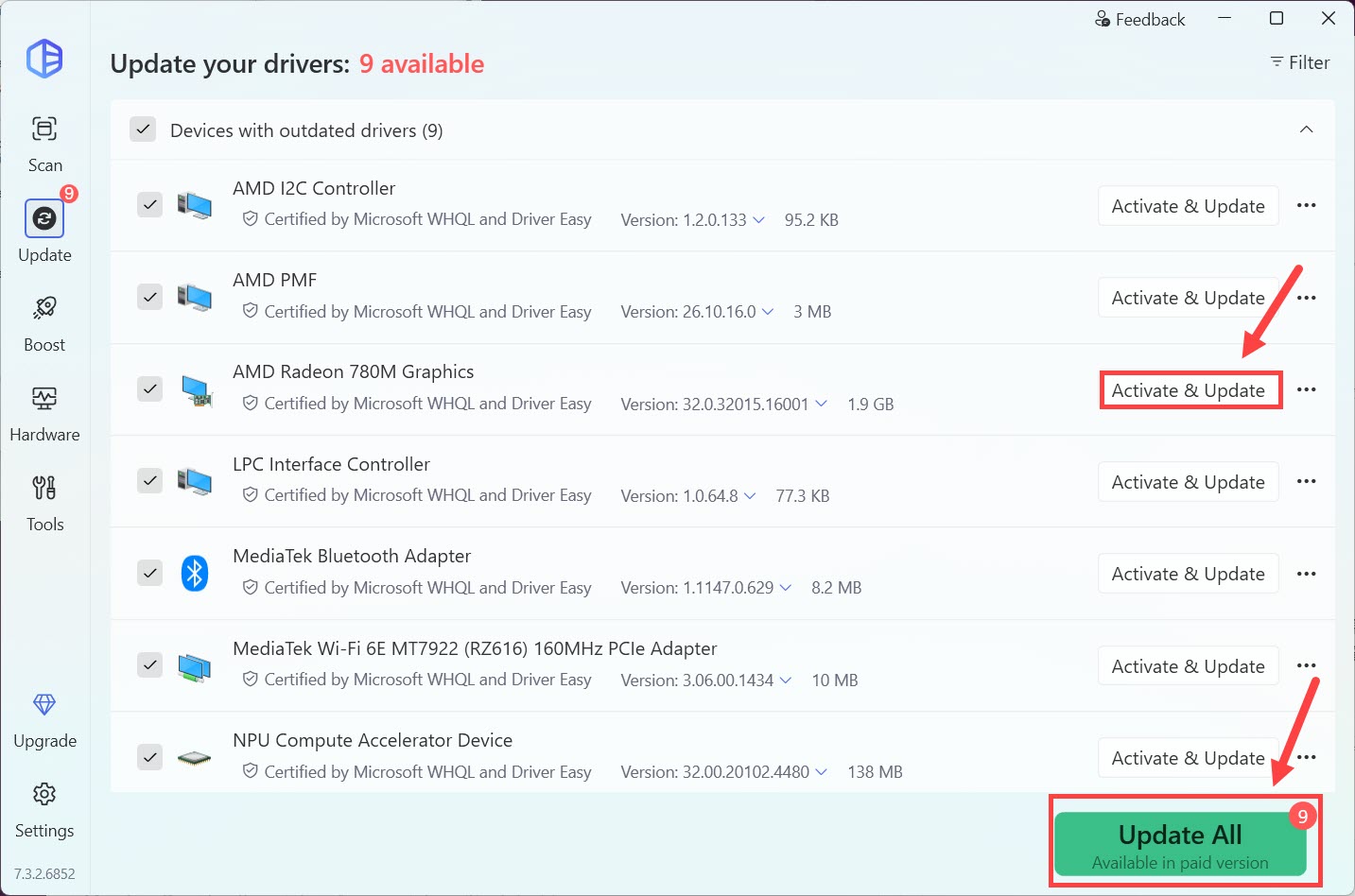
- Click the Activate & Update button next to the flagged AMD GPU to automatically download and install the correct version of this driver. Or click Update All to automatically download and install the correct version of all the drivers that are missing or out of date on your system.
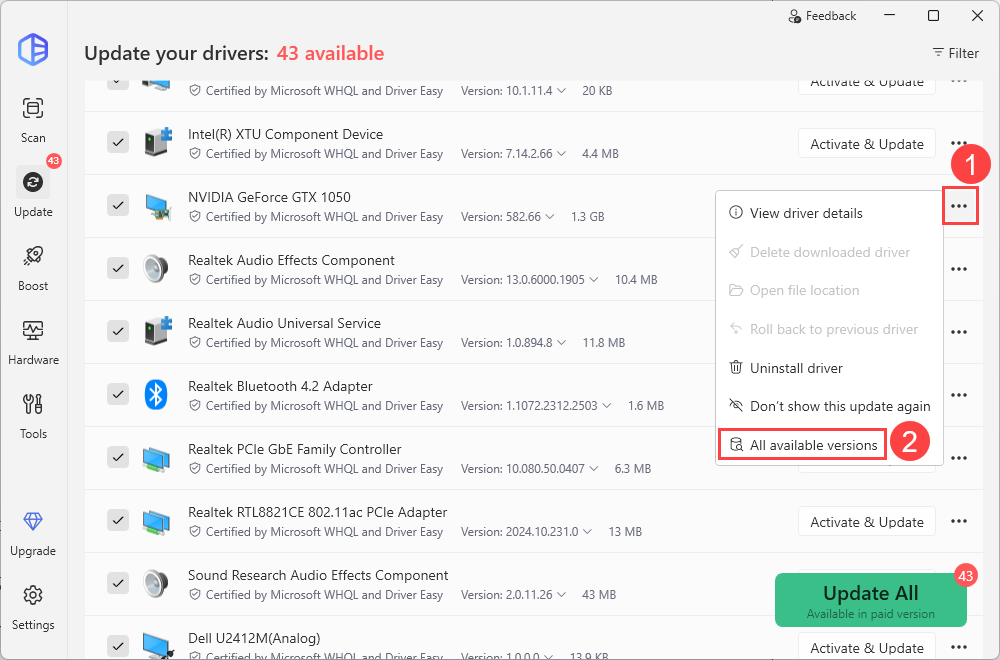
You can also choose to install any previous versions from its vast database of verified drivers straight from manufacturers.
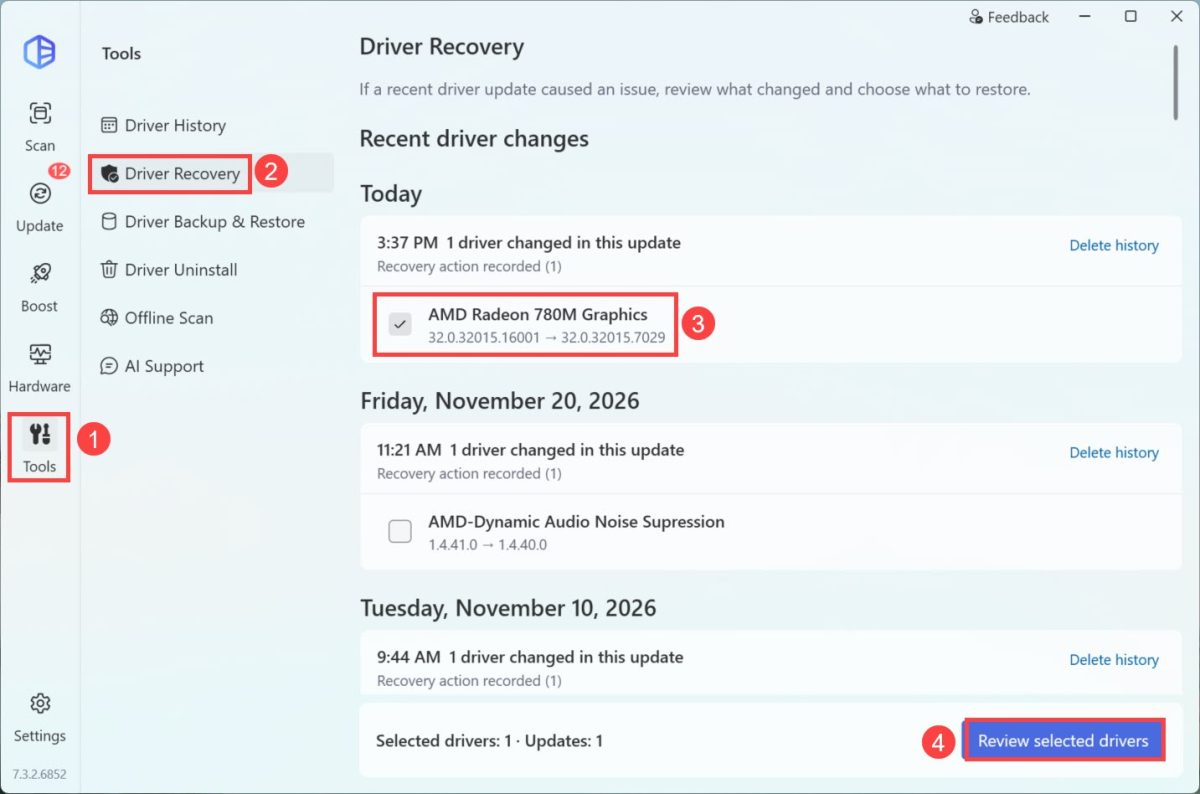
If updating the drivers causes any problems or conflicts, simply navigate to Tools > Driver Recovery. Then tick the drivers that caused an issue, and then click Review selected drivers to start recovery.
Fix 3: Perform a clean installation of the AMD graphics driver
If rolling back the driver doesn’t help, or if you suspect that the existing AMD driver installation is corrupted, try a clean installation.
A normal driver update may leave behind components from an older installation. Removing the existing AMD graphics software before installing a fresh package can help eliminate conflicts caused by incomplete or corrupted installations.
Option 1: Use AMD Cleanup Utility
AMD provides its own cleanup tool to remove previously installed AMD graphics and audio drivers.
- Download AMD Cleanup Utility from AMD’s official website.
- Temporarily disconnect your PC from the Internet to prevent Windows Update from installing another display driver during the process.
- Run AMD Cleanup Utility. If prompted, allow it to restart your PC in Safe Mode.
- Follow the instructions to remove the existing AMD graphics drivers and software.
- Restart your computer when prompted.
- Install the AMD graphics driver package. You can download the driver from AMD’s official website and install it manually, or simply use Driver Easy to update the drivers automatically.
- Restart Windows and reconnect to the Internet.
Option 2: Use Display Driver Uninstaller (DDU)
If you prefer a third-party tool for removing graphics drivers, you can use Display Driver Uninstaller (DDU). Here’s a detailed step-by-step guide: How to reinstall GPU drivers with DDU.
Finally, test the game or application that previously caused the crash. If a clean installation doesn’t help, avoid repeating the same process unnecessarily. Move on to the next method.
Fix 4: Prevent Windows Update from replacing your AMD graphics driver
Windows Update sometimes installs a different AMD display driver after you’ve manually installed one from AMD’s website.
This can cause driver-version conflicts or make AMD Software: Adrenalin Edition behave unexpectedly. For example, you may find that your AMD driver version changes after a Windows update, even though you didn’t manually update it.
Here’s how to check and prevent this from interfering with your troubleshooting.
Step 1: Check the AMD driver version
- Right-click the Start button and select Device Manager.
- Expand Display adapters. Right-click your AMD Radeon graphics card and select Properties.
- Select the Driver tab.
Note the driver version and date, and compare it with your desired driver version. If they don’t match, Windows may have replaced your manually installed driver. You’ll need to follow the steps below to prevent Windows from replacing the driver.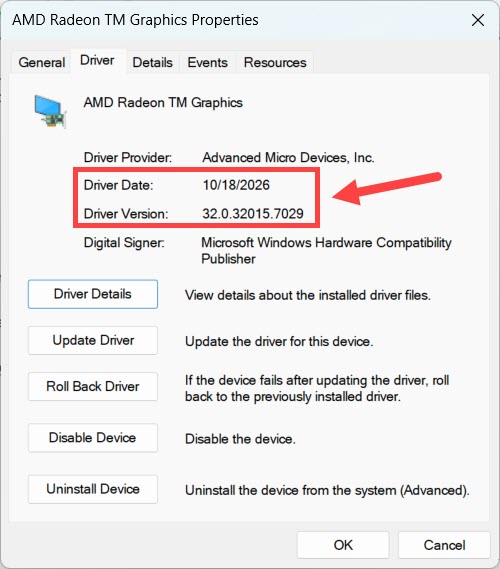
Step 2: Exclude driver updates from Windows Update
On supported Windows Pro and Enterprise editions, you can use Group Policy to prevent driver updates from being included in Windows quality updates.
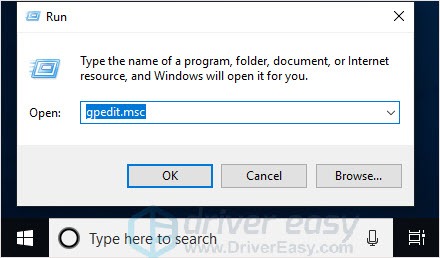
- Press the Windows logo key + R, type gpedit.msc, and press Enter.
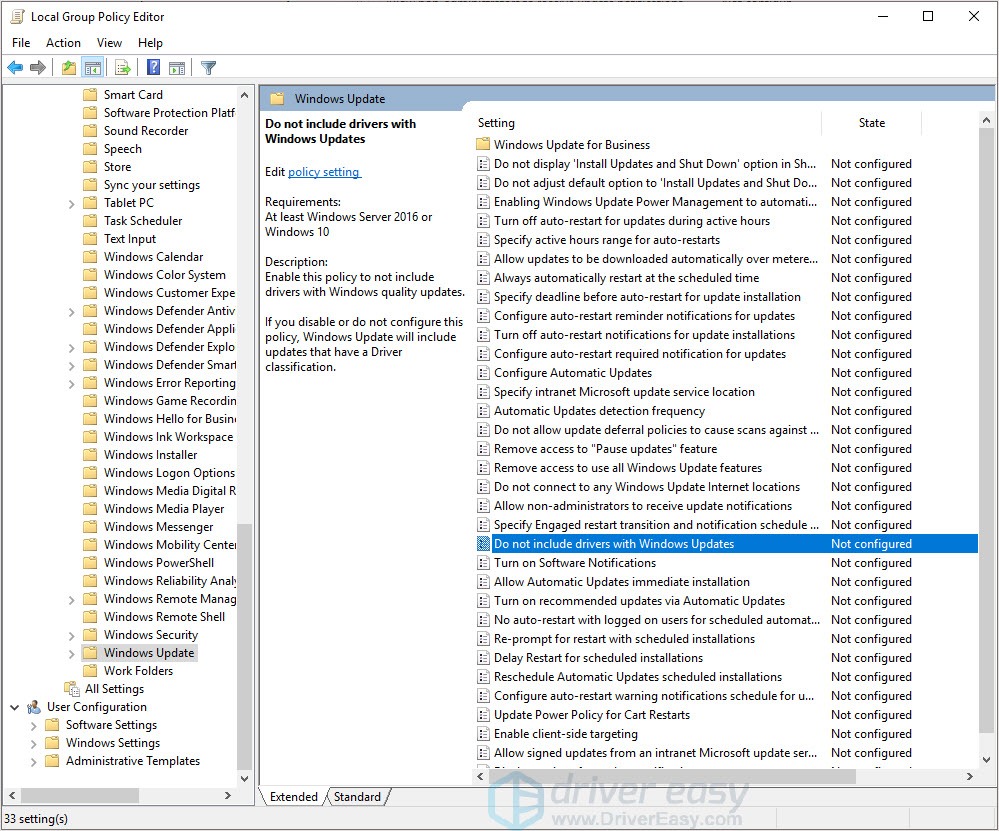
- Navigate to: Computer Configuration > Administrative Templates > Windows Components > Windows Update > Manage updates offered from Windows Update.
- Double-click Do not include drivers with Windows Updates.
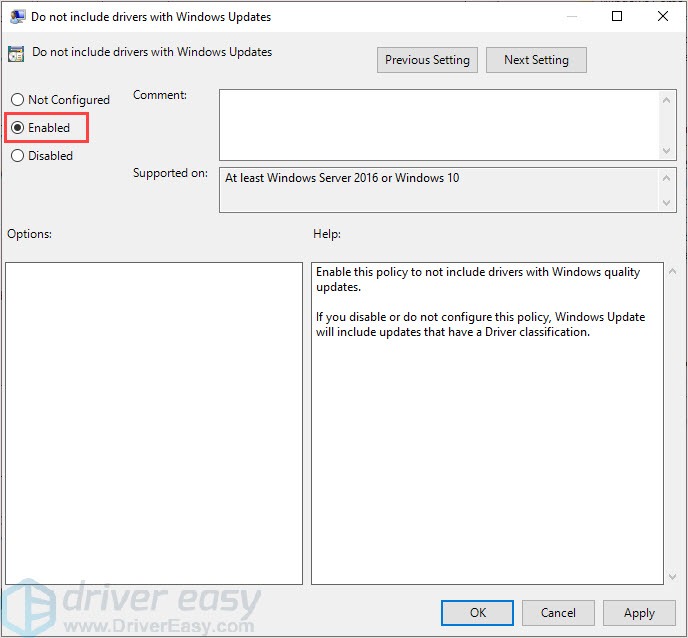
- Select Enabled. Click Apply and OK.
- Restart your PC.
This policy isn’t available through the Local Group Policy Editor on standard Windows Home installations. If you’re using Windows Home, you can instead use the Registry Editor to disable Windows driver updates.
Note: This setting can prevent useful driver updates from being delivered through Windows Update. If you enable it, remember to check for graphics and other device driver updates manually.
This method helps prevent unwanted driver replacements. It won’t directly repair a corrupted AMD driver or resolve an underlying GPU hardware problem.
Fix 5: Update AMD chipset drivers
Outdated or incompatible chipset drivers may contribute to system instability, so updating them is worth trying if the previous methods haven’t resolved the amdkmdag.sys crash.
You can download the appropriate chipset drivers from your motherboard manufacturer’s official website: AMD or Intel. You can follow our instructions here:
- AMD Chipset Drivers Download & Update for Windows
- Intel Chipset Driver for Windows 11/10/8.1/7 – Download & Update
Or you can just use Driver Easy to automatically update the chipset drivers for you. Once the driver update completes, open your game or application to test. If the crashes continue, move on to the next fix.
Fix 6: Check for BIOS updates
Your motherboard BIOS (Basic Input/Output System) initializes hardware during startup and helps manage communication between system components.
In some cases, an outdated BIOS may cause compatibility or stability problems involving the motherboard, CPU, memory, and PCIe devices. If your AMD graphics card keeps crashing despite the previous fixes, checking for a relevant BIOS update may help. If you don’t know how, read our guide to update the BIOS on your Windows PC.
Restart Windows and confirm that your system recognizes the AMD graphics card correctly. Run your usual games and applications to check if the crash error is resolved.
An amdkmdag.sys crash can be frustrating, especially when it causes black screens, freezes, or unexpected game crashes. However, it doesn’t automatically mean that your AMD Radeon graphics card is defective.
Try the fixes above in order. If the software fixes don’t work, investigate your GPU temperatures, power connections, and other hardware components.