





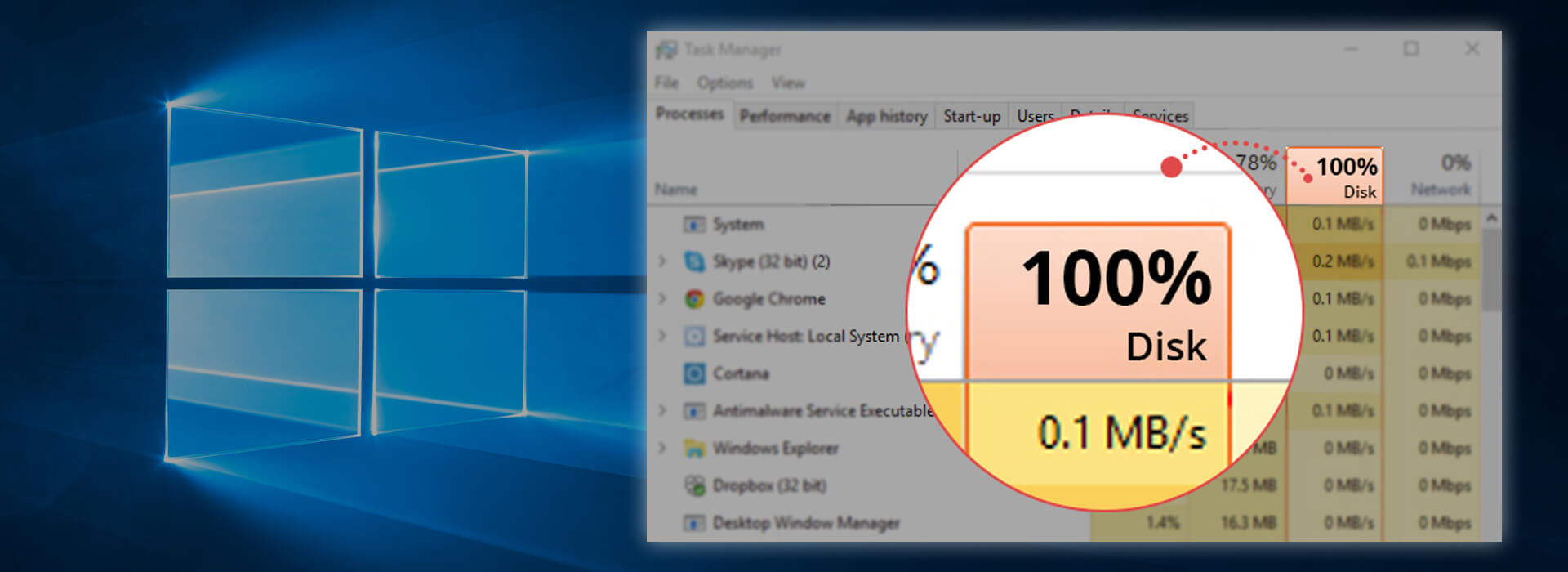

Is your PC struggling? Browser crawls, opening a folder takes ages, and even switching tabs feels like a chore. You check Task Manager, and there it is—100% disk usage. So, what’s eating up your disk? It could be anything from background processes to a faulty drive slowing things down.
But don’t worry. In this article, we will show you the 8 most effective methods to fix the 100% disk usage issue and get your PC up to speed again. Read on…
8 fixes for 100% disk usage on Windows 10
Before diving into anything complicated, try a quick restart to rule out a temporary glitch. If that doesn’t help, just work your way through the list until you find the one that works for you.
- Fix 1: Disable the SysMain (SuperFetch) service
- Fix 2: Switch to the High Performance power plan
- Fix 3: Reset virtual memory and clear temp files
- Fix 4: Temporarily disable antivirus software
- Fix 5: Update your device and storage drivers
- Fix 6: Update StorAHCI.sys Driver in the registry
- Fix 7: Perform a disk check
- Fix 8: Check drive health and hardware
- Wrapping up
Fix 1: Disable the SysMain (SuperFetch) service
The SysMain service (previously known as SuperFetch) pre-loads frequently used applications into RAM, helping reduce the boot time. However, on many Windows 10 configurations – particularly systems running on mechanical drives – SysMain can get caught in an aggressive loop, generating non-stop read/write requests that trigger disk usage at 100%.
Here’s how to stop this service:
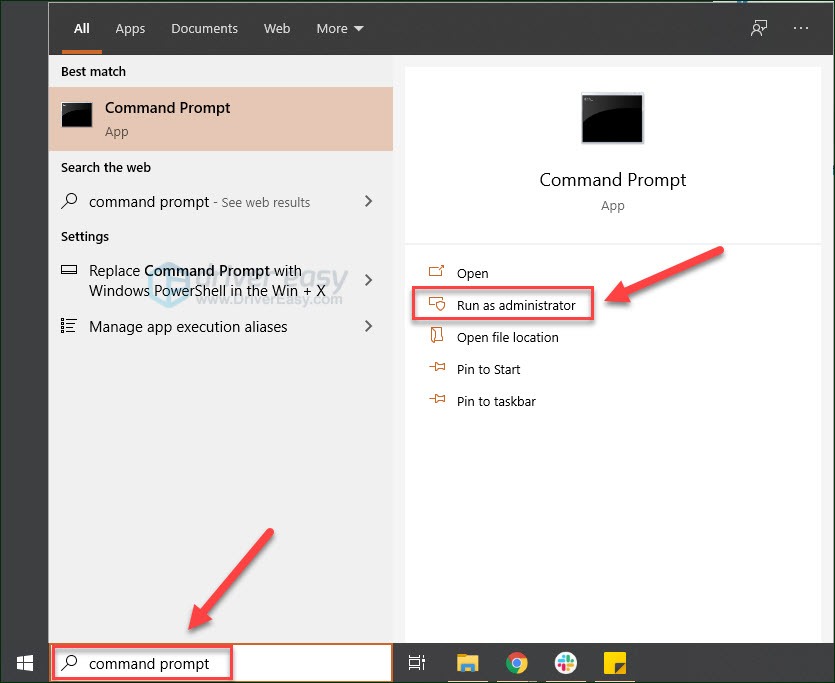
- On your keyboard, press the Windows logo key, type Command Prompt, then when it pops up as a match, select Run as administrator.
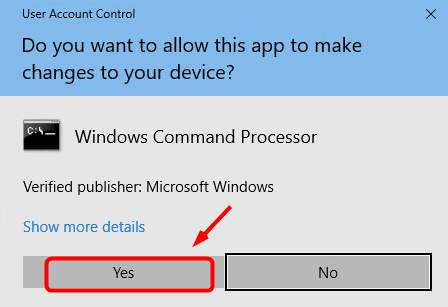
- Click Yes at the User Account Control prompt.
- In the Command Prompt window, type
net.exe stop sysmain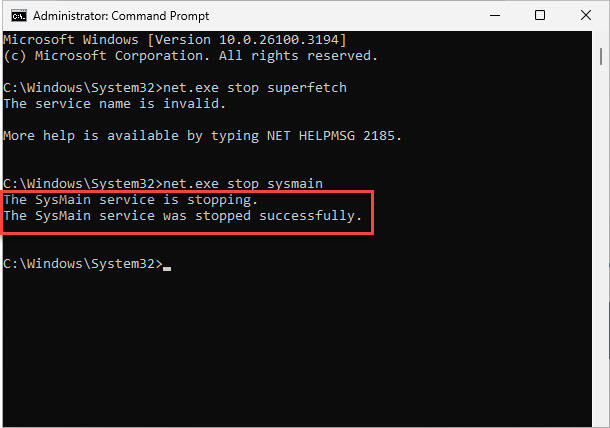
- If the command above doesn’t work and you see a message like “The service name is invalid,” try
net.exe stop sysmaininstead and press Enter. - Wait for a few minutes to see if your computer starts performing better.
Alternatively, you can check your computer’s disk usage: On your keyboard, press Ctrl, Shift, and Esc at the same time to open Task Manager. Then in the Processes tab, look at the % at the top of the Disk column.- If it’s no longer at 100% or has significantly dropped, then great! You’ve likely resolved the issue!
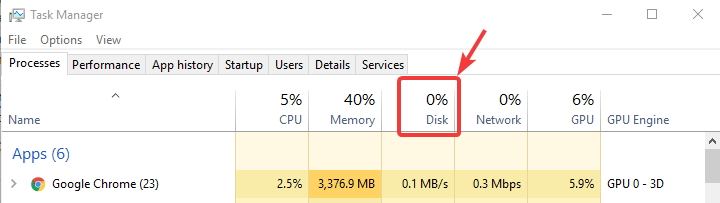
- If the 100% disk usage problem persists, please move on to Fix 2, below.
- If it’s no longer at 100% or has significantly dropped, then great! You’ve likely resolved the issue!
Disable SysMain permanently
If stopping the service lowers your disk usage, prevent it from restarting automatically on the next boot:
- Press the Windows key + R to open the Run box, type services.msc, and press Enter.
- Scroll down to locate SysMain.
- Right-click SysMain and select Properties.
- Set the Startup type drop-down menu to Disabled, then click Apply > OK.
Fix 2: Switch to the High Performance power plan
The High Performance power plan makes sure your PC runs at full capacity and potentially stops energy-saving settings that might slow down your hard drive. So if you’re dealing with 100% disk usage, switch to the High Performance power plan to see if that can make a difference.
Here is how to do it:
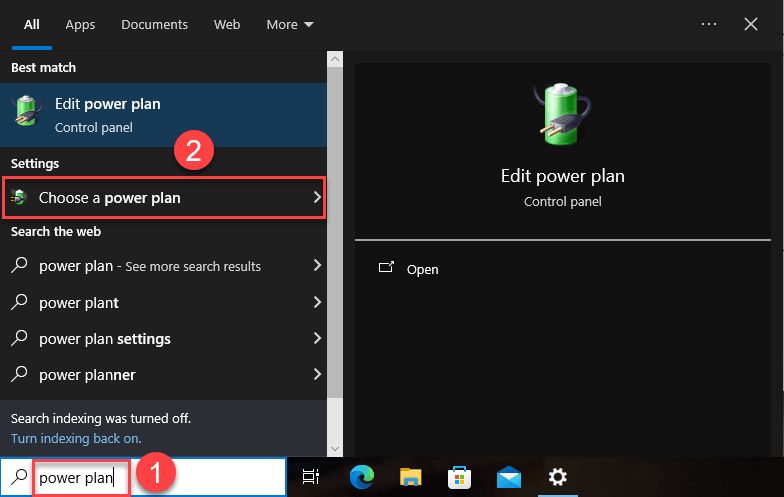
- On your keyboard, press the Windows logo key and type power plan. Then click on Choose a power plan when it pops up as a result.
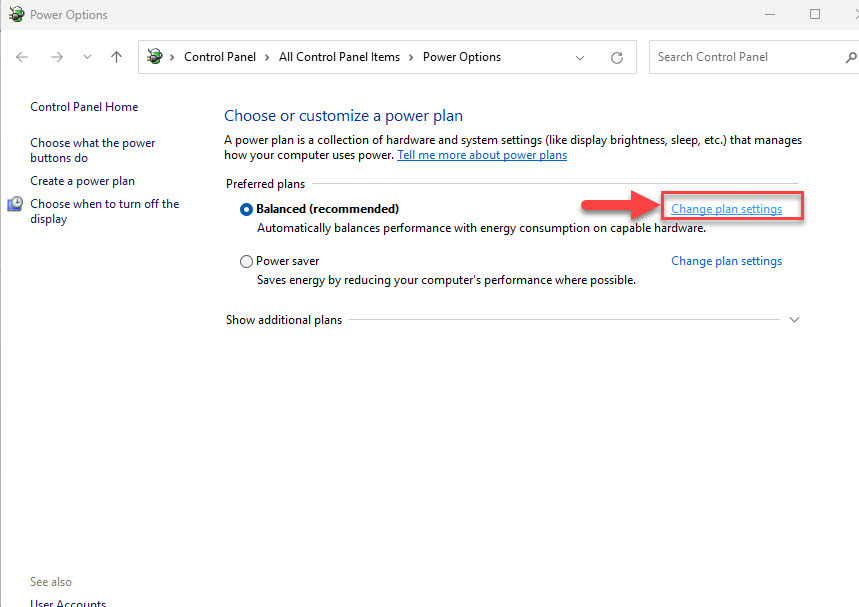
- In the Power Options window, click Change plan settings.
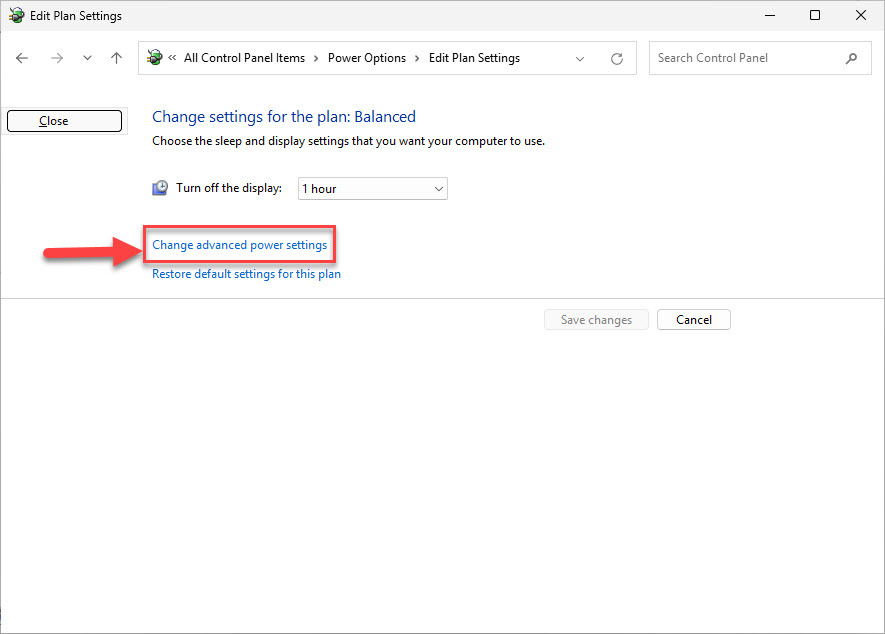
- Click Change advanced power settings.
- In the Power Options window that pops up, select the High Performance power plan and then click Apply > OK.
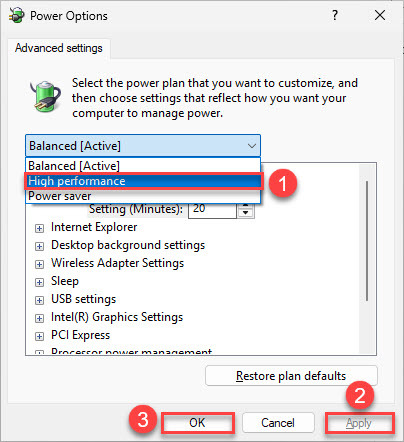
- Check Task Manager to see if the disk usage has returned to normal.
Fix 3: Reset virtual memory and clear temp files
Virtual memory can be considered an extension of your computer’s physical memory. It’s a combination of RAM and a portion of your hard drive. When the RAM isn’t enough to perform a task, Windows will temporarily store files in virtual memory, then swap them back to RAM when required.
To reset virtual memory:
- On your keyboard, press the Windows logo key and I at the same time to open Windows Settings.
- Click System.
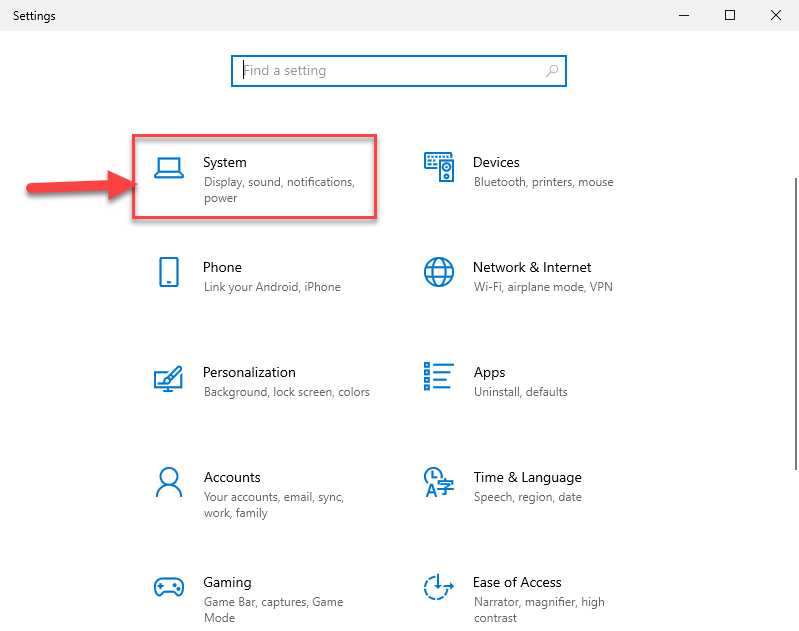
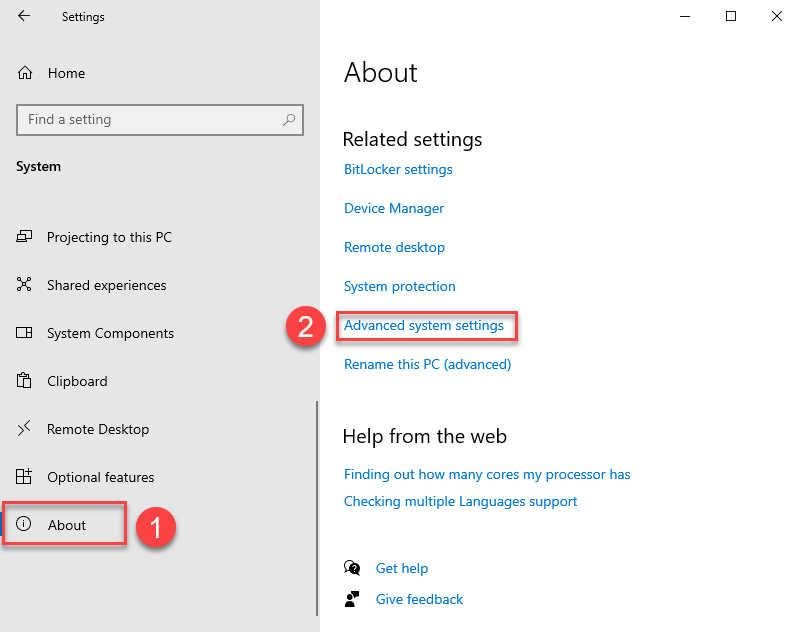
- Select About > Advanced system settings.
- Go to the Advanced tab, then click Settings.
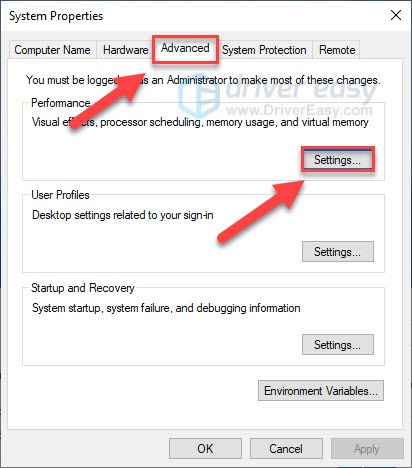
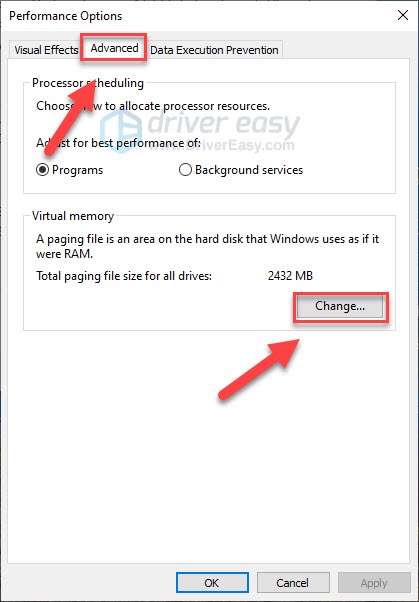
- Go to the Advanced tab again, and choose Change… in the Virtual memory section.
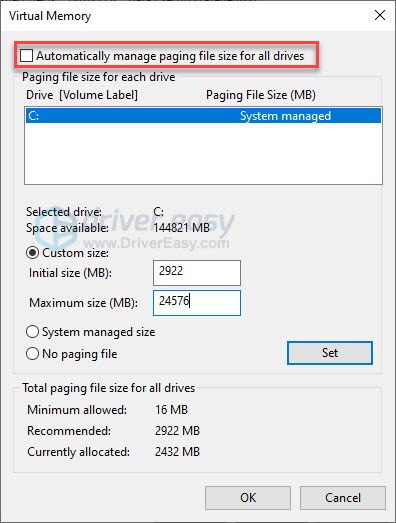
- Ensure the Automatically manage paging file size for all drives checkbox is NOT ticked.
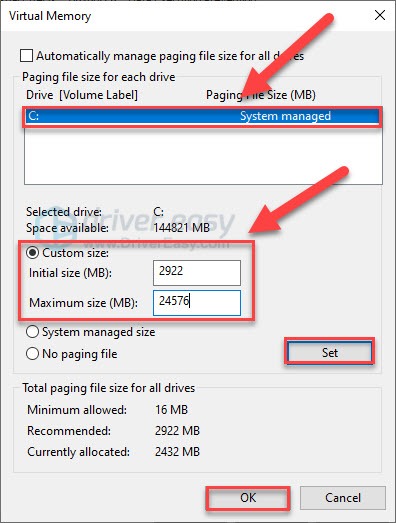
- Select your Windows drive (the hard drive or partition that has Windows installed on it – usually C:), and enter an Initial size and Maximum size for your virtual memory:
- Initial size – This value varies, depending on your computer. If you’re not sure what value to use, just enter whatever the number is in the Recommended category.
- Maximum size – Don’t set this value too high. It should be about 1.5 times the size of your physical RAM. e.g. A PC with 4 GB (4096 MB) of RAM should have no more than about 6,144 MB virtual memory (4096 MB x 1.5).
- Once you’ve entered your virtual memory values, click Set, then click OK to continue.
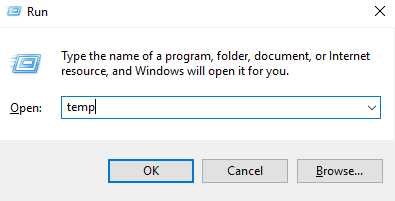
- Clear all the ‘temp’ files on your PC. On your keyboard, press the Windows key and R at the same time, then in the Run form, type temp and hit Enter. This will invoke Windows Explorer with your Temp folder open, showing you all the temp files on your computer.
- Select all the files in the Temp folder and delete them.
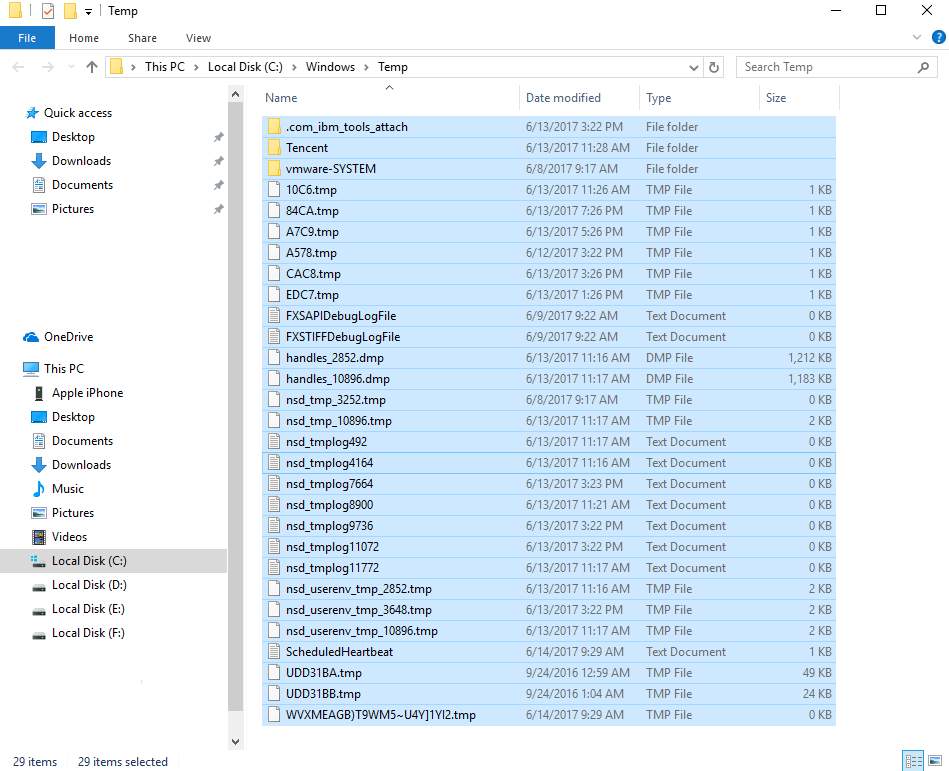
- Launch Task Manager and review the Disk column under the Processes tab. If the usage has gone down, your issue is likely resolved. If disk usage remains unusually high, please move on to the next fix.
Fix 4: Temporarily disable antivirus software
Antivirus programs like Norton, McAfee, or Avast are always running in the background to keep your PC safe. But sometimes, they glitch out and get “stuck” scanning the same system files over and over again. This endless loop forces your hard drive to work at full speed, maxing out your disk usage.
To see if your antivirus is the cause, temporarily disable it. Please see your antivirus software’s documentation to learn how to disable it. You might also find these links useful:
- How to temporarily turn off Norton Antivirus program?
- How to stop AVG temporarily?
- How to disable Avast temporarily?
Note that Microsoft has its own default anti-malware, Windows Defender. It’s automatically enabled even if you also have other antivirus applications installed. Even if you disable your other antivirus programs, Windows Defender is always there for you during that time range. So, no need to worry too much about temporarily turning your antivirus off.
Once you’ve disabled your antivirus, check your computer’s disk usage again. If the percentage is no longer maxed out, you’ve found the culprit, and you should contact the vendor of your antivirus software to see if they can provide some help.
If your disk usage is still high, please continue with Fix 6.
Fix 5: Update your device and storage drivers
Drivers are the essential software that handles the communication between your hardware (like your hard drive, graphics card, and motherboard) and your operating system. If your storage driver is outdated or corrupted, Windows will keep sending data requests, but the hard drive gets confused and stuck, creating a massive data traffic jam that shows up as 100% disk usage.
To fix this, update your motherboard and storage drivers. You can update the drivers manually from the manufacturer’s website. If you’d rather skip the hassle, you can do it automatically with Driver Easy.
Driver Easy is a trusted driver updater that scans your system, finds the correct drivers, and updates them automatically. With Driver Easy, you can install the official verified drivers easily and safely. You don’t have to worry about making mistakes or downloading the wrong drivers. You can also uninstall or roll back a driver with one click, which can be helpful if the driver causes an issue or isn’t perfectly compatible with your computer.
- Download and install Driver Easy.
- Run Driver Easy and click Scan Now button. Driver Easy will then scan your computer and detect any outdated or faulty drivers.
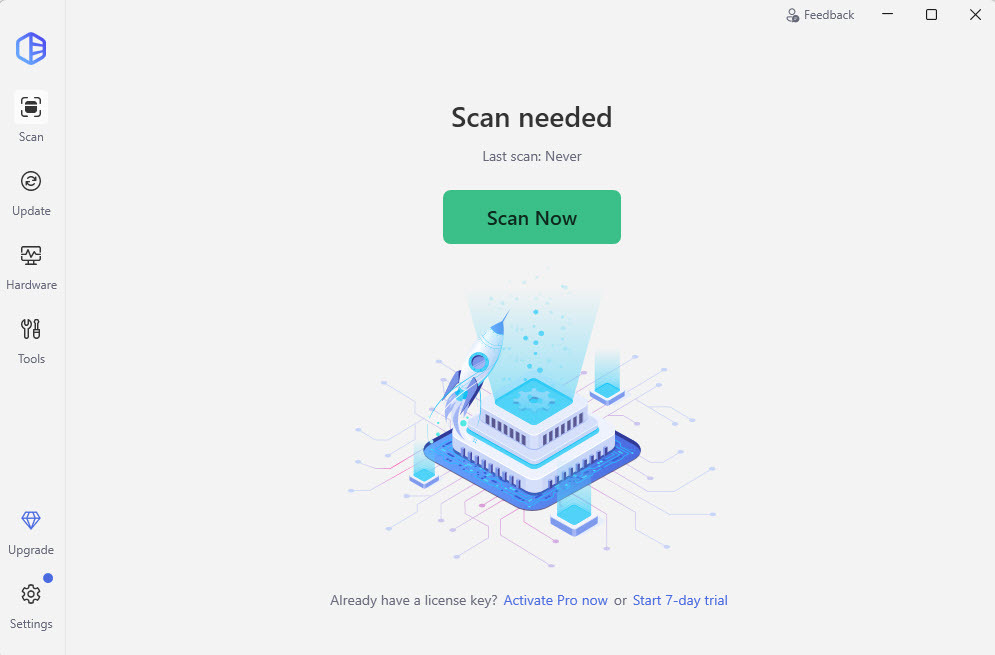
- You may see a list of drivers that are missing or out-of-date. Click the Activate & Update button next to a specific driver to update it, or click Update All to update all the missing or outdated drivers on your system.
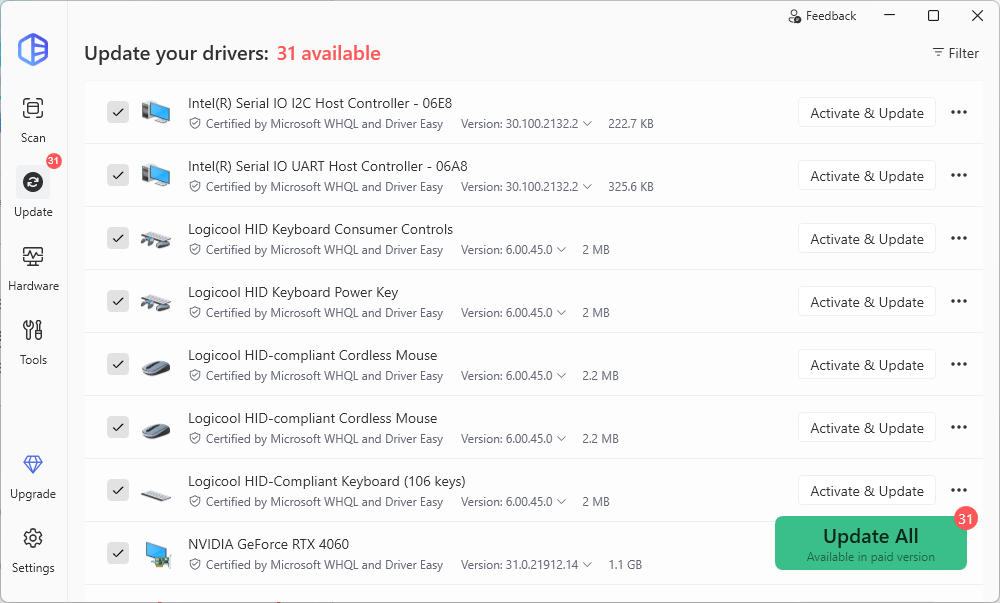
You can start a 7-day free trial or upgrade to Driver Easy Pro to update drivers. Either option will automatically download and install the latest device drivers and include the full set of premium features. - Once done, open Task Manager and check the Disk column to see if it shows a lower percentage. If yes, then congrats – you’ve fixed the high disk usage issue! If it’s still pegged at 100%, please proceed to the fix below.
Fix 6: Update StorAHCI.sys Driver in the registry
There is a known bug in Windows 10 where its default storage driver (storahci.sys) may not always work with certain hard drives and SSDs. Your drive tries to tell Windows it has finished reading or writing a file, but Windows completely misses the signal. As a result, Windows just waits forever, keeping your disk activity locked at 100%.
To fix this, try turning off this buggy communication feature by tweaking a quick setting in the Windows Registry.
- Open Device Manager by pressing the Windows logo key and X at the same time to choose Device Manager.
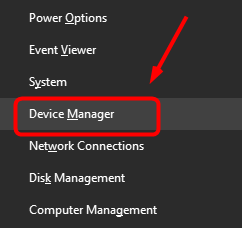
- Expand the IDE ATA/ATAPI Controllers category, and double-click the AHCI controller.
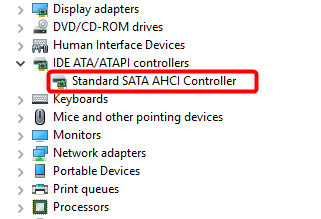
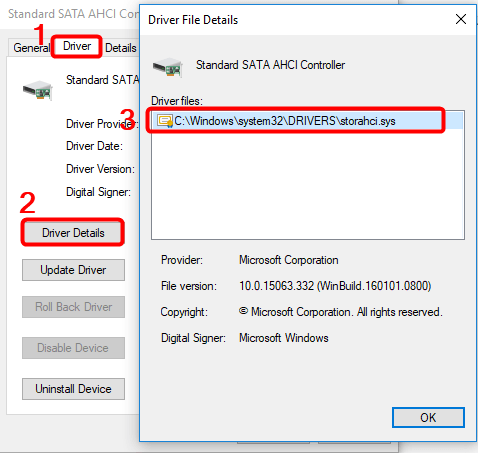
- Go to the Driver tab and click Driver Details. If you can see storahci.sys stored in a path of system32 folder, then you are running the inbox AHCI driver.
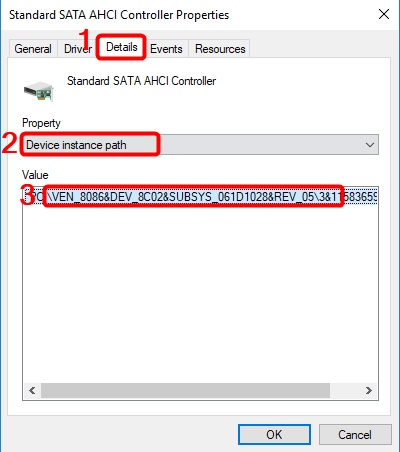
- Close the Driver Details window and go to Details tab. From the drop-down menu, select Device Instance Path. Make note of the path, starting from VEN_.
- Type regedit in the search box of Start panel, then hit Enter on your keyboard to run Registry Editor. Then go to:
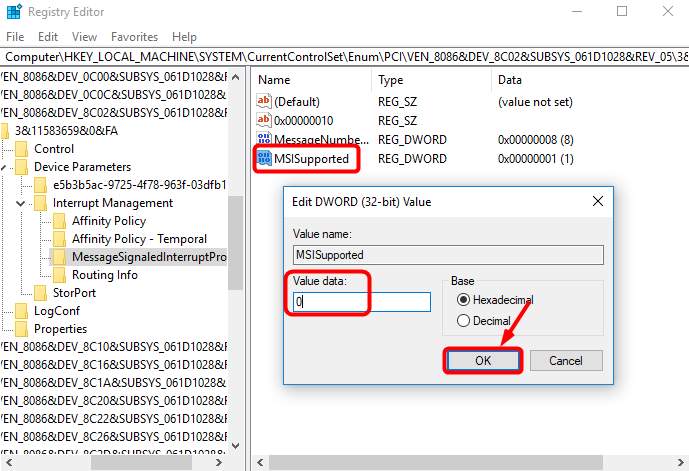
HKEY_LOCAL_MACHINE\System\CurrentControlSet\Enum\PCI\ <AHCI Controller>\<Random Number>\Device Parameters\Interrupt Management\MessageSignaledInterruptProperties
The <AHCI Controller> here refers to the name you see from step 2.
The <Random Number> differs on different machines.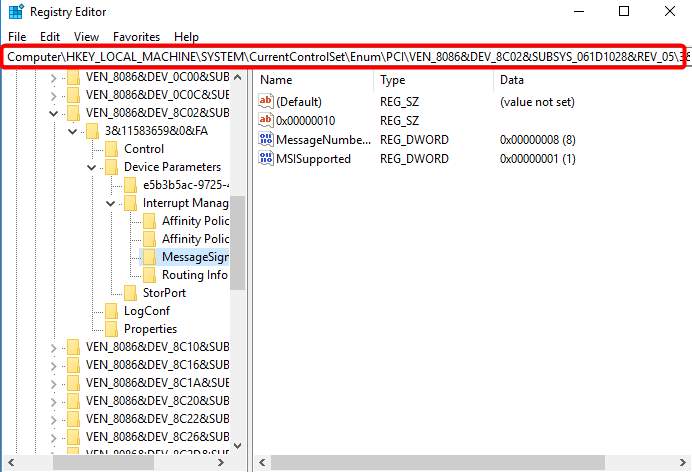
- Double-click the MSISupported key and change the value to 0.
- Restart your computer to apply the change.
- Open Task Manager and check out your disk usage. If it has dropped from 100%, you’ve likely resolved the issue. If it’s still high, please proceed to Fix 7, below.
Fix 7: Perform a disk check
As many Windows users have discovered, running a disk check can often fix the 100% disk usage problem. This is because it systematically identifies and repairs file system errors or bad sectors on your hard drive that directly contribute to excessive disk activity.
- On your keyboard, press the Windows logo key, type Command Prompt, then when it pops up as a match, select Run as administrator.
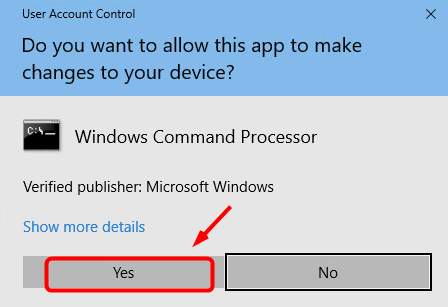
- Click Yes at the User Account Control prompt.
- The command prompt will once again display. Type chkdsk.exe /f /r, hit Enter, then type Y to confirm that you’d like to perform the disk check the next time you restart your computer. Please make sure you have closed all of your applications first.
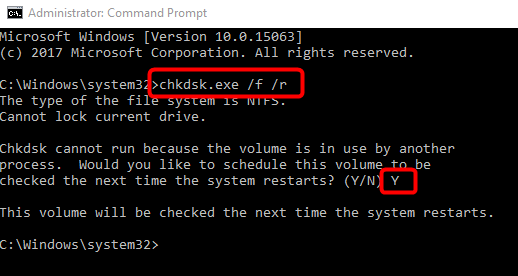
IMPORTANT: Disk check will start the next time you boot your PC and it might take some time to complete (could be a day for some). If, when you restart, you don’t have time to wait for the disk check to complete, you can skip it. You’ll need to reschedule it again, as described above, though. - Once the disk check is complete, reopen Task Manager to review your disk usage. If it has returned to a normal level, then you’re in the clear. If it’s still no joy, please continue with Fix 4, below.
Fix 8: Check drive health and hardware
If you’re still facing issues, your drive may be experiencing physical failure or approaching the end of its operational lifespan. Thankfully, you don’t need to be a professional to check your disk’s health. Tools like HD Tune and CrystalDiskInfo make it easy to assess the condition of your drive.
Here’s how you can quickly check your disk’s health with HD Tune
- Download and install the latest version of HD Tune.
(The trial version is enough for troubleshooting. You can get a license if you want to learn more about the disk’s performance.)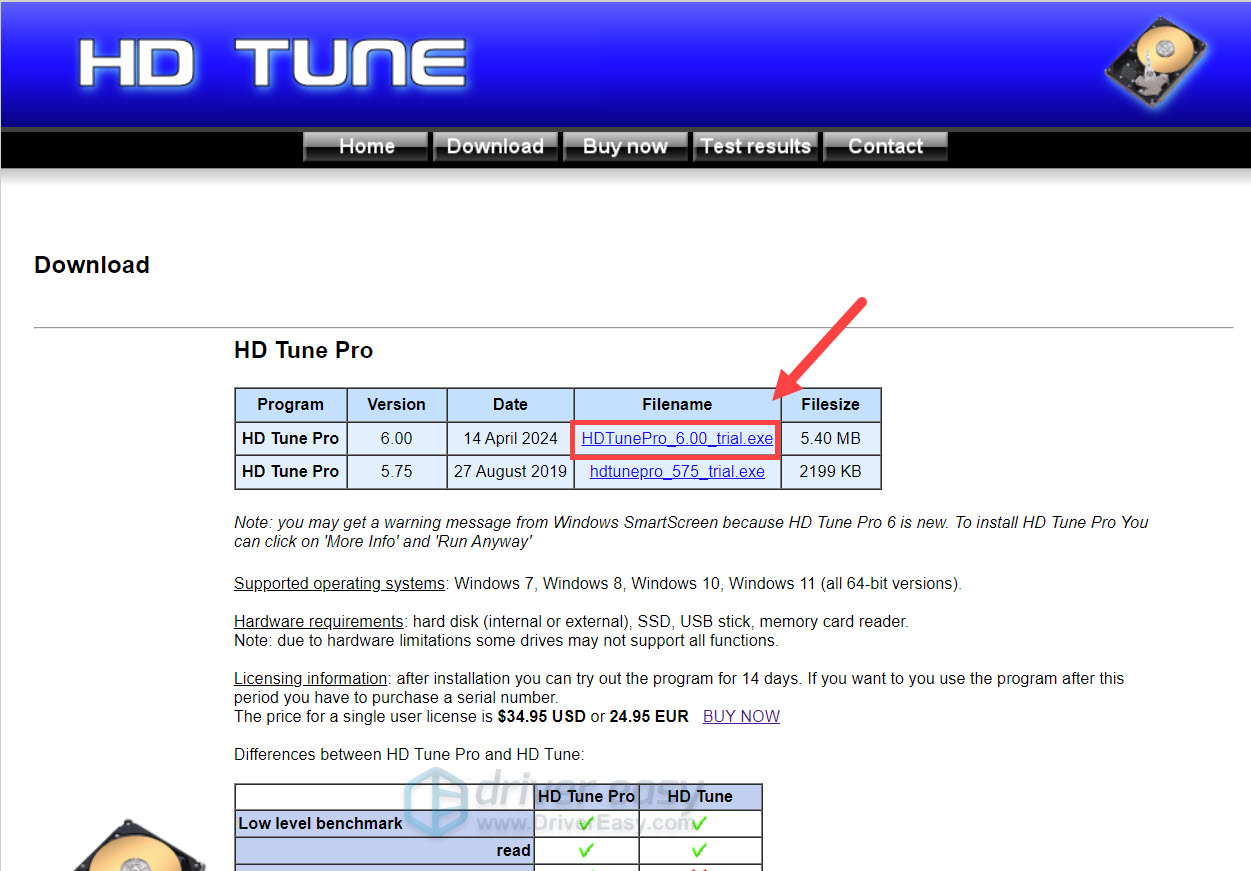
- Launch HD Tune. Select the Health tab.
Here you can see the S.M.A.R.T. info of your disk. (S.M.A.R.T is a monitoring system providing a series of attributes or diagnostics for each disk model.) At this moment, you don’t need to figure out each entry’s meaning — simply check if there’s any one of them has a Status that is not “Ok“. If you see a warning, you may need to Google the entry label and determine your next step.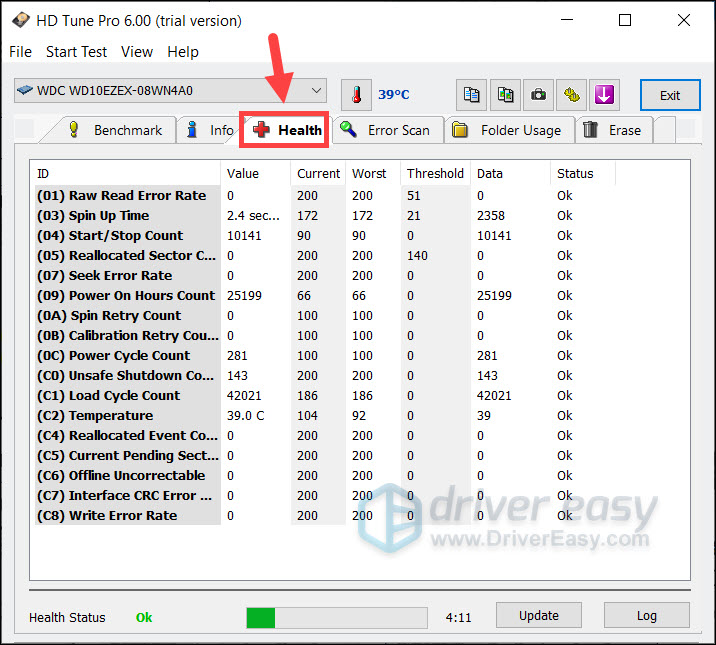
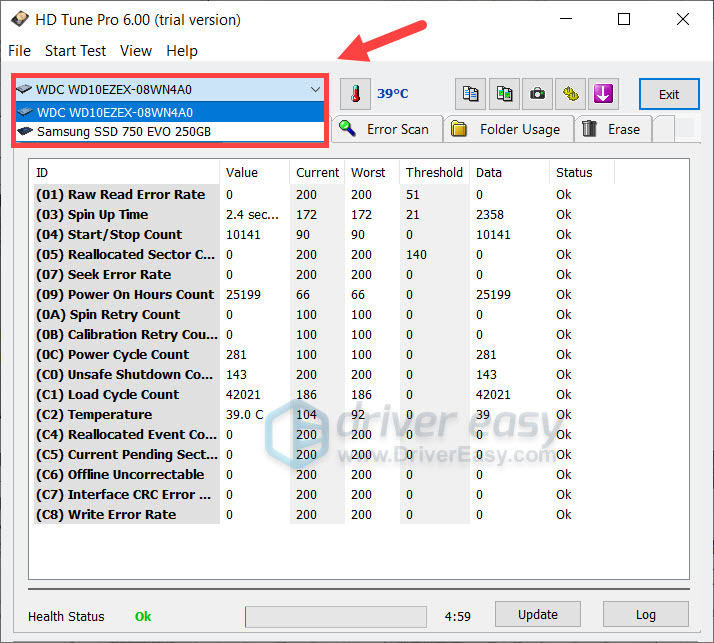
- On the top left corner, you can toggle the drop-down menu to select the disk (if you have multiple). This will allow you to check the health of each disk.
You’d also need to check if the disk has bad blocks. Before you start, note that this process could take hours to complete. You may want to try other fixes before this one.
- In HD Tune, select the Error Scan tab. First, make sure the Quick Scan checkbox is unchecked. Then click Start.
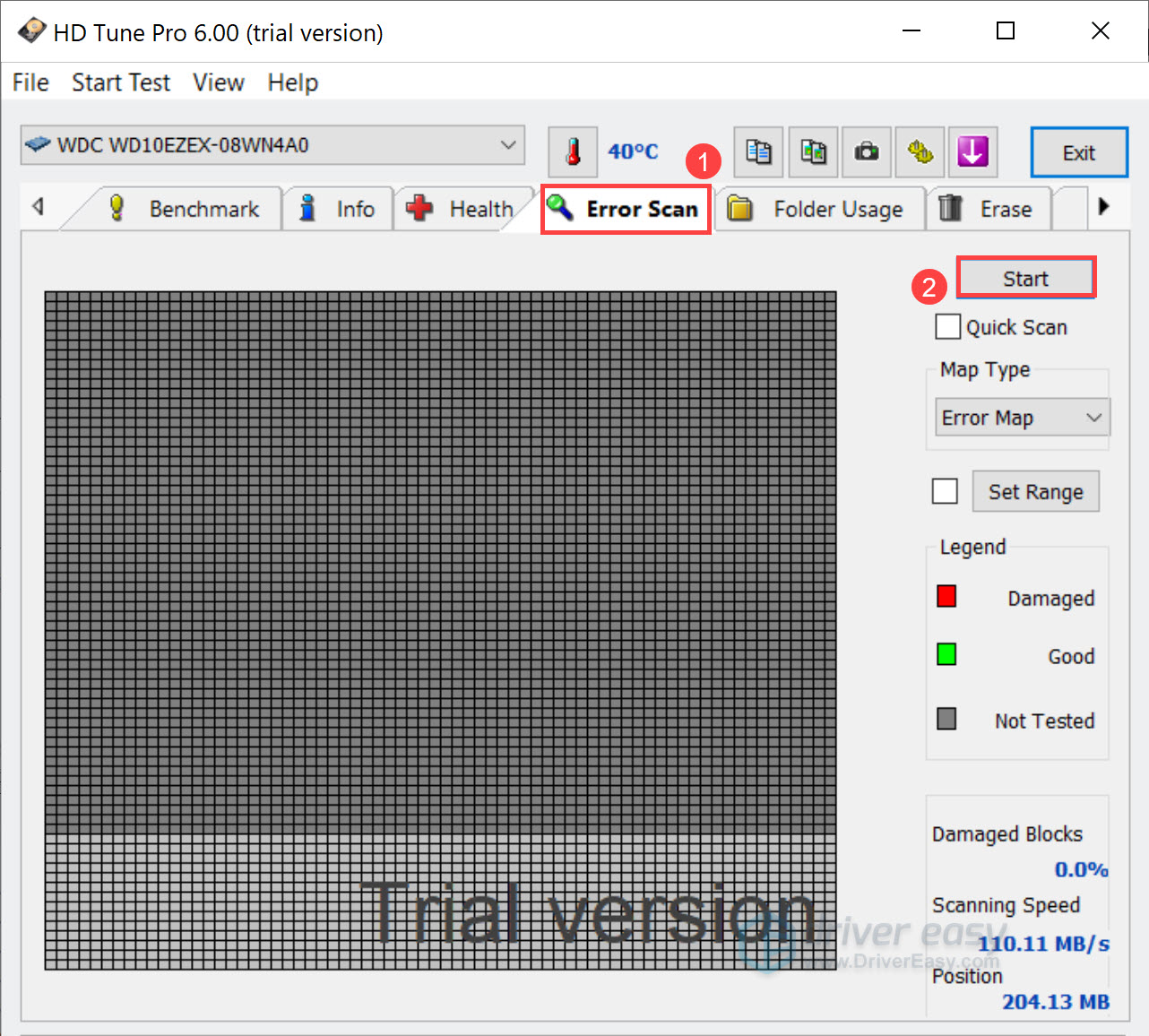
- Once it completes, check the graph and look for yellow or red blocks. If there are any red (damaged) blocks, you should consider backing up your data and replacing the faulty disk.
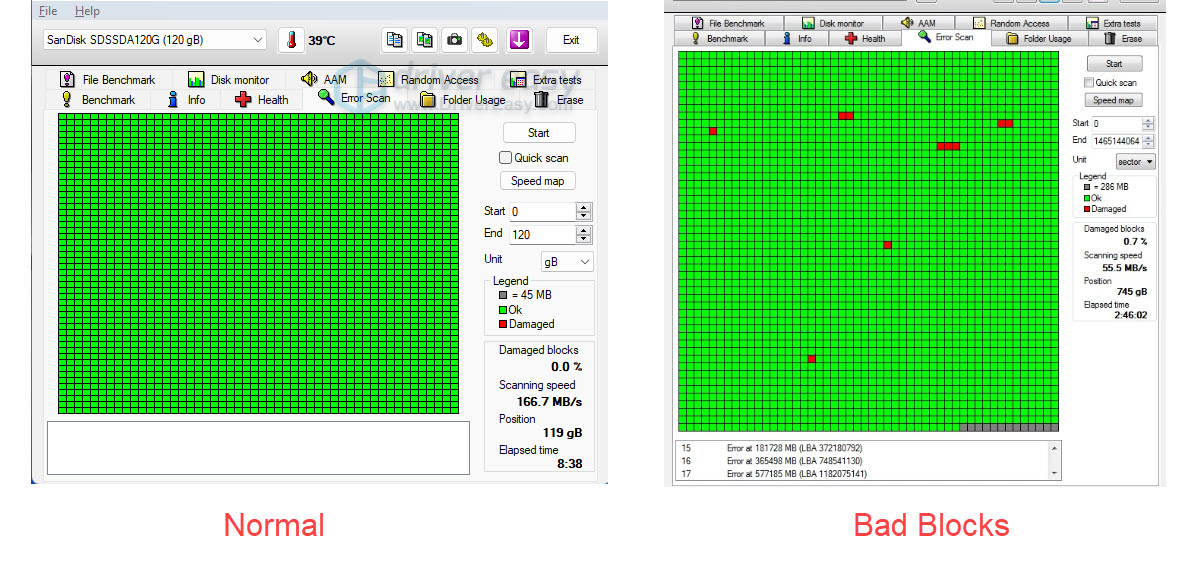
- Again, you can use the drop-down menu on the top left corner to scan different disks. It’s recommended you scan all the disks to make sure all your hard drives are in good condition.
Once complete, revisit Task Manager and check if the disk usage level has dropped to a normal range.
Wrapping up
100% disk usage can slow your PC to a crawl, but with the right fixes, you can resolve the issue and get your system running smoothly again.
If you’re still stuck, consider reinstalling Windows or upgrading to an SSD for a serious speed boost. Also, regular maintenance—like clearing temp files and keeping drivers updated—can help keep disk issues from coming back.
Hope this guide helped! If you found any new fix that worked, please share it with us in the comments. We’d love to hear from you!

