







If you’re running into the “Oops” error when using Driver Easy, you follow the instructions below to try resolving this error.
Firstly, please check to see if the error message contains “RestorePointer“.
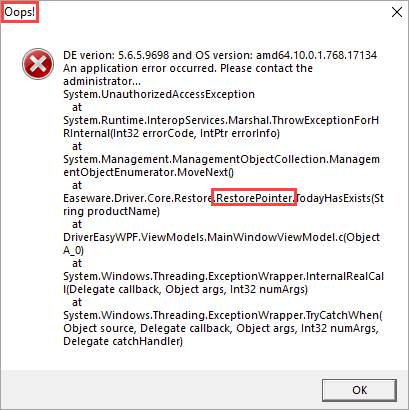
The error message contains “RestorePointer”
If it contains “RestorePointer”, please follow the steps below to re-enable the System Restore interface to have a try.
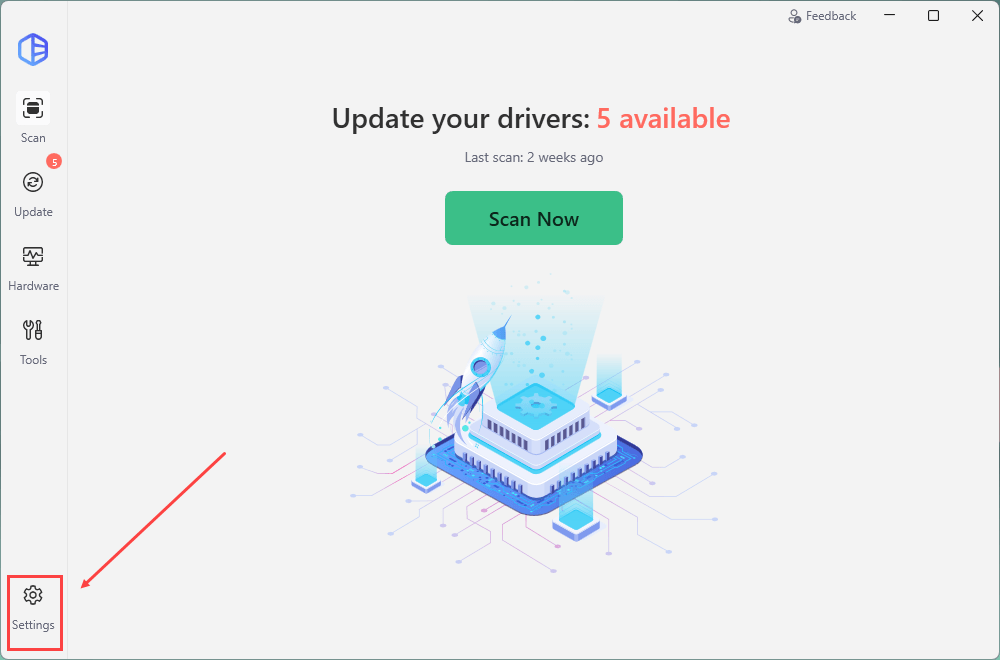
1) In Driver Easy, click Settings.
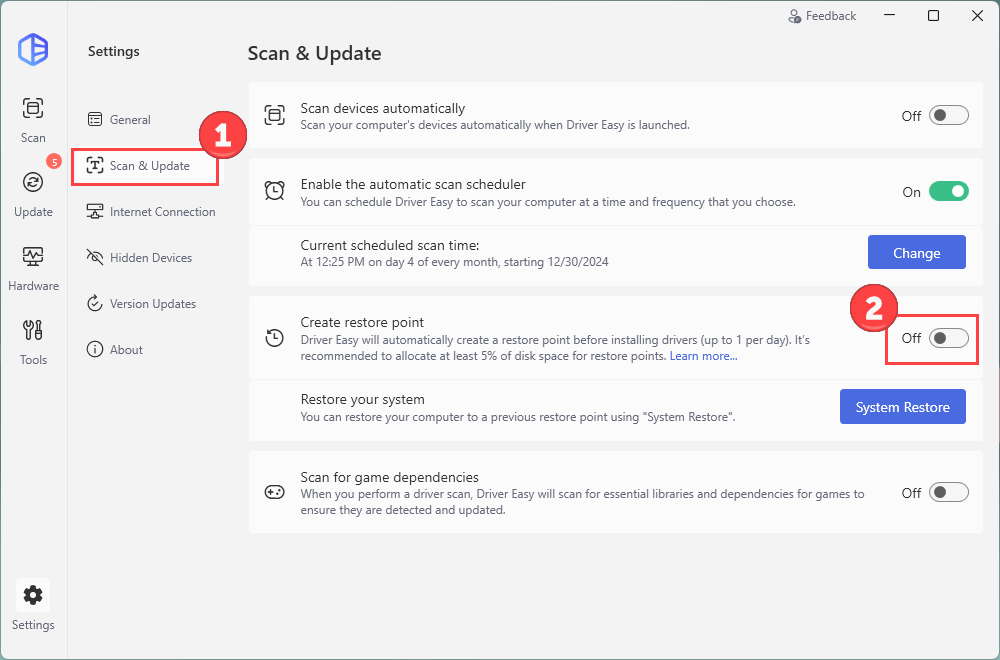
2) Navigate to Scan & Update, turn off the toggle next to Create restore point. The changes will be automatically saved.
3) Restart Windows OS.
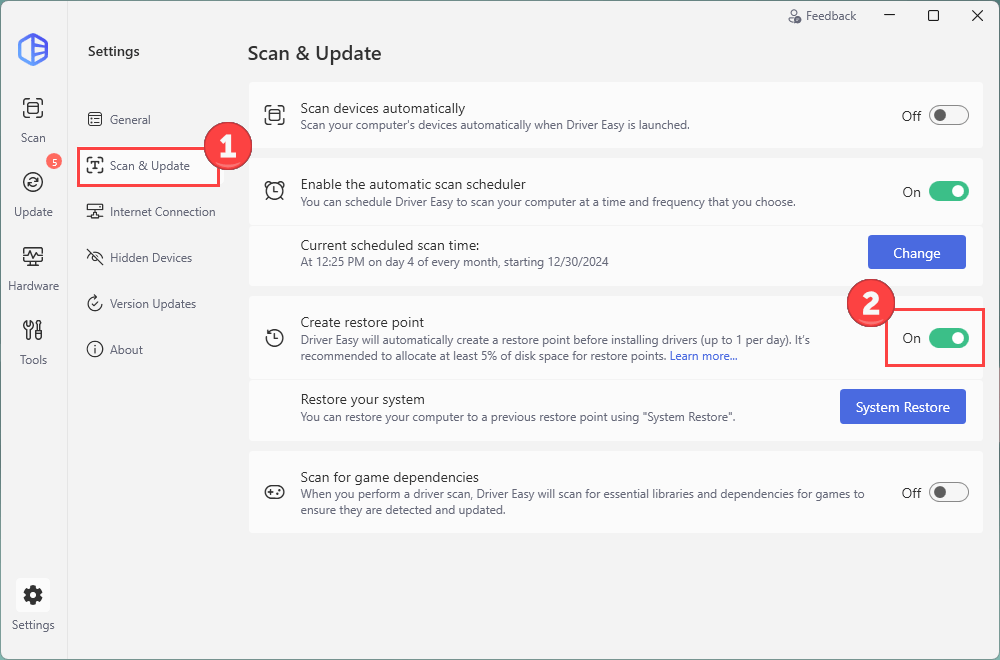
4) Open Driver Easy, go to Settings > Scan & Update, turn on the option that was turned off in step 2.
5) Try updating drivers using Driver Easy again.
The error message doesn’t contain “RestorePointer”
If the error message doesn’t contain “RestorePointer”, please send feedback to us using the Driver Easy feedback tool. If you don’t know how to do it, you can refer to the post: Send Feedback.