You can schedule a scan task so Driver Easy will automatically scan your computer at a certain time. To do so:
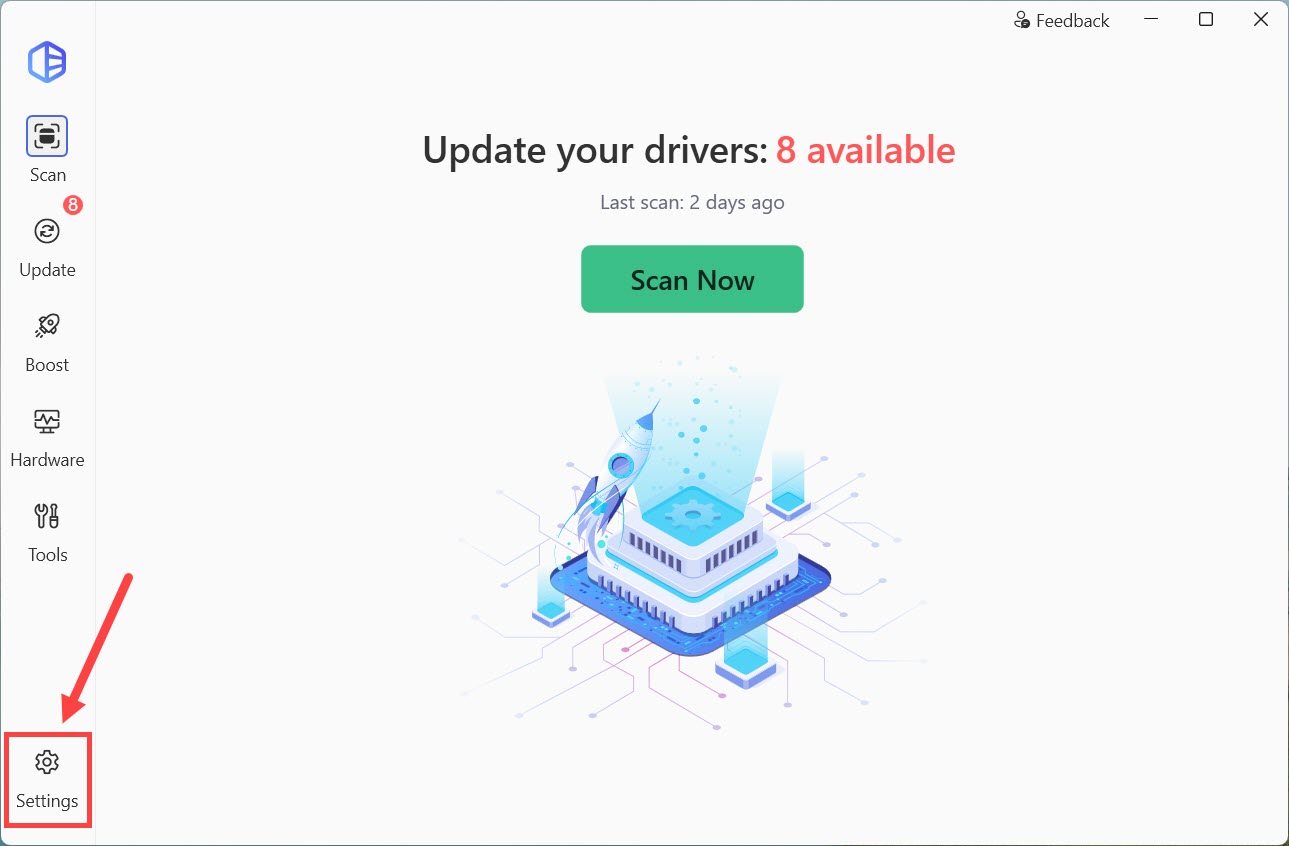
1) Open Driver Easy and click Settings in the bottom-left corner.
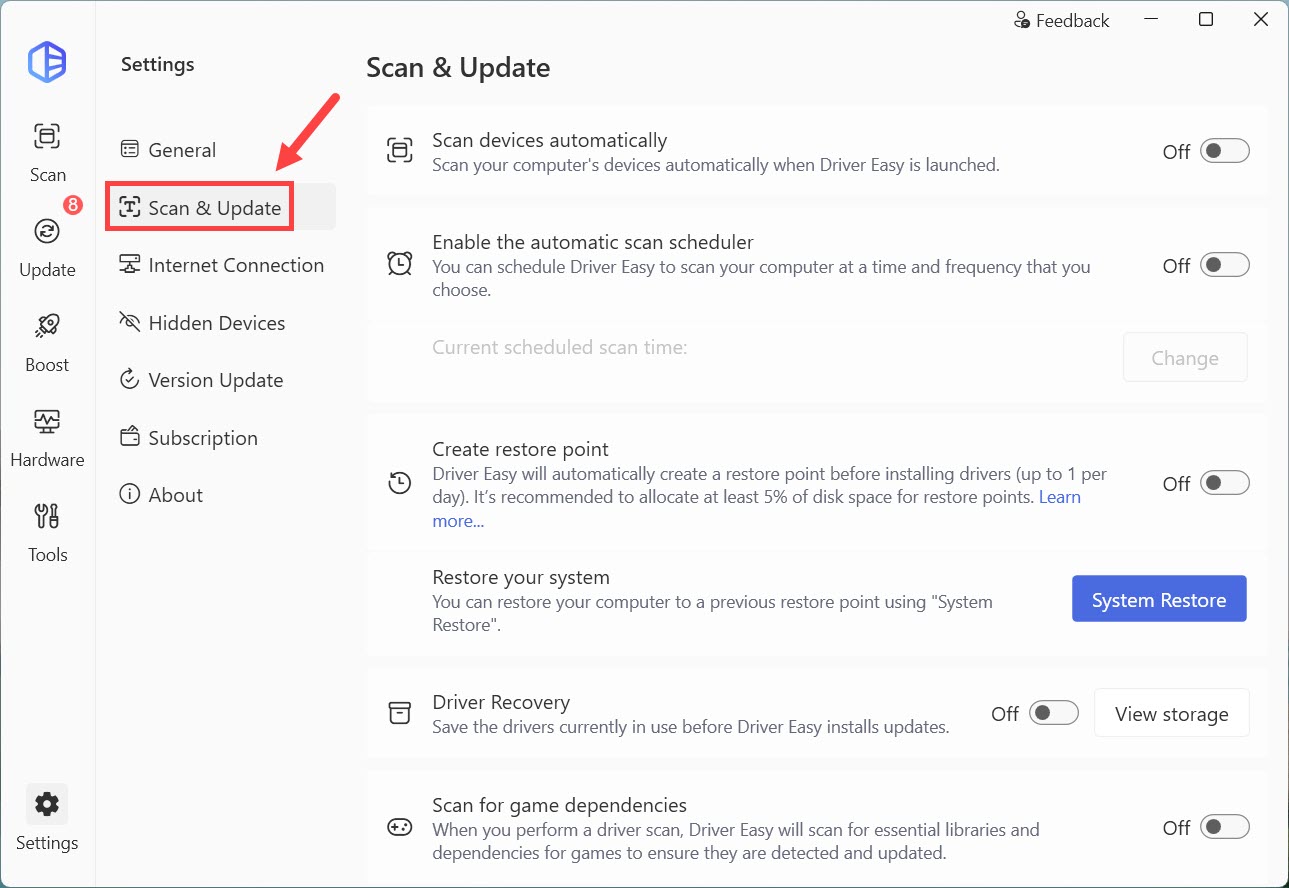
2) Click Scan & Update from the left pane.
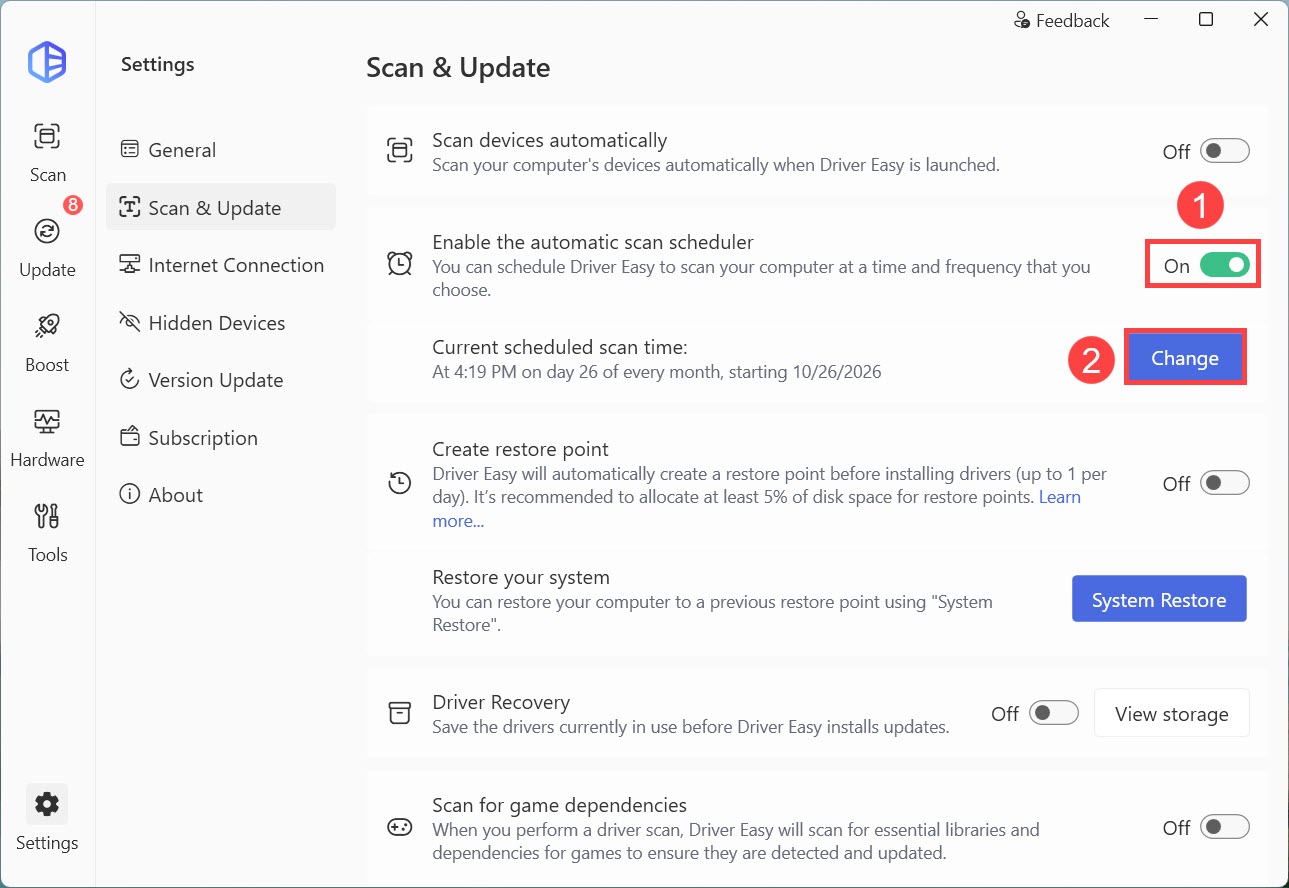
3) Make sure to toggle on Enable the automatic scan scheduler. If you want to change the scheduled scan time, click the Change button.
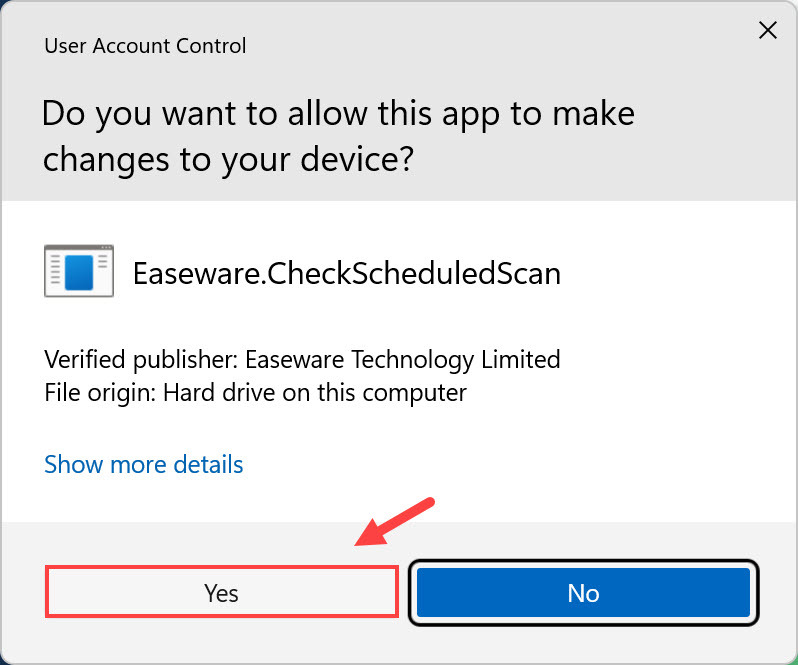
4) Click Yes if you’re asked to allow this app to make changes to your device.
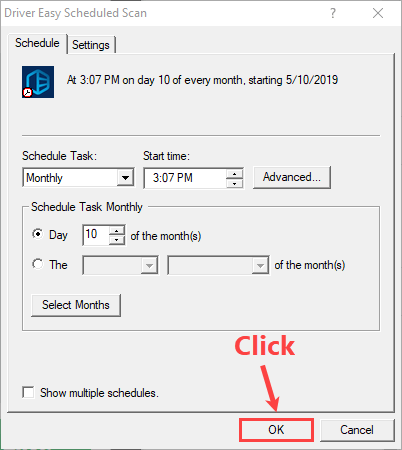
5) Configure the settings of this scheduled scan task. Then click OK.
In addition, you can open Task Scheduler on your computer to manage or update the task. Here’s how:
- Open Task Scheduler on your computer.
- Click Task Scheduler Library in the left panel and you’ll find all tasks in the middle area.
- If you want to delete the task, you can select it and click Delete in the right.
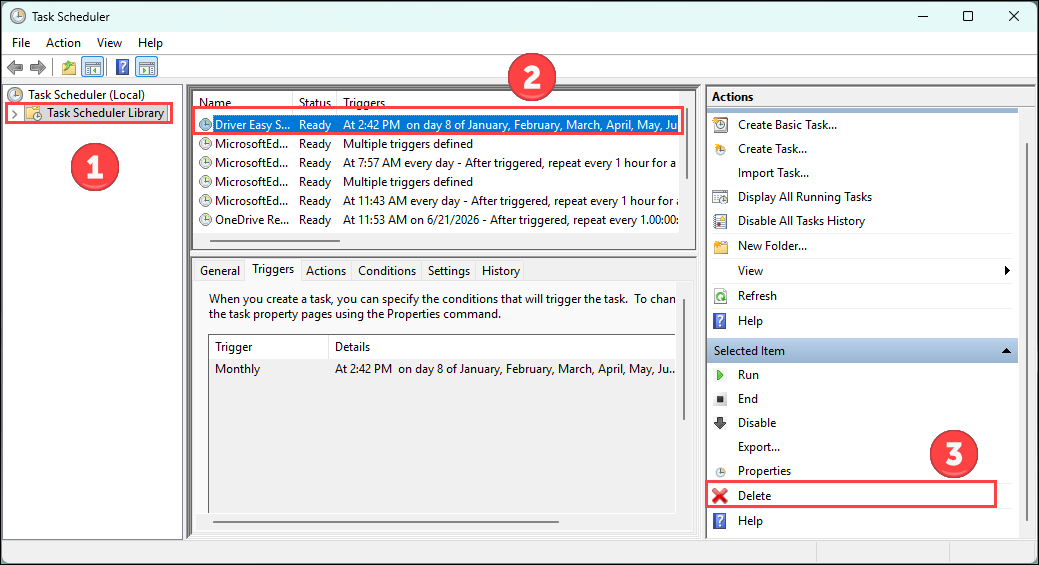
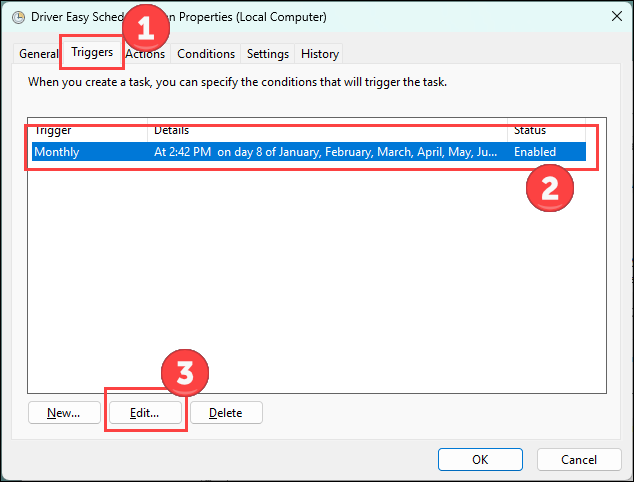
- If you want to update scheduled time, right-click the task, and select Properties. Then go to Trigger tab, select one trigger, and click Edit.