







You can view driver update history easily within the app after updating drivers. Read this step-by-step guide to learn how to do it.
- Open Driver Easy.
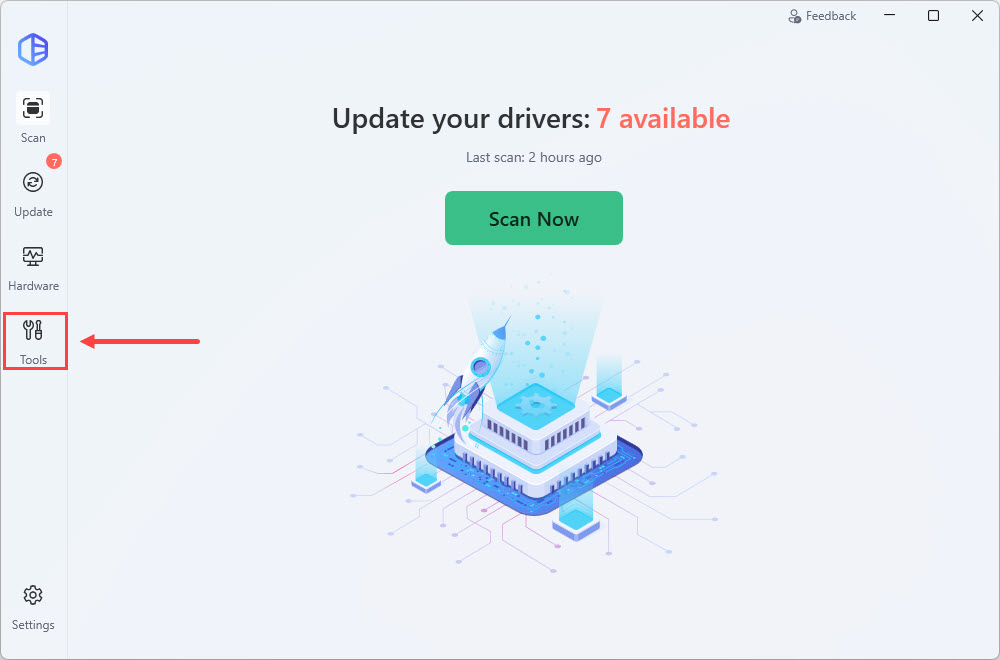
- Click Tools in the side bar.
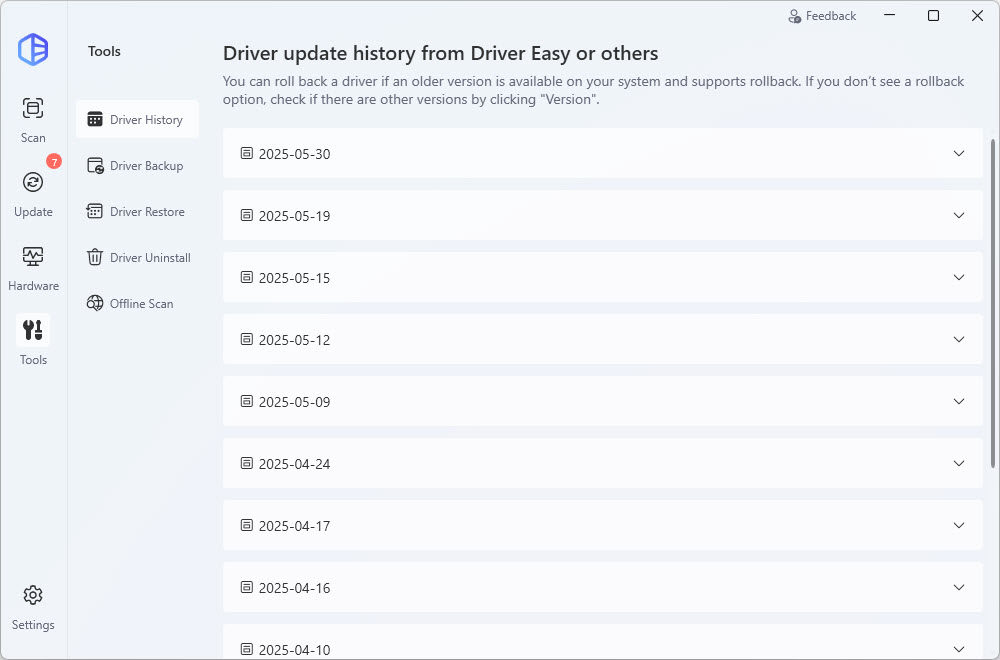
- You’ll see the driver update history displayed in the timeline.
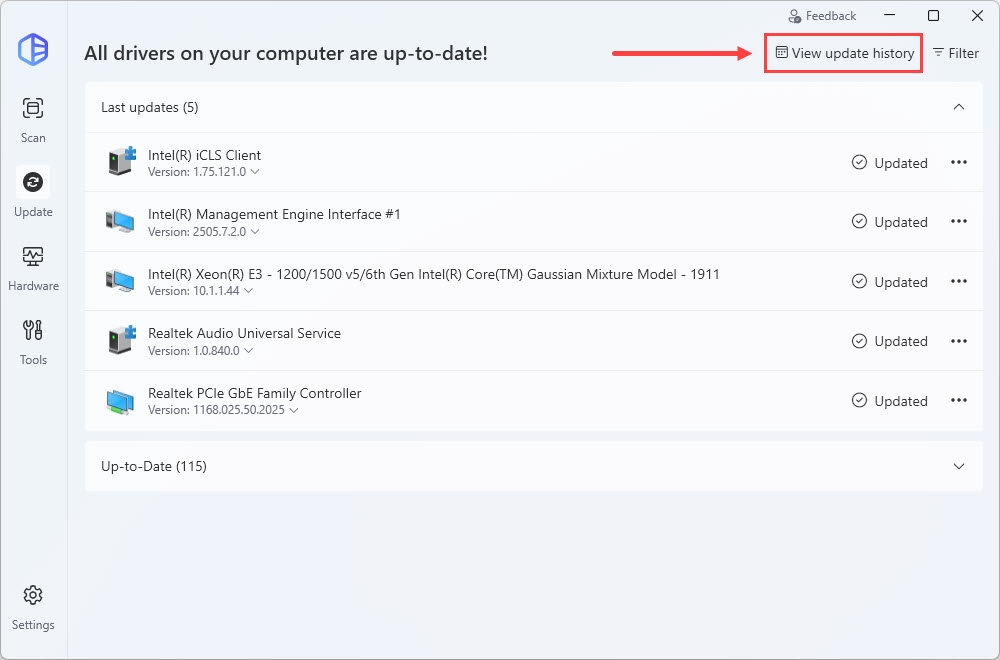
Note: You can also access the Driver Update History screen after you updated all drivers on your computer.
In the Driver History screen, Pro users can click the ellipsis icon and select Export last record to export the last driver update record to a .txt file.
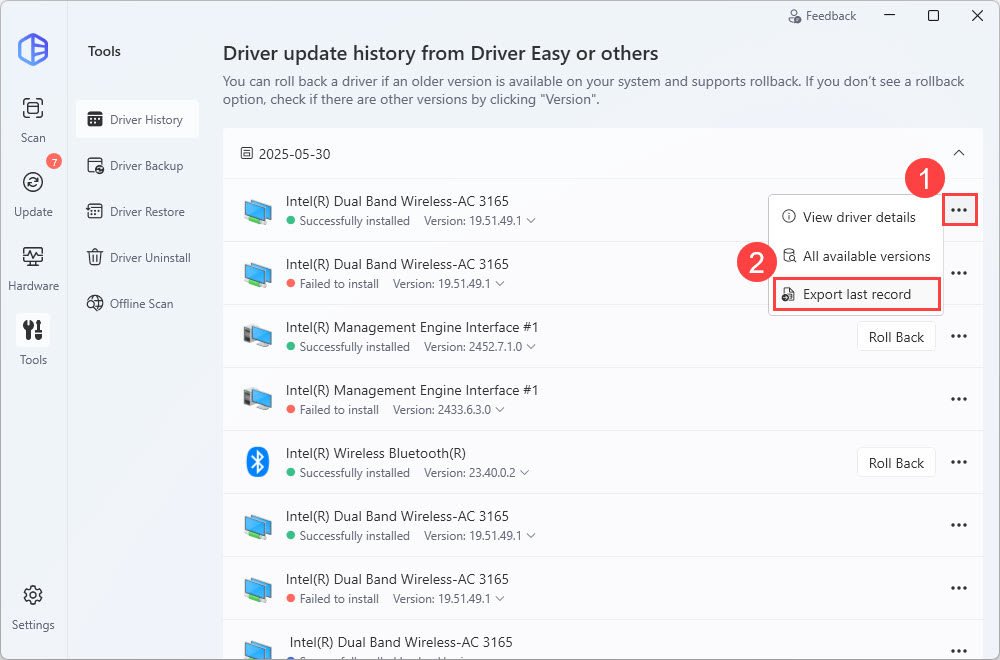
If you want to roll back a driver to its previous version, you can click the Roll Back button next to it. The rollback feature is only available to Pro users.
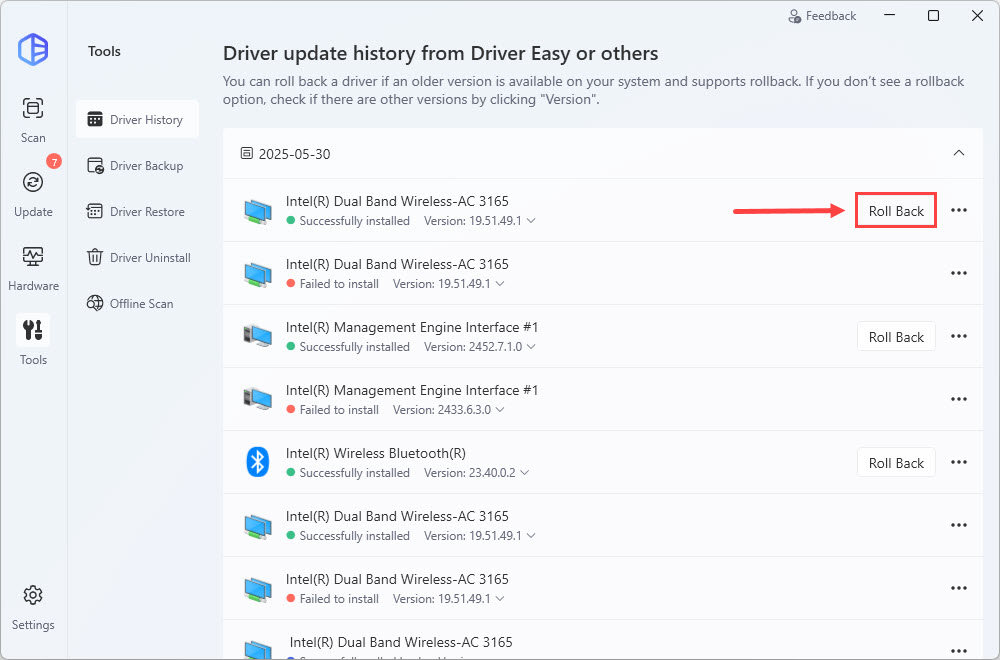
For more information about the driver roll back feature in Driver Easy, please refer to the guide below: