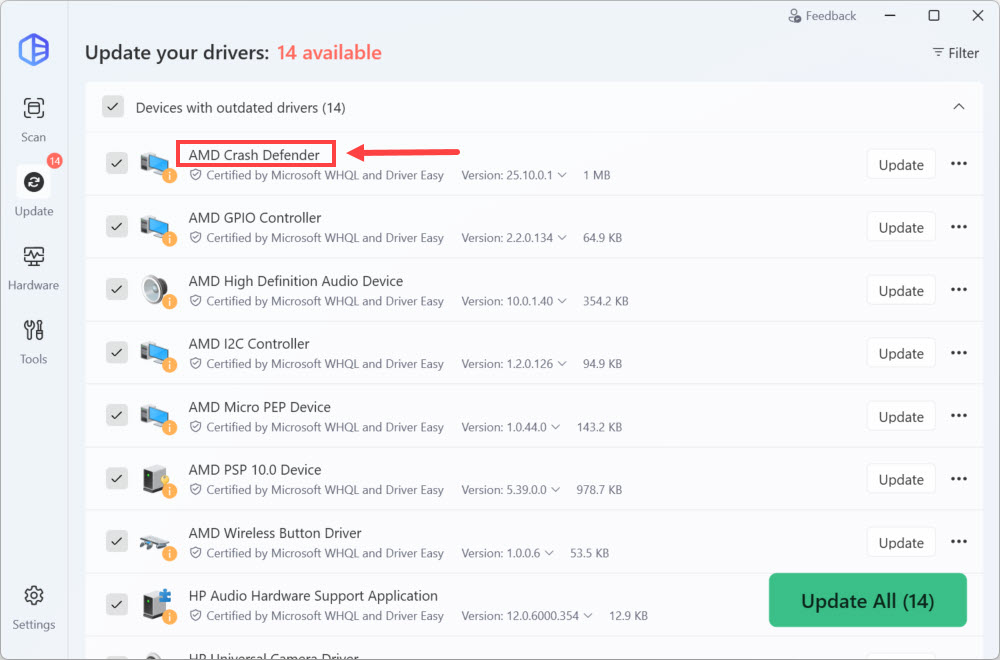
You can choose to hide a driver update so you won’t see it after you scan your computer with Driver Easy. You can also choose to show your hidden updates whenever you like.
To hide a driver update:
- Scan your computer with Driver Easy or click the Update screen.
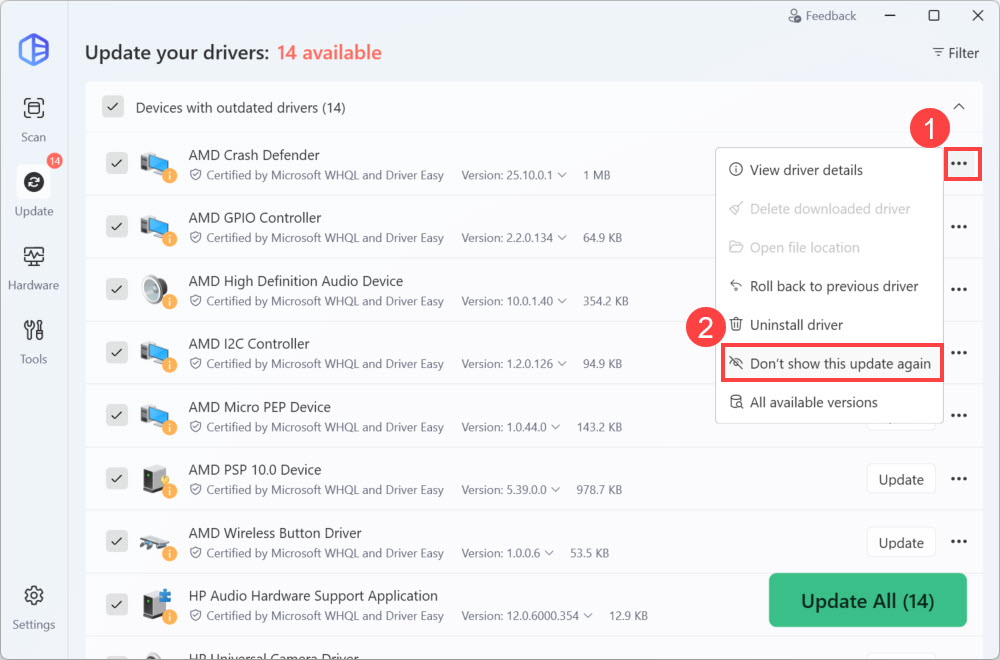
- Click the ellipsis icon next to the Update button of a driver that you want to hide, then select Don’t show this update again.
- Click Yes when prompted.
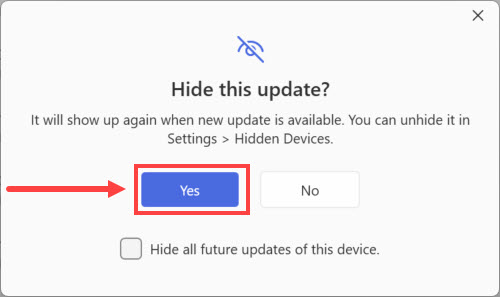
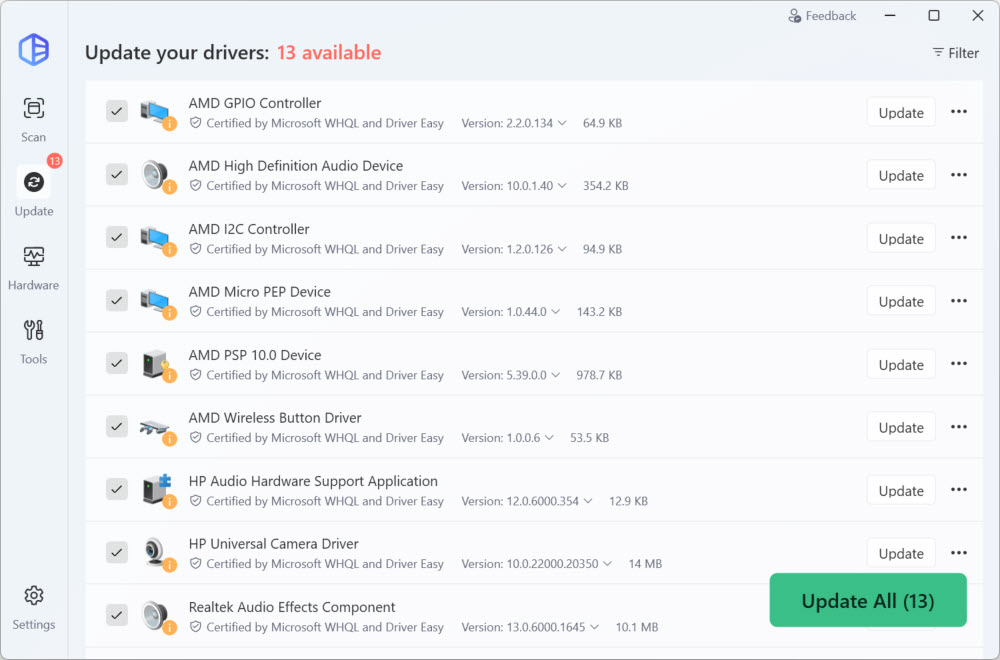
Note: You can check the box next to Hide all future updates of this device to stop future updates for this driver. Otherwise, it will occur again when a new version is available. - Now you’ve hidden this update.
To show all hidden updates:
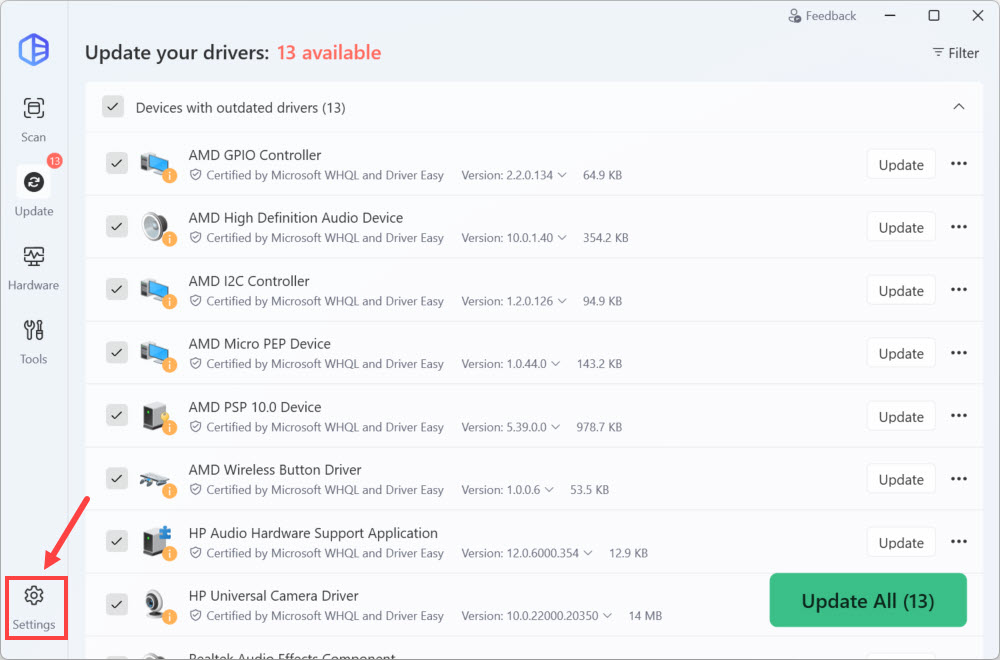
- In Driver Easy, click Settings.
- Click Hidden Devices, check the box next to the devices you want show and click Show Hidden Devices.
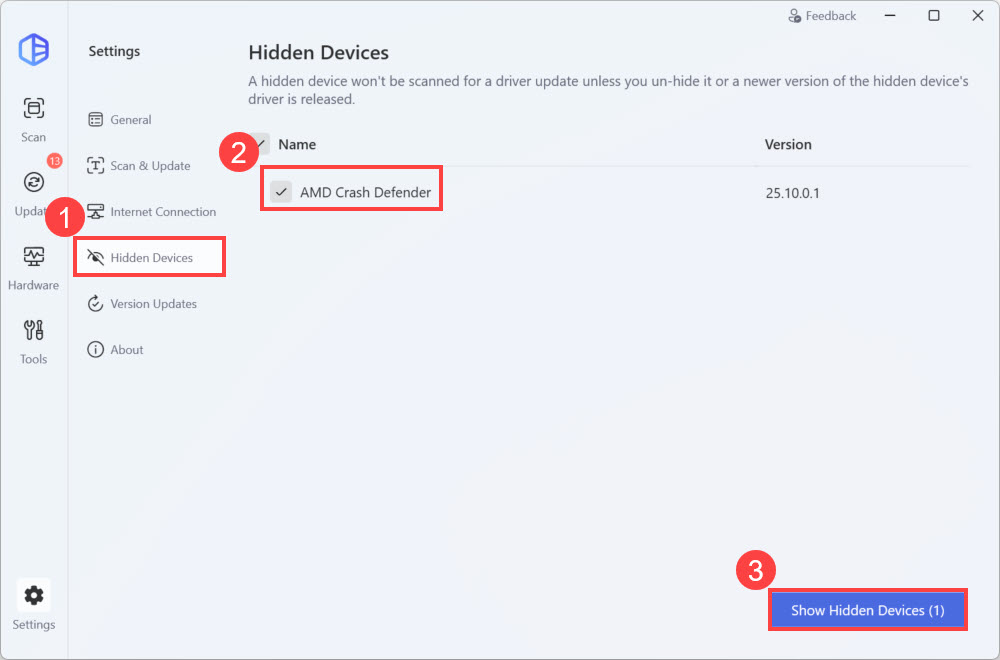
Now all hidden devices are displayed again.