
If Driver Easy shows “Download failed — not installed,” it means the driver files could not be downloaded. Installation did not begin for that item.
Please follow the steps below to troubleshoot this issue.
Table of contents
Step 1: Verify license key
Firstly, please check if you’re a verified Pro user. Here’s how:
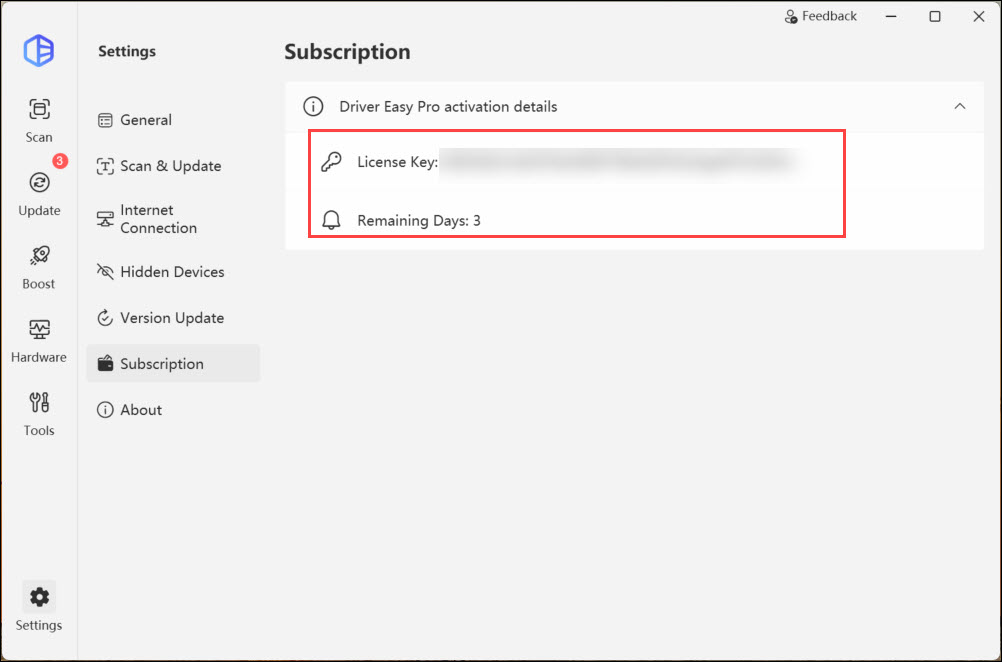
- Open Diver Easy. Then click Settings > Subscription.

- Here you’ll find your license key and its remaining active days.
If you’re using a pirated or cracked version of Driver Easy like UZ1, your error message may shows “HTTP=418“.
A pirated or cracked version may expose your computer to severe security and stability risks:
- Malware and Virus Infections: Crack files and keygens are frequently bundled with hidden trojans, ransomware, or spyware that can immediately compromise your entire operating system.
- System Crashes (BSOD): Pirated versions may download and install incorrect, outdated, or tampered drivers. This directly causes hardware conflicts, severe system freezes, and Blue Screen of Death (BSOD) errors.
- Data and Privacy Theft: Compromised software often opens network backdoors in your system, allowing attackers to silently steal your personal files, passwords, and banking information.
- No Legitimate Updates or Support: Cracked software blocks connections to official servers to prevent license verification. This means you will not receive legitimate, verified driver updates, and you cannot access technical support if your hardware fails.
In such a case, the Driver Easy support team will not offer technical support for users with a pirated or cracked version of Driver Easy. It’s also recommended to use the official version from our website. You can find all our subscription plans and prices here: https://www.drivereasy.com/buy.php
If you’re a verified Pro user, please move to the next step.
Step 2: Retry the download
Please run an Internet speed test to make sure your network works well. After that, try to delete the old files and update them again:
- Press the Windows key and X at the same time and click Run. Paste the following into the pop-up dialog box and click OK.
%USERPROFILE%\AppData\Roaming\Easeware\DriverEasy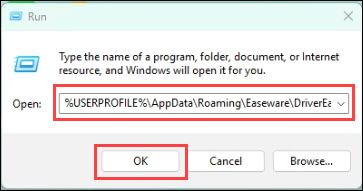
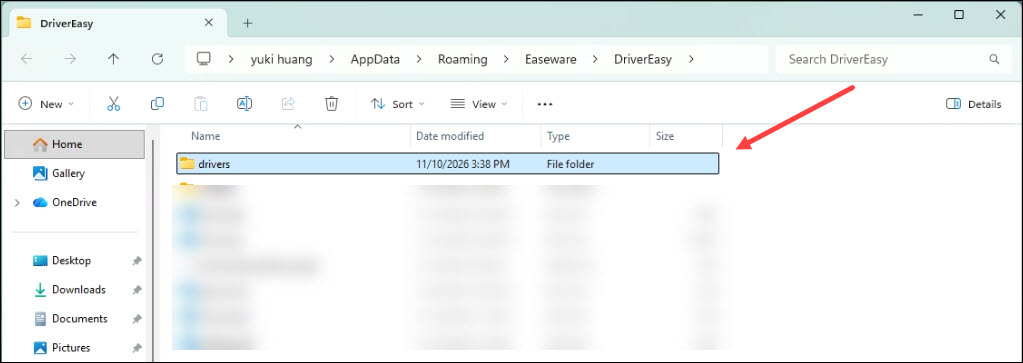
- If you see two folders called drivers and all_version_drivers, delete them all. (Please make sure that the Driver Easy software is closed when doing this step)
- Relaunch the DriverEasy software, run a new scan and install the driver again.
If the problem persists, please check the next step.
Step 3: Check network connection
If you use a VPN, try temporarily switching it to enable or disable based on your current situation.
Also, check whether security software is blocking the download. Review any notifications or blocked-connection records for Driver Easy. Temporarily disable them to see if the problem can be fixed.
Note that sometimes the download service may be temporarily unavailable when many users download at the same time. You can try again later.
If none of the above helps, test your Driver Easy download connection like the following:
- Press the Windows key and R at the same time, type cmd, and hit Enter.
- Copy and paste ping dow2.drivereasy.com and hit Enter.
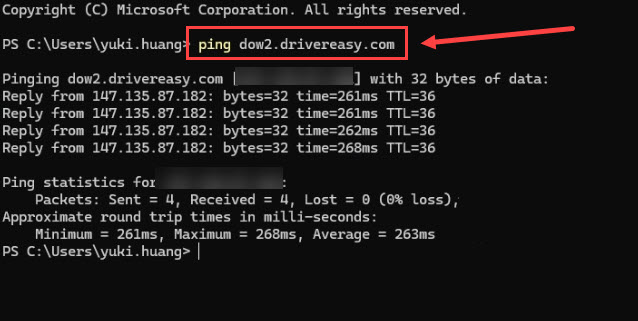
- Take a screenshot of the result and email it to support@drivereasy.com
HResult=0x80070027
If your error message contains “Type=IOException; HResult=0x80070070”, it may indicate that you don’t have enough disk space to download the driver files.
Once you confirm that you’re using the default download path, C:\Users\…\AppData\Roaming\Easeware\DriverEasy\drivers\…, you can free some space on Drive C to see if it helps. If you have changed the download path, apply this fix in that Drive accordingly.
None of the above helps…
Please contact our support team following the steps below:
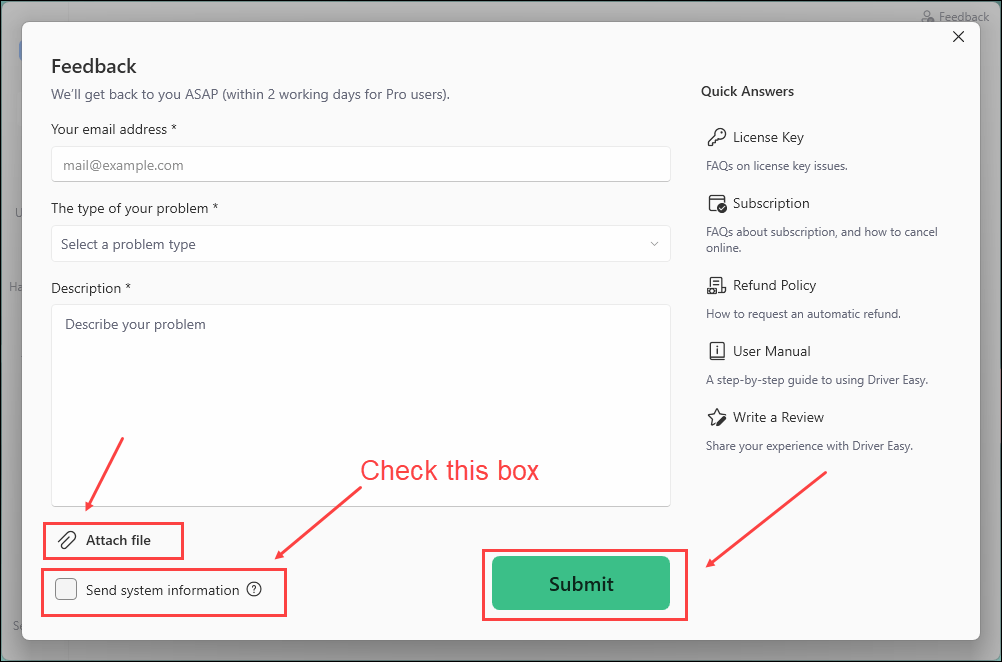
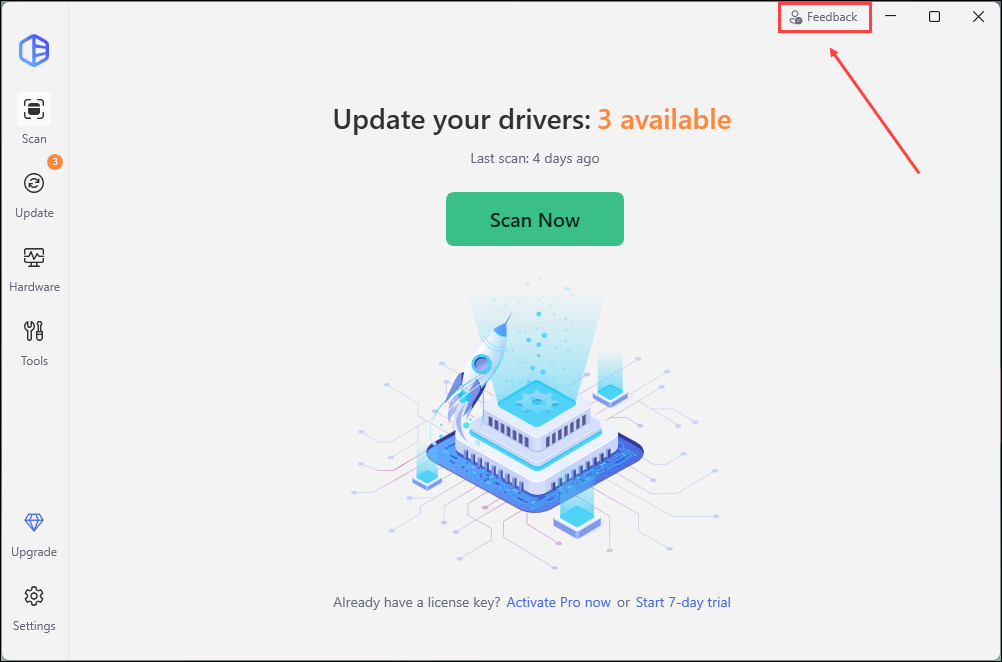
1) Open Driver Easy and click Feedback in the upper-right corner.
2) Fill in the form. Please tell us what problem(s) you’re having with Driver Easy and what you did before and after the problem in detail.
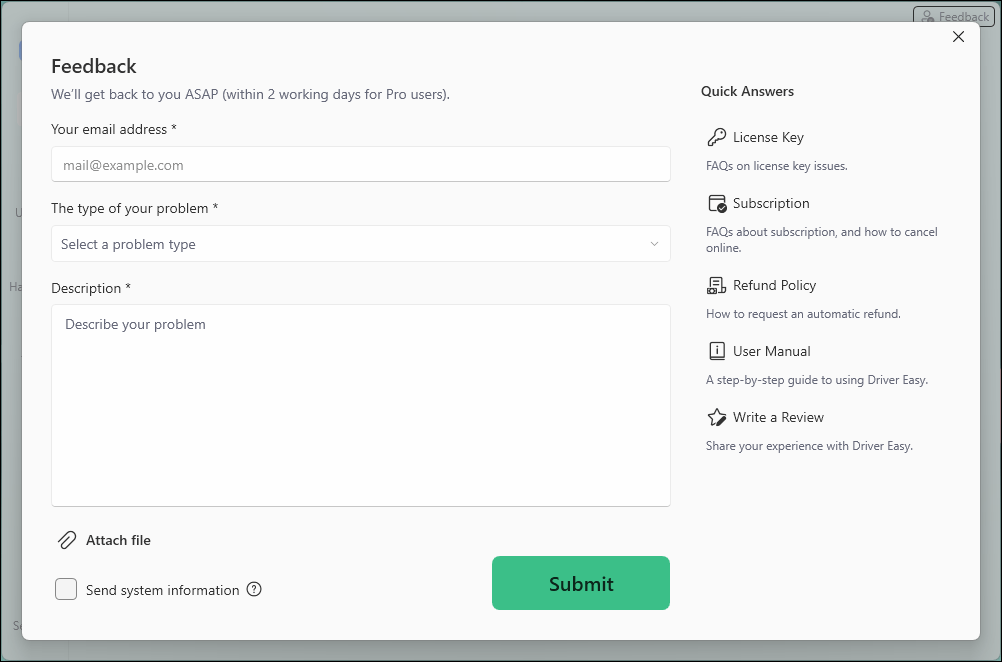
3) If you got any error message or had technical problem, a screenshot of the error and your system information would be greatly appreciated. You can check the box Send system information and click Attach file to upload the screenshot. Click Submit to send your feedback to us.