


Driver Easy AI Support helps troubleshoot driver installation problems on your Windows PC. With your permission, AI can connect remotely, investigate the issue, and perform the troubleshooting steps outlined in your approved support request.
Here are more details about this feature and how you can use it easily.
What can AI Support help with?
AI Support currently focuses on driver installation problems in Driver Easy. Depending on your issue, it may:
- Check device information and system logs.
- Investigate why a driver installation failed.
- Install or reinstall a driver.
- Roll back a driver to an earlier version.
Our technical support team reviews your issue first. Once you agree to use AI remote support, they prepare a support request that explains the troubleshooting goal and the actions planned for your session.
AI Support is currently an invitation-only pilot for users with a valid Driver Easy Pro license. Driver-related support is free during the pilot. If you’re experiencing other PC issues, contact our support team to ask whether it can be considered for testing.
How is AI Support different from regular Driver Easy updates?
Regular Driver Easy updates help you find, download, and install drivers. AI Support provides additional troubleshooting when an installation fails or doesn’t go as expected.
With your permission, AI can investigate the specific problem and take action on your PC within the scope of your approved support request. This requires a separate remote support session.
How to get started
Follow these steps to start an AI Support session.
1. Request AI Support
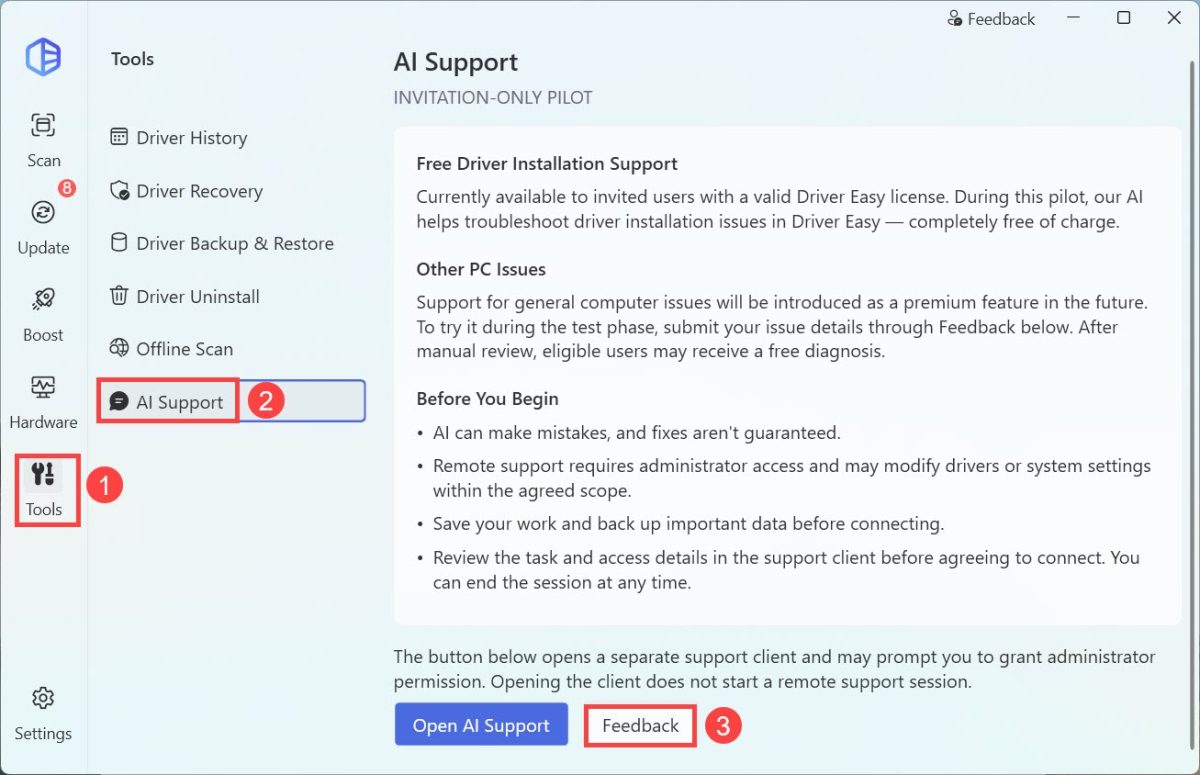
If you would like to use AI Support to resolve any driver-related issues, you can open Driver Easy, then go to Tools > AI Support, and click Feedback.
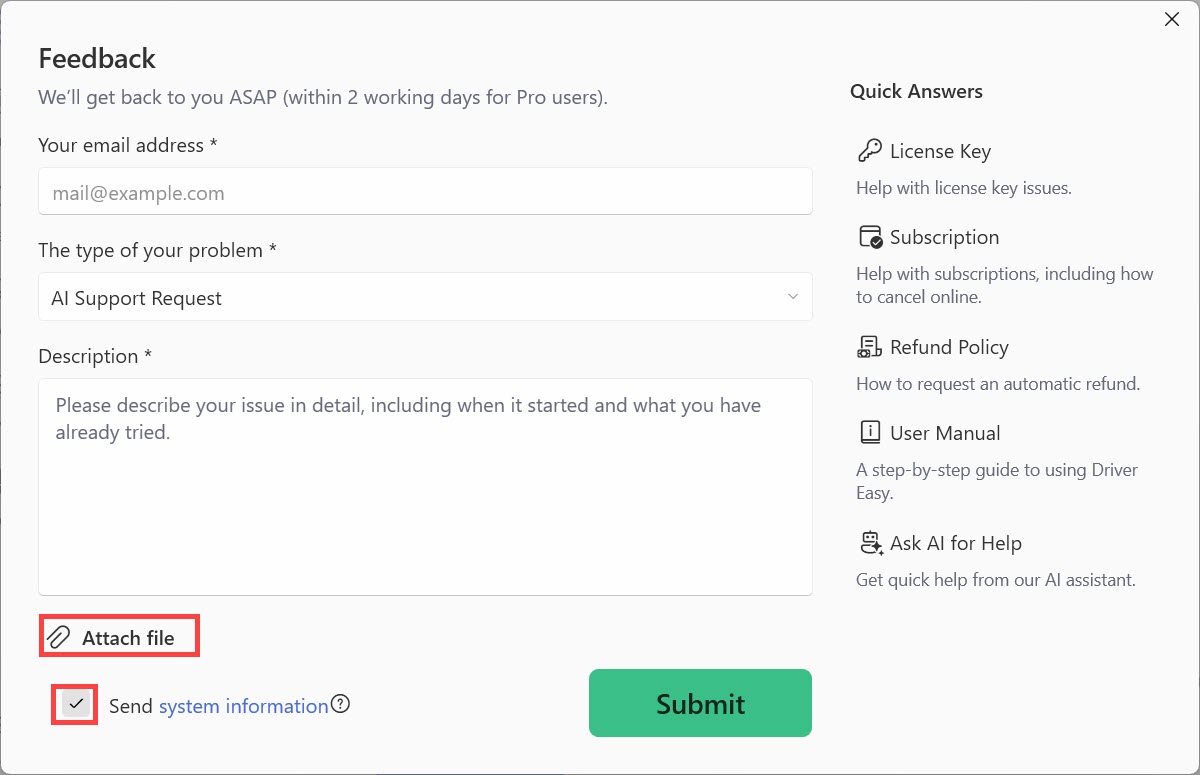
Simply describe the problem or any error message you’ve received and send the feedback. Our team will review your issue and let you know whether AI Support is available for your case. It’s recommended that you attach a screenshot of the error (if any) and tick Send system information.
2. Prepare your PC for AI Support
If AI Support is available for your case, you can start preparing your PC for the AI remote session.
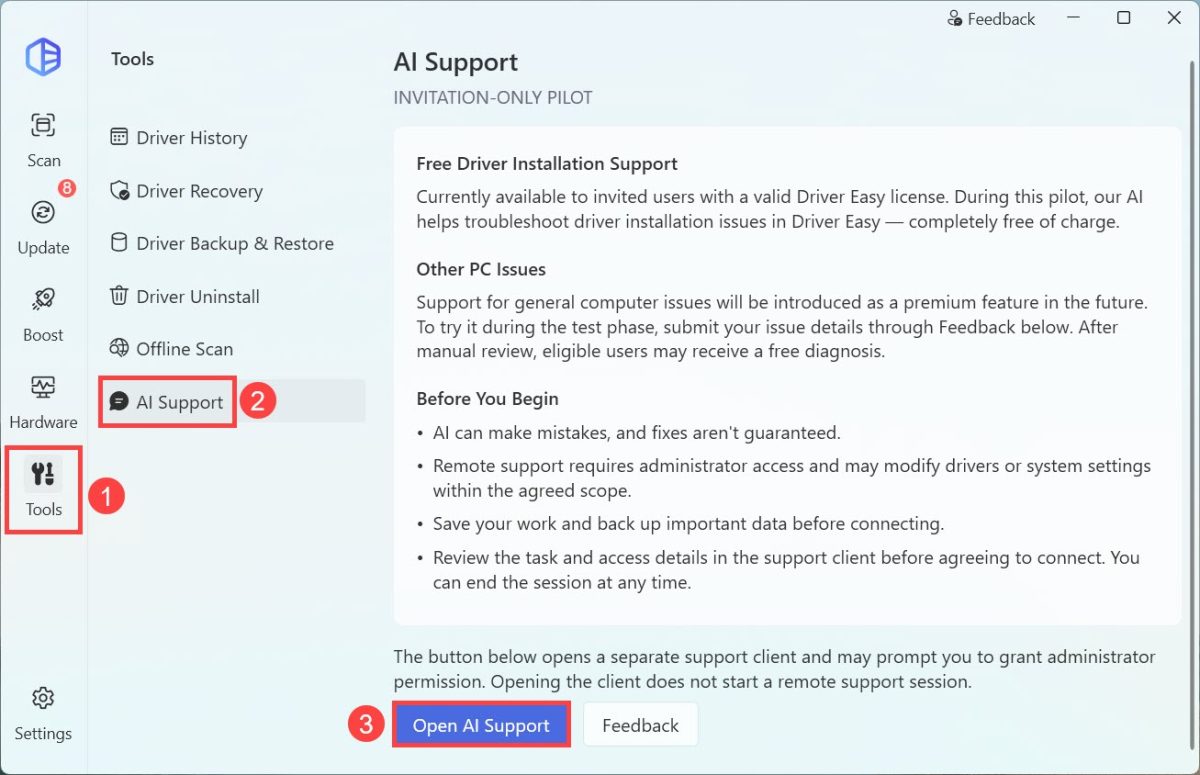
1) Open Driver Easy, then go to Tools > AI Support and select Open AI Support.
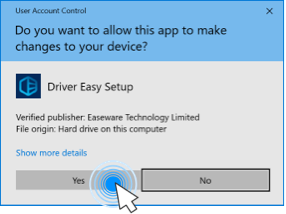
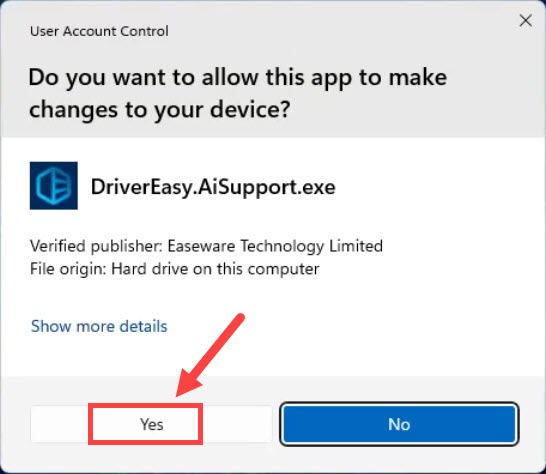
2) When you’re asked for permission, click Yes.
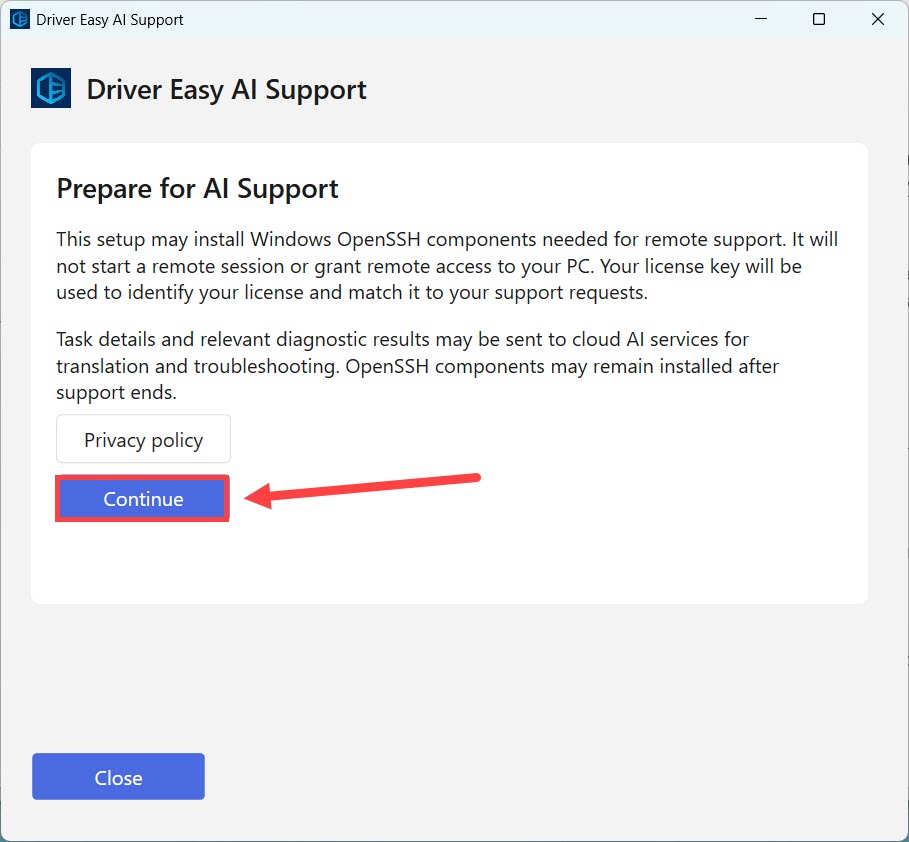
3) Read the setup notice and select Continue.
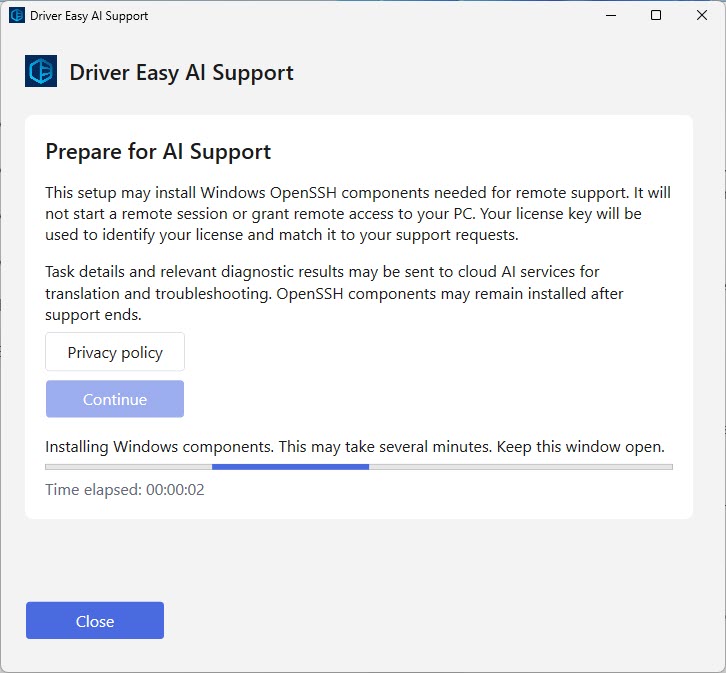
4) Driver Easy then starts checking for and installing the Windows OpenSSH components needed for remote support. This process may take several minutes, sometimes 10 minutes or longer, depending on your internet connection and Windows installation. Keep your PC online and leave the support window open.
3. Find and review your support request
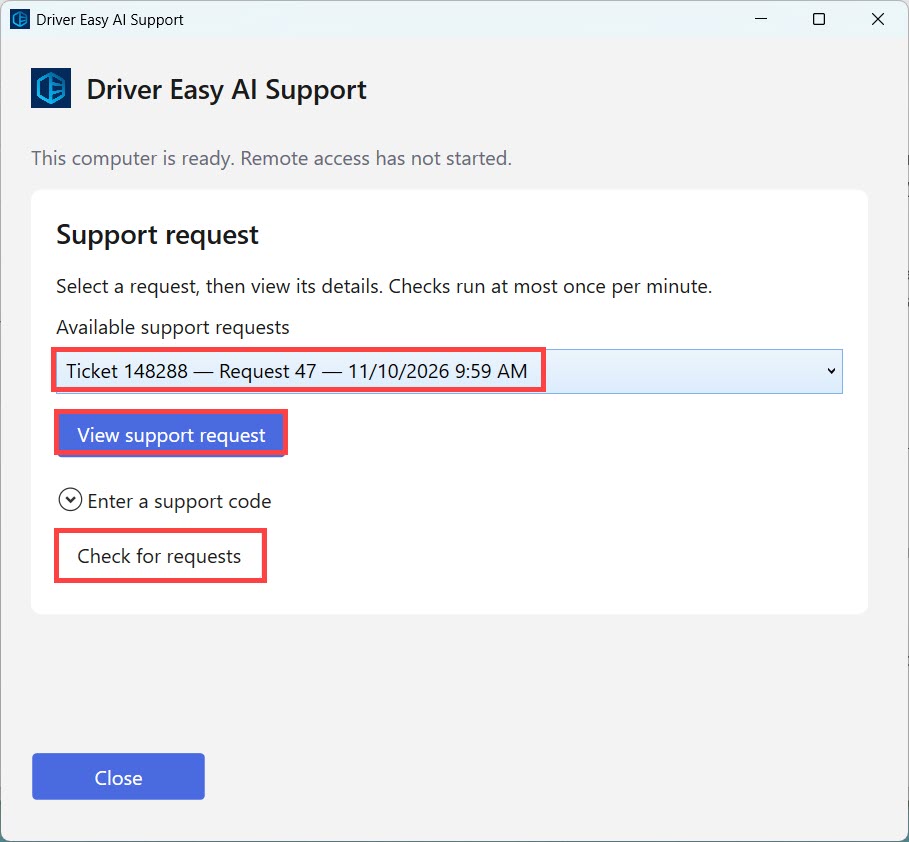
Once the preparation is completed, you’ll see the Support Request screen.
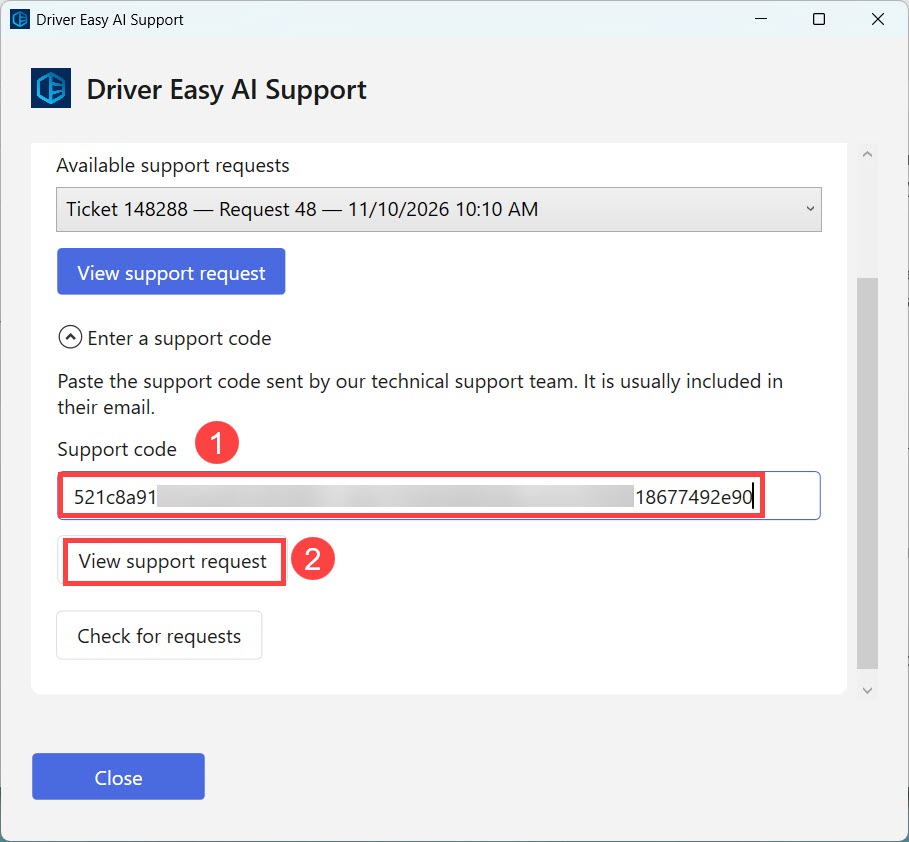
Under Available support requests, select the request and click View support request. You can also click Check for request to refresh it.
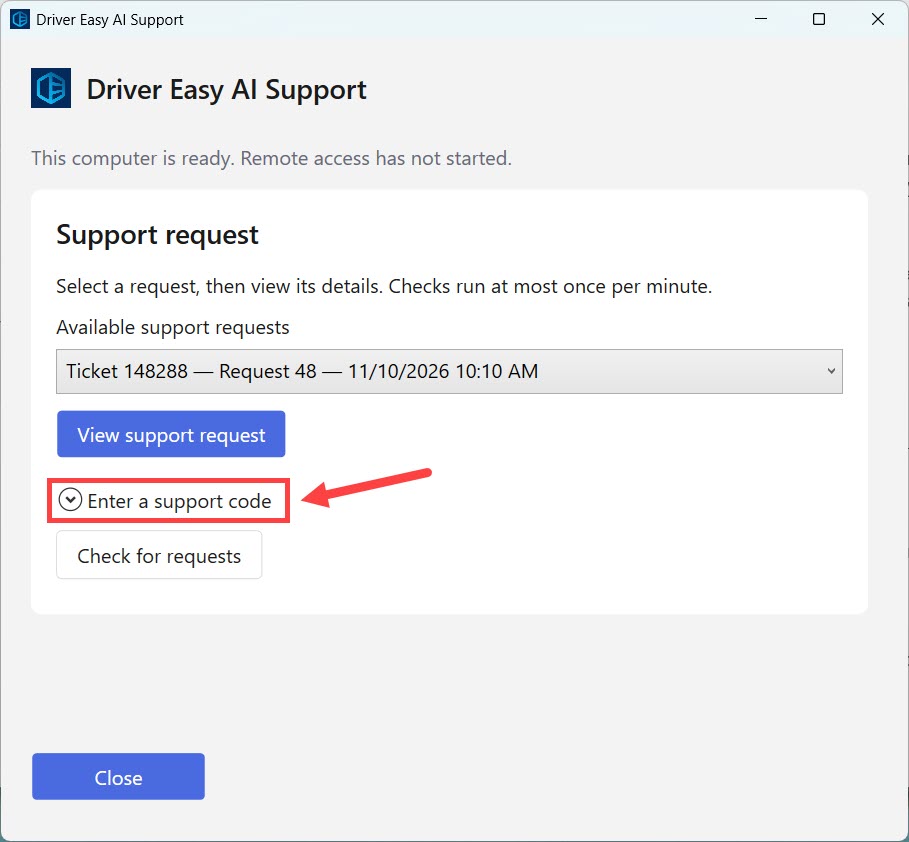
Alternatively, enter the support code provided by our support team and select View support request.
Carefully review the request, including:
- The troubleshooting goal and permitted actions.
- The connection time limit.
- The access and data notices.
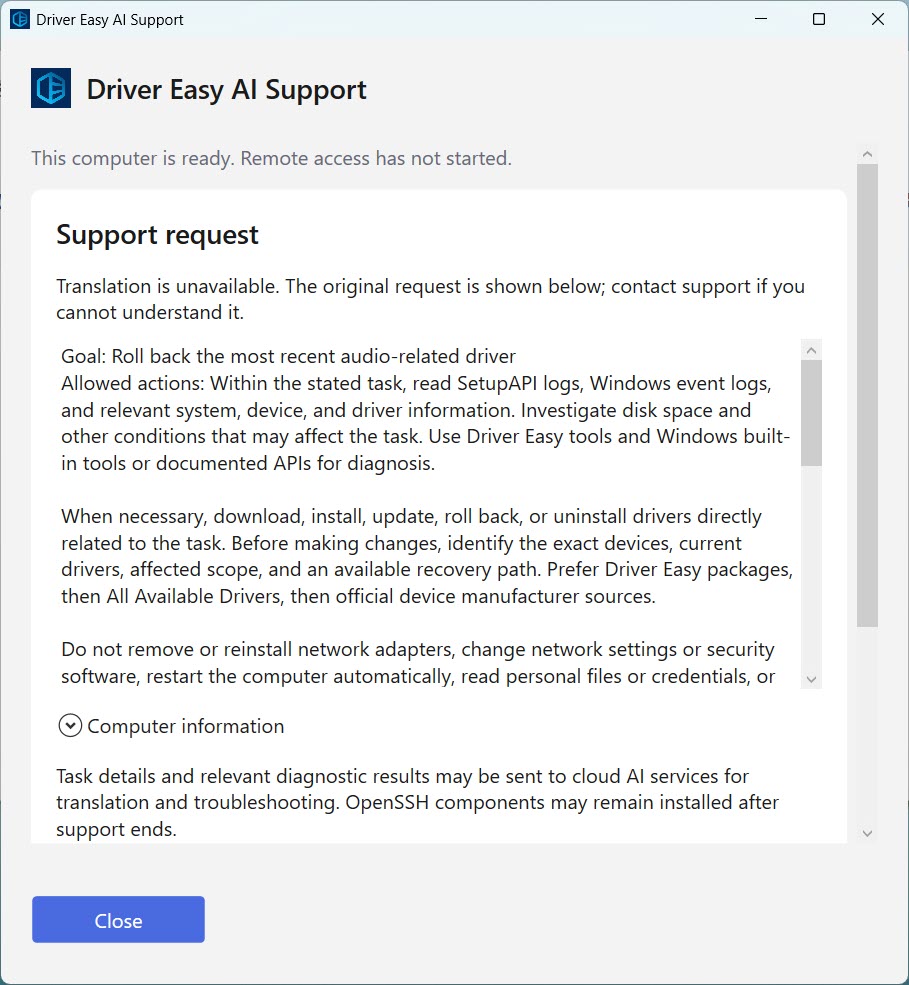
If anything is unclear or doesn’t match your issue, contact our support team before proceeding.
4. Start AI troubleshooting
If you agree to the request, tick the consent checkbox and click Start support.
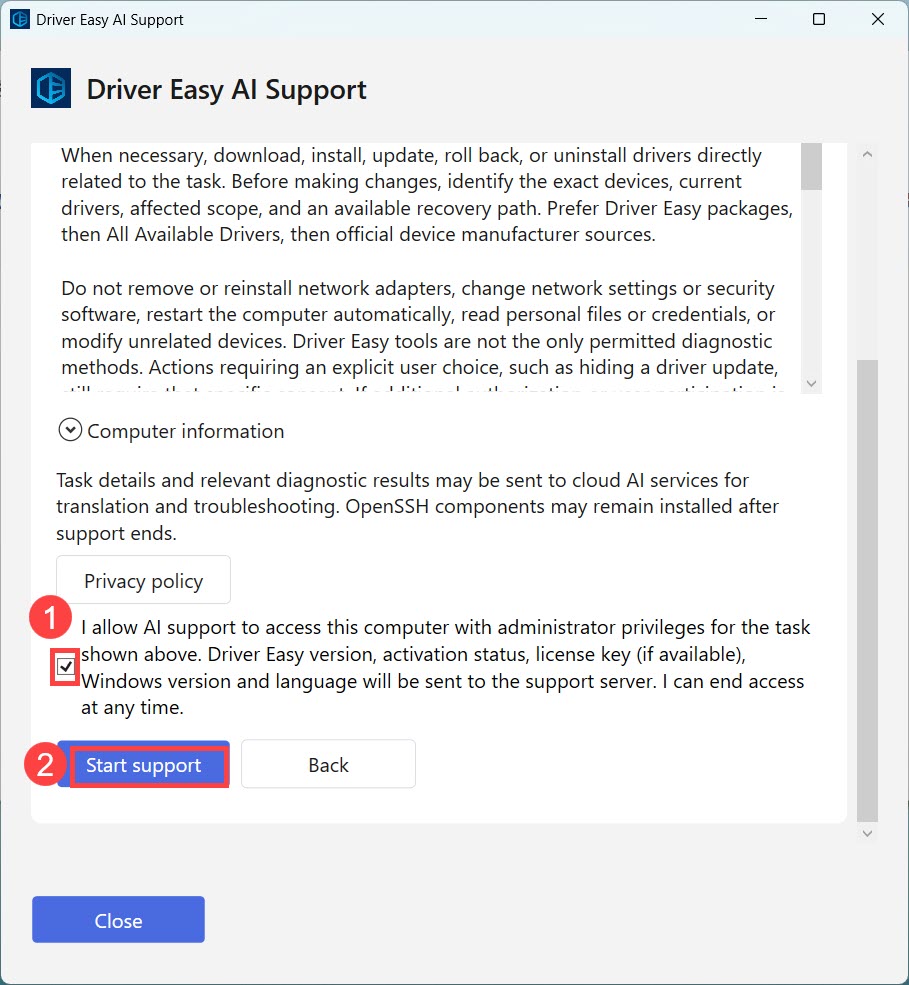
Once connected, AI can begin working on the approved task. Routine actions covered by the request may proceed without requiring your approval at every step.
5. Review the results
Keep the support window open, and you can see how the progress goes. You may be asked to confirm an additional action, check whether a device is working, or save your work before a restart. You can select End support at any time to stop remote access.
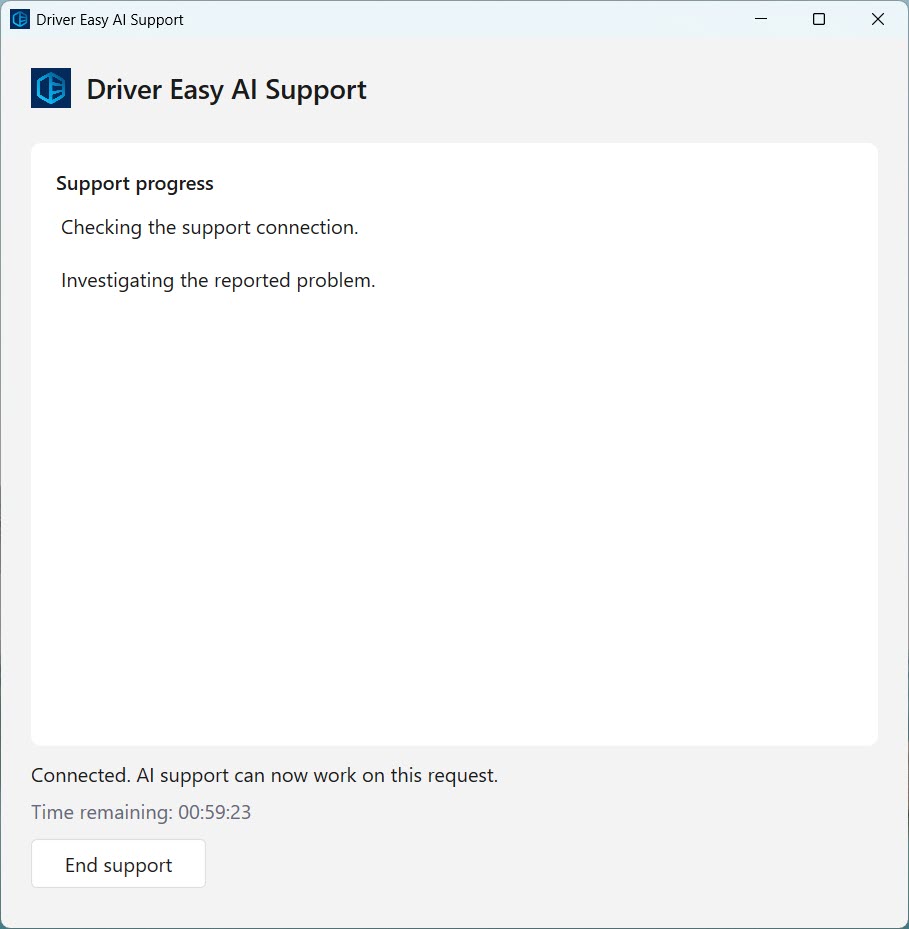
When the session ends, review the support result and follow any remaining instructions, like restarting the PC or testing the affected device or feature.
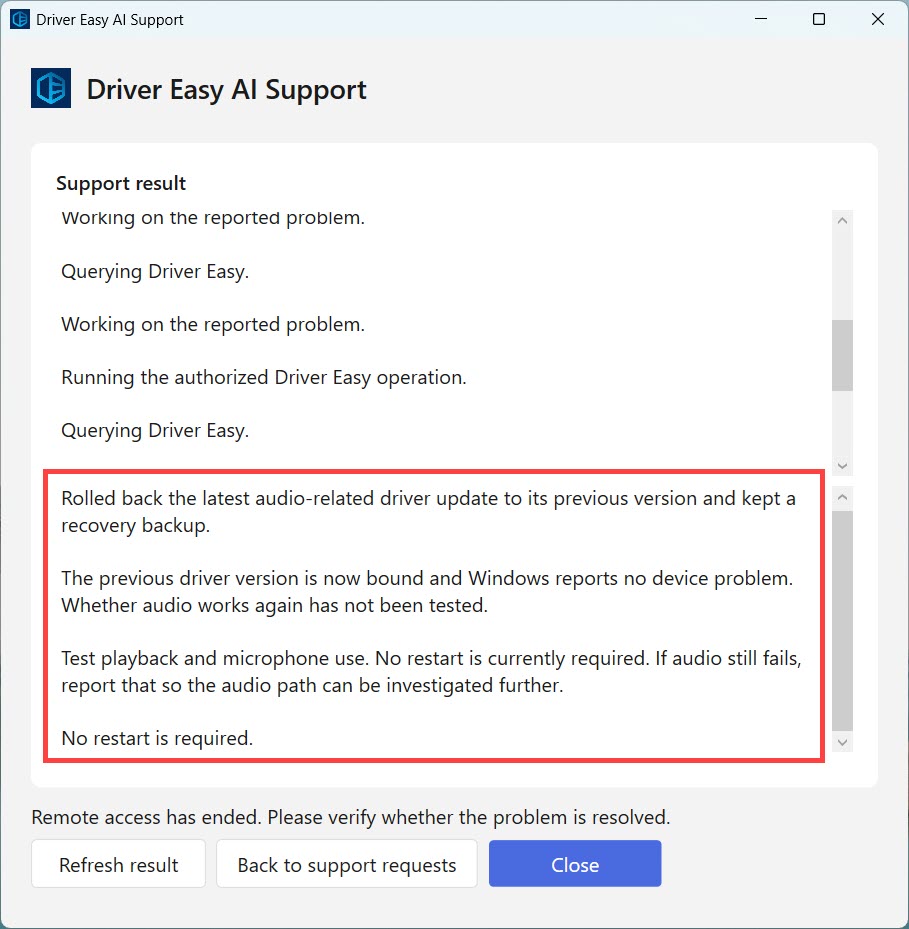
A completed session doesn’t necessarily mean the problem has been fixed.
FAQs
What changes can AI Support make to my PC?
The support request describes the actions planned for your session. These may include installing, reinstalling, or rolling back a driver, as well as making related system changes to troubleshoot the issue.
Keep in mind that administrator access gives the tool broad capabilities on your PC. The approved request defines the agreed scope of work, but it isn’t a technical barrier that prevents access to everything outside that scope.
Review the request carefully before starting. If a proposed action is unclear, contact our support team before agreeing to it.
What information is shared during a session?
The support server receives information needed to identify your license and support request. This may include your Driver Easy version, activation status, license key (if available), Windows version, and system language.
Troubleshooting may also involve relevant device information, system logs, and diagnostic results. Task details and relevant diagnostic results may be sent to cloud AI services for translation and troubleshooting.
Before connecting, review the data notice. Avoid including passwords or unrelated sensitive information in your issue description. You can also learn more about our Privacy Policy.
Can AI Support access my personal files?
AI Support is intended to investigate the technical issue described in your approved request. Unrelated personal content, such as photos and documents, isn’t part of its troubleshooting scope.
However, because the session uses administrator access, personal files aren’t technically inaccessible. If you’re concerned about sensitive information on your PC, discuss this with our support team before starting.
Do I need to share my Windows password?
No. You don’t need to send your Windows password to our support team or the AI.
Windows may ask you to enter administrator credentials locally when opening the tool. Only enter them in the Windows permission prompt, never in your support request or messages.
If you’re using a work or school computer, check with your IT administrator before allowing remote support.
Can I use my PC during a support session?
Stay nearby so you can respond to requests, but avoid installing software, changing drivers or system settings, or restarting your PC while troubleshooting is in progress. Keep your computer awake and connected to the internet.
Will my computer restart?
Some driver changes require a restart. If one is needed during the session, you’ll be asked to save your work and confirm before proceeding. Remote support doesn’t automatically resume after a restart. Follow the instructions provided to reconnect, or contact our support team for the next step.
How long does a support session last?
It depends. The connection time limit is shown in your support request before you start. Once connected, the support window displays the remaining time.
Preparation doesn’t count toward your connection time. Because each session has a fixed time limit, troubleshooting may end before the issue is fully resolved. If you need more help, contact our support team to arrange the next step.
What if preparation takes too long or doesn’t complete?
Preparation may take several minutes, sometimes 10 minutes or longer. Windows may still be downloading or installing the required components.
If preparation takes longer than expected, the tool checks whether the components are ready and proceeds automatically when those checks pass. If preparation can’t be completed and Continue becomes available again, select it to retry the check. Keep using the same support window rather than opening another copy of the tool.
If the same message appears again, contact our support team and include the message shown.
Can I stop remote support at any time?
Yes. Just click End support in the support window and wait for confirmation that remote access has ended.
Ending a session doesn’t undo changes already made. An installation that has already started may also continue after remote access ends. If you see a message that temporary access settings couldn’t be removed, contact our support team before starting another session.
Does anything remain installed after support ends?
Windows OpenSSH components installed during preparation may remain on your PC after the session. Their presence alone doesn’t mean remote support is still active. Driver Easy removes temporary access settings when a session ends normally. If cleanup can’t be completed, the tool displays a message explaining what to do next.
Is AI Support guaranteed to fix my problem?
No. AI can make mistakes, and some issues require further investigation or a different type of support. Driver and system changes may also have unintended effects, so we recommend saving your work and backing up important data before starting.
The final result may indicate that the problem was resolved, needs your verification, remains unresolved, or couldn’t be confirmed.
If the issue persists or something changes unexpectedly, contact our support team with the session result and a description of what you’re experiencing.
Can I get help without using AI Support?
Yes. AI Support is optional. If you don’t want to allow remote access, contact our technical support team to ask about other ways to troubleshoot your issue.